Docusign Integration
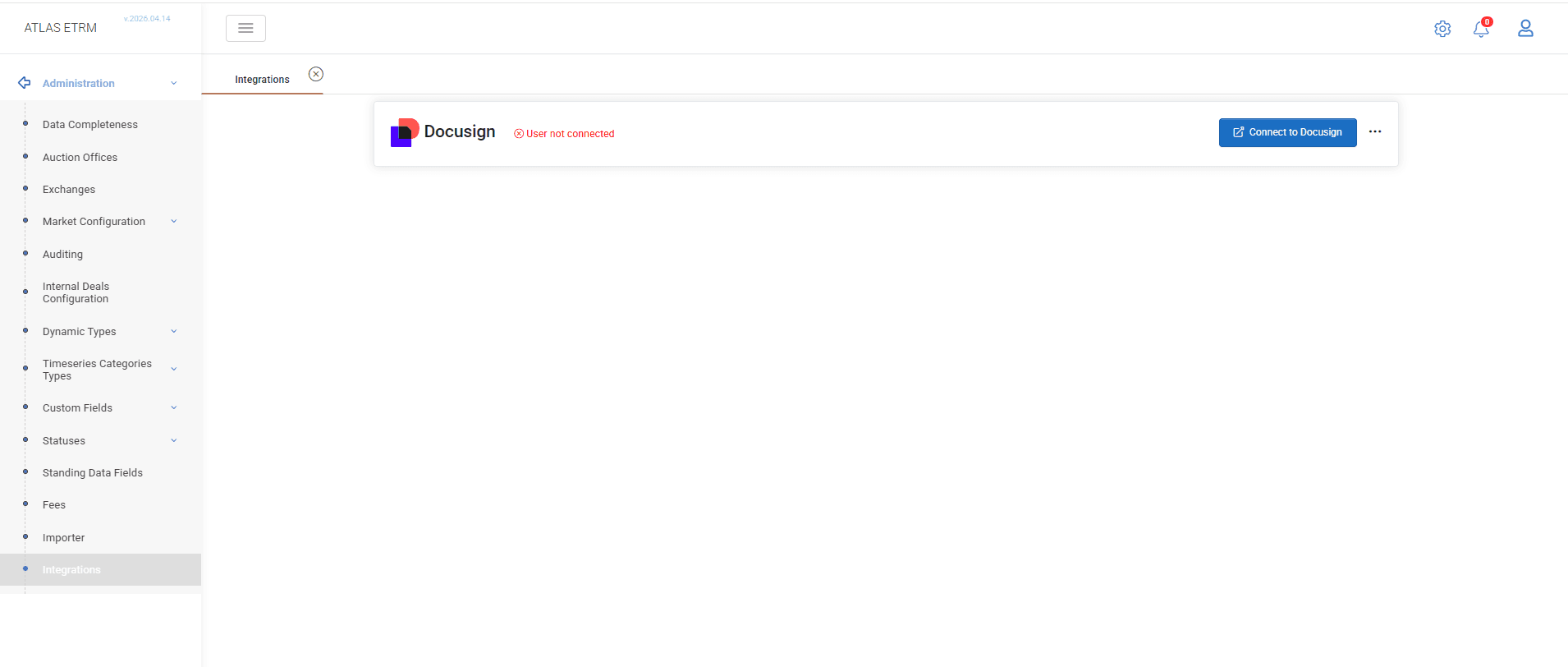
Atlas ETRM integrates with Docusign to enable the preparation, sending, signing, and tracking of Master Agreement documents within a single workflow.
Contract data stored in ETRM is used to generate agreements and manage their lifecycle, while Docusign handles the signing process. ETRM remains the central system for initiating actions, tracking status changes, and maintaining agreement records.
Before using Docusign functionality, the following setup is required:
Docusign connection must be enabled for the user.
Docusign templates must be created and available.
Master Agreement Action Types must be configured to support document generation and recipient roles (Administration → Dynamic Types → Master Agreement Action Types).
Master Agreement Statuses must be defined to reflect the agreement lifecycle and support status updates during the signing process (Administration → Statuses → Master Agreement Statuses).
DocuSign Setup
Connect Docusign Account
Navigate to Administration → Integrations → Docusign.
Click Connect to Docusign.
You will be redirected to the Docusign login page.
Enter your Docusign credentials.
Accept the authorization request.
Once completed, your Docusign account is connected to Atlas ETRM and can be used for document generation and signing.
ETRM does not store Docusign credentials such as passwords or tokens. Only the necessary user identification details are retained for secure integration.
Download JSON Configuration
In Administration → Integrations → Docusign, click the options menu (…)
Select JSON Configuration.
Download the file.
This file contains the available Master Agreement properties that can be used as dynamic fields in Docusign templates.
Create Docusign Template (via Docusign Template Assistant)
Open Microsoft Word & launch the Docusign Template Assistant add-in.
Import the downloaded JSON configuration file.
Insert the required dynamic fields into the document (e.g. Agreement ID, Counterparty details).
Upload the document to Docusign to save it as a template.
The template defines which fields will be automatically populated with data from ETRM during document generation.
Using Docusign in Master Agreements
Once the Docusign integration has been configured, documents can be generated and sent for signature directly from a Master Agreement.
To start, navigate to Back Office → Master Agreements, open the relevant agreement, and go to the Actions tab. Click + to create a new action, select the appropriate action type, select the appropriate date, and save.
After creating the action, select it and click the Docusign icon. From the available options, choose Generate Draft Envelope and select the desired template. The system will create a draft document in Docusign and automatically populate it with the relevant Master Agreement data.
Once the document is generated, open it to review the content and confirm that all fields and recipient details are correct. When ready, click Send Envelope to send the document for signature.
The recipient is derived from the counterparty’s linked contact with role “Legal Representative”. The recipient’s role in the Docusign process (e.g. signer or copy recipient) depends on the configuration of the selected action type.
After sending, the document status is updated automatically based on Docusign events, and the envelope remains linked to the Master Agreement action for tracking. The Master Agreement status may also be updated automatically based on the document status, depending on how the statuses and their mapping to Docusign document statuses have been configured.
If needed, an existing Docusign envelope can also be linked to an action by selecting Connect Existing Envelope and entering the envelope ID.
Was this helpful?