
Docs / 2. Dashboards
2.2 Dashboards Overview
Create a new Dashboard
Click on the link below to view a short tutorial:
https://stellarblue.storylane.io/share/tilhbebhkufw
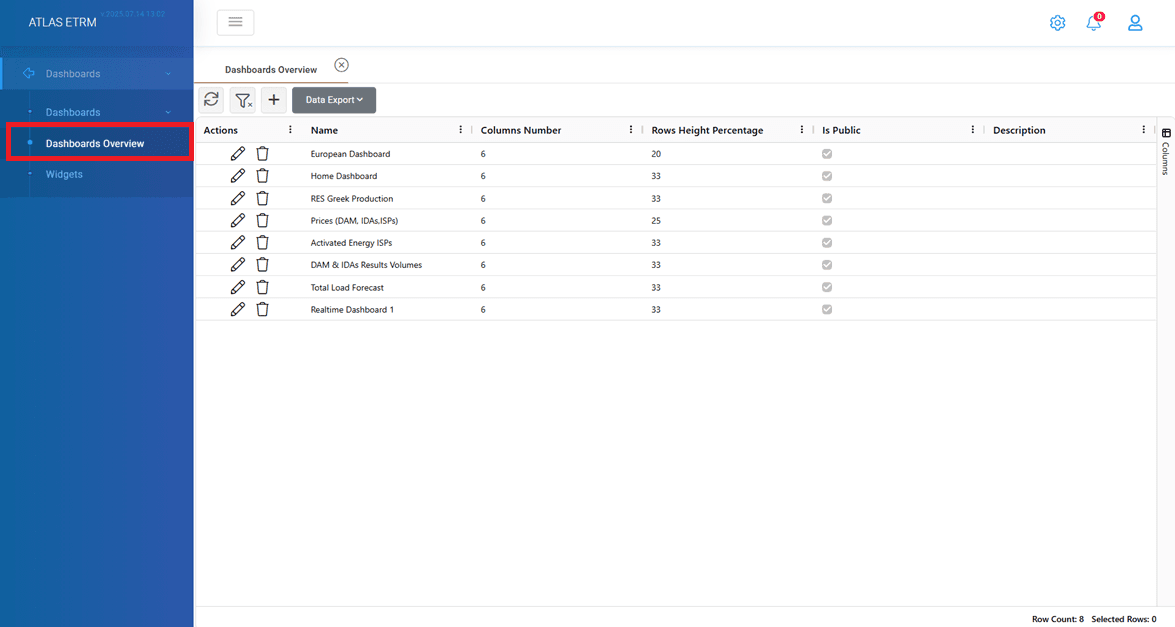
From this tab, users can:
View All Dashboards – Access a list of all existing dashboards within the system.
Create a New Dashboard – Set up a customized dashboard tailored to specific needs.
Edit Existing Dashboards – Modify dashboard settings, layouts, or contents.
Delete Dashboards – Remove dashboards that are no longer needed.
As the primary section for dashboard management, the Dashboard Overview tab enables users to maintain a structured and organized display of key metrics, ensuring quick and efficient access to critical insights.
Create a new Dashboard
To create a new dashboard, the user can click the “+” button on top of grid, which opens a new window. When a user creates a new dashboard, the interface provides options to add existing widgets or create new, which serve as the building blocks of the dashboard. To begin with user should provide a name for the Dashboard at the top left side of the screen ("Dashboard Name"). A new dashboard starts empty, and the user must add widgets to display relevant data. There are two options:
Add Existing Widget – Allows the user to select from previously created widgets and integrate them into the new dashboard.
Add New Widget – Provides the option to create a custom widget from scratch, defining its parameters and content.
Dashboard Settings
Next to the Dashboard Name field, a gear icon provides access to additional settings, enabling the user to:
Adjust the number of columns and row height to customize the dashboard layout.
Set the dashboard at the homepage display upon logging into the system by checking box “Display in Home”.
Make the dashboard public, that makes it visible for all users within the company to access it by checking box “Is Public”.
Add a Description connected to the Dashboard.
Add module connections, linking the dashboard to relevant system modules. By pressing “Add Module Connections” users can choose multiple modules from the available list and enable “AutoOpen” if they want the dashboard to open automatically when entering the selected module. Once connected, a new Dashboards tab will appear within the corresponding module.
After configuring the desired settings, the user must click the "Update" button to apply the changes. Once the dashboard has been named and widgets have been added, the user must click the “Save” button in the top-right corner to finalize the creation process.
Was this helpful?