
Docs / 2. Dashboards
2.3 Dashboards Overview 2
Edit/Delete Dashboards
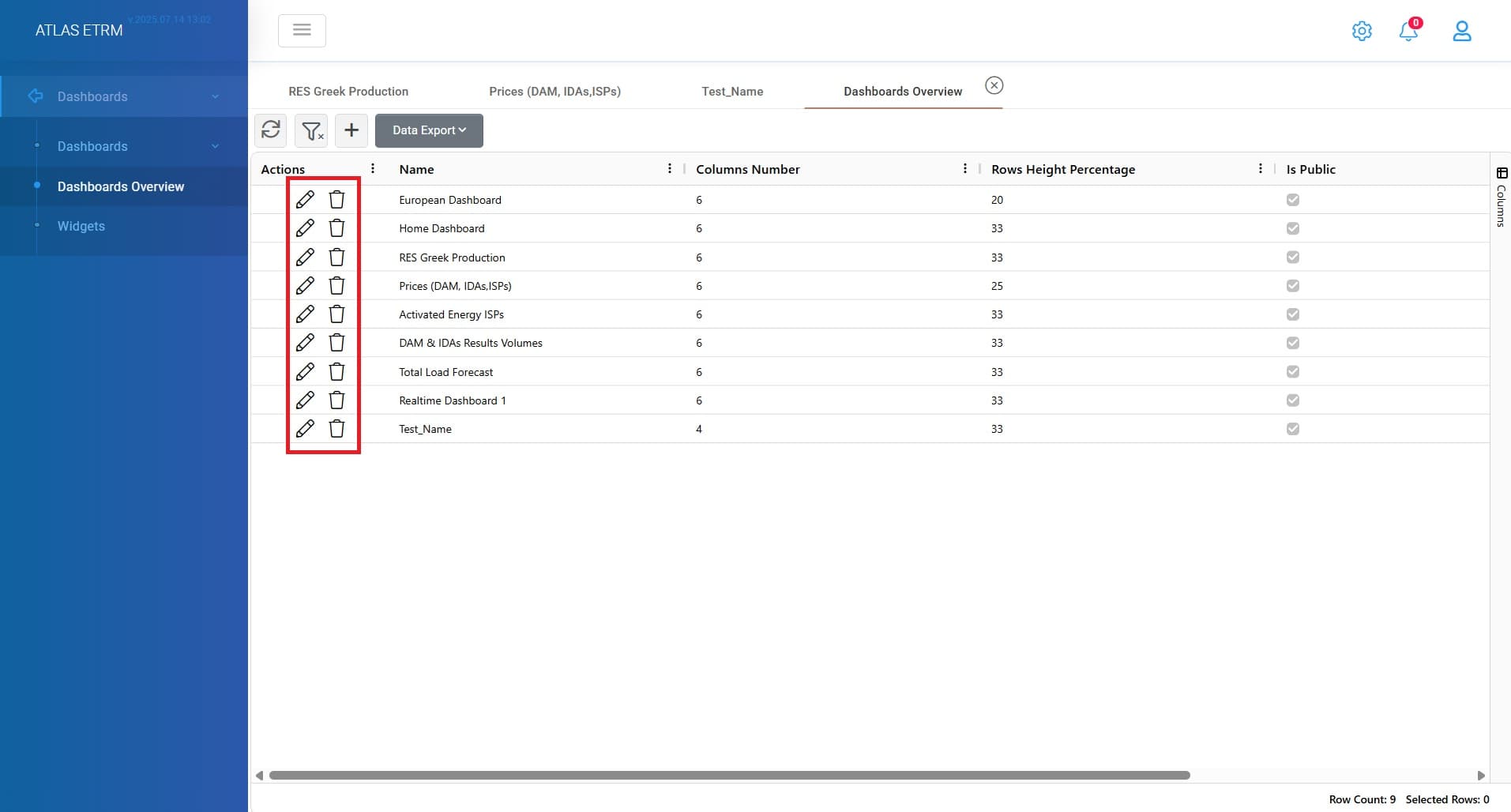
The user can edit any dashboard from actions area by pressing the "pencil" icon or by double clicking a dashboard. Next, by pressing "Edit" button on top right corner the dashboard editor appears where user can adjust the position of each widget by dragging it from the top blue layer. Additionally, the size of any widget can be customized by dragging the arrow located at the bottom-right corner. It is important to note that these adjustments are subject to the constraints defined in the Settings section, specifically the configured number of columns and row height (as described in Dashboards Overview article).
Additionally, there are options to cancel the changes or delete the current dashboard in top right when we are at editor mode. Deleting a Dashboard can also happen by clicking "trashcan" icon in actions area or by right click on a dashboard.
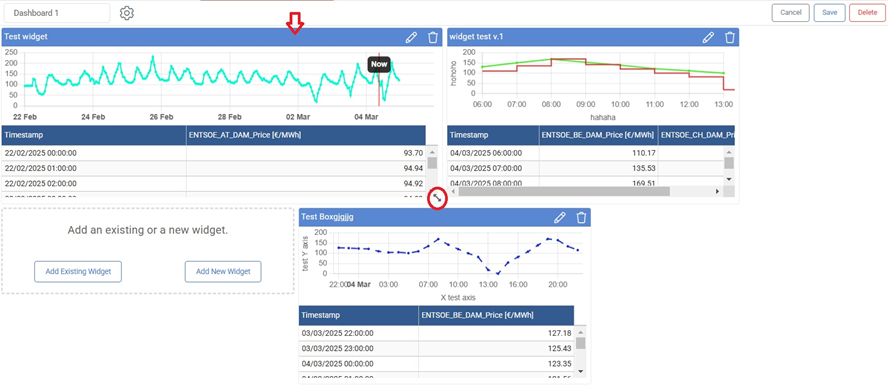
Once the changes have been made user must click the “Save” button in the top-right corner.
Was this helpful?