
Docs / 2. Dashboards
2.5 Widgets 2
Edit/Delete Widgets
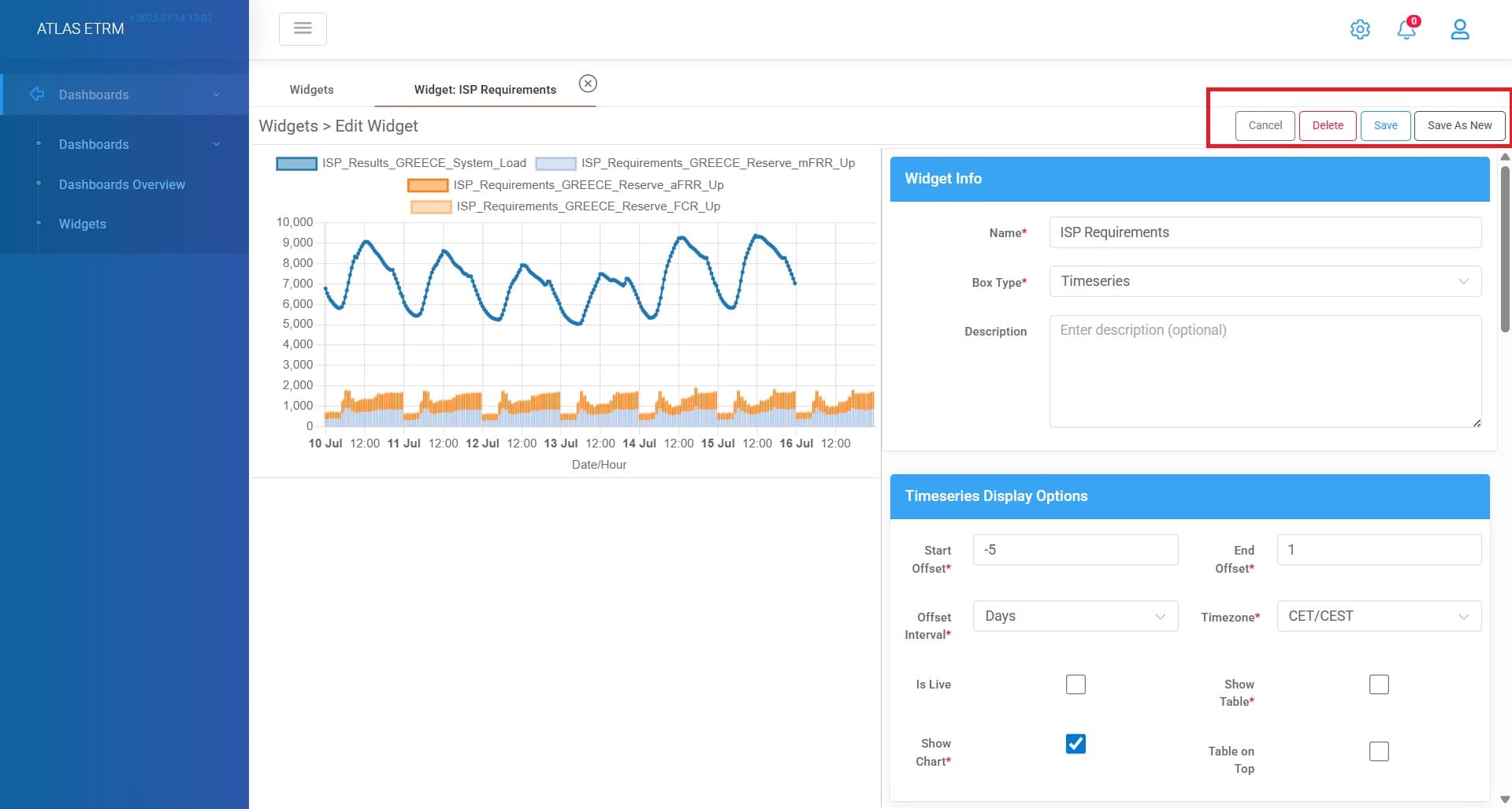
The user can edit a widget by either double-clicking on it or by clicking the “pencil” icon. This opens the widget configuration screen, where modifications can be made.
After making any changes, the user has two options:
Save: Applies the modifications to the existing widget.
Save as New – Creates a new widget with the updated settings while retaining the original widget. Before saving as new user should provide a different name for the new widget.
The chart is dynamic, meaning that any changes made in the settings are immediately reflected in real time on the chart displayed on the left side of the screen. This allows users to visually adjust and fine-tune the widget configuration before finalizing it. Additionally, users can zoom in and out on the chart using the mouse scroll wheel, enabling a closer examination of the data.
Lastly, you can delete a widget by clicking "trashcan" icon in actions area or right click on the widget you want to delete and click "Delete Widget".
Was this helpful?