Part 3 - Asset Representation Workflow
Counterparties - Master Agreements - MA asset connection - Deal Templates - Clusters - Deals - Settlement
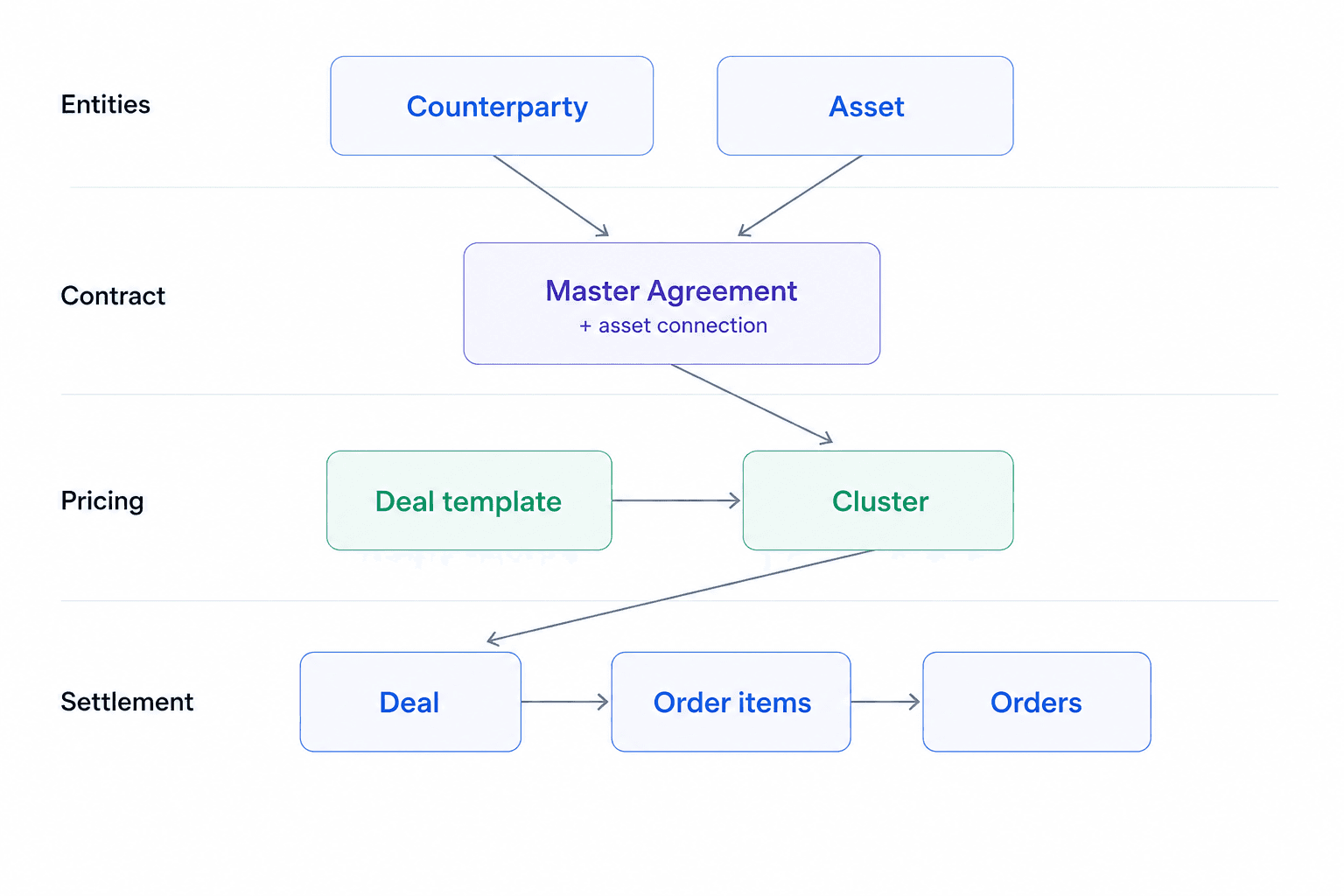
The Asset Representation workflow covers the commercial relationships between the aggregator and the producers whose assets are being managed. In this context, ATLAS ETRM provides a platform where counterparty setup, contractual configuration and deal generation are directly connected.
Producers are registered as counterparties, Master Agreements define the legal and commercial framework under which their assets operate, and Deal Templates and Clusters enable standardized pricing structures to be applied consistently across the portfolio.
Once the contractual structure is in place, Deals are generated and maintained for each asset, forming the basis for Order Item calculation and financial settlement.
1. Counterparties
The same Companies screen used during initial setup is also the entry point for registering the producers and other counterparties involved in asset representation agreements. In this context, a counterparty typically refers to the legal entity that owns or operates the assets being represented by the aggregator.
During the onboarding of a new producer, a Company record must be created before any contractual configuration can begin. Once registered, the counterparty becomes available for use in Master Agreements and the subsequent deal structure.
Counterparty records may be maintained either manually or automatically, depending on the client's operating model:
Manually by authorized ETRM users,
Automatically imported via the ETRM's API (implemented by the client's IT),
Automatically through ad-hoc system integrations and scheduled jobs (upon request — implemented by StellarBlue).
Main Action Steps
Navigate to Back Office → Companies.
Enter the required legal and identification details.
Define the Counterparty Type and activation status.
Save the Company record.
2. Master Agreements
Master Agreements define the contractual framework between the company and a counterparty. They establish the legal and commercial context under which financial transactions are recorded and managed in the system.
A Master Agreement defines the legal counterparty structure, payment and settlement terms, applicable taxes, and other contractual parameters that influence invoicing and cash flow. It acts as the reference point for all Deals generated under that relationship.
In a RES Aggregator context, Master Agreements are most used to structure market representation relationships, under which Assets participate in trading and settlement. An Asset may only participate in trading activity once it is linked to an active Master Agreement.
Proper configuration of the Master Agreement ensures that:
Deals are created under the correct contractual entity,
Settlement parameters are aligned with agreed payment terms,
Financial outputs (Order Items and Orders) reflect the intended commercial relationship.
Main Action Steps
Create a new Master Agreement in Back Office → Master Agreements.
Define the counterparty and core contractual details.
Set the validity period of the agreement.
Select the type of the Master Agreement.
Configure settlement-related parameters (e.g. payment terms, tax settings).
Save the Master Agreement to activate the contractual framework.
3. Master agreement asset connection
Once Assets and Master Agreements have been defined, the next step is to activate the commercial relationship between them. An Asset may exist structurally in the system, and a Master Agreement may be fully configured, but no trading activity can occur until the two are linked.
The Asset–Master Agreement connection defines the contractual context under which the Asset operates. This linkage determines from which date the Asset can participate in Deals under that agreement and ensures that all subsequent trading and settlement activity is attributed to the correct counterparty framework.
Each connection is established with a defined validity period. While the Master Agreement may remain active for a broader contractual horizon, individual Assets may enter or exit the agreement during its lifecycle. The Valid From and Valid To dates at connection level therefore reflect the effective participation period of each Asset under that agreement.
This structure allows contractual amendments—such as the addition or transfer of Assets—to be reflected without altering the overall validity of the Master Agreement itself, while maintaining consistency in reporting and settlement.
Main Action Steps
Open the relevant Master Agreement.
Navigate to the Assets section (or use Master Agreement Asset Connections).
Select the Asset to be linked.
Define the Valid From (and, if applicable, Valid To) date for the connection.
Save the configuration to activate the linkage.
4. Deal Templates & Clusters
4.1 Create Deal Templates
Deal Templates define reusable Deal configurations that can later be instantiated as active Deals. They allow predefined commercial and structural parameters to be set once and applied consistently through Clusters.
Depending on the commercial model, a Deal Template may define:
The pricing mechanism (e.g. fixed, indexed, multi-leg),
The quantity determination logic (e.g. fixed quantity, profile-based or time-series driven),
Payment and settlement terms,
Additional pricing components or conditions, like the commission.
In a RES Aggregator context, Deal Templates are primarily used to structure recurring pricing components and volume-based settlement logic. When Deals are generated through a Cluster, the system may create different types of Deals, such as Standard, Amount or Custom Deals.
In the case of Custom Deals, the quantity is not statically defined in the template. Instead, it is derived from the time series associated with the Asset (e.g. production or consumption), provided that the series has been configured for inclusion in Deals. This allows the commercial structure to remain standardized at template level, while the actual traded volumes dynamically reflect the operational data of each Asset.
Payment and settlement terms can also be defined at template level. The available payment term options are configured in Back Office → Payment Terms and reflect the agreed settlement offset (expressed in calendar or business days relative to the delivery or end-of-month date). Where these terms are consistent across multiple assets under the same agreement, defining them at template level ensures they are applied uniformly to all generated Deals.
Where a fee applies, it can be defined directly within the template using the Fees field, suitable for fixed amounts. For more complex fee structures, such as those derived from a calculated time series, a separate Deal can be configured for the fee and included in the same Cluster alongside the main energy Deal.
Main Action Steps
Navigate to Portfolio Management → Templates and create a new template.
Define the general parameters (commodity, direction, delivery type and date range).
Select the portfolio structure (company, business unit, folder, book).
Define the pricing logic and quantity structure.
Select the applicable payment term and configure settlement settings.
Save the template for later use in Clusters.
4.2 Create Clusters
Clusters are used to group multiple Deal Templates under a single commercial configuration. They enable standardized pricing schemes to be applied consistently across multiple Assets operating under similar contractual terms.
While Deal Templates define individual pricing components (e.g. indexed energy settlement, commission structures, fixed fees), a Cluster determines which combination of templates forms the complete commercial arrangement. In this way, Clusters act as reusable pricing schemes that can be applied across a portfolio.
In a RES Aggregator context, Clusters are typically used to represent standardized commercial models applied to multiple units under comparable agreements. By managing pricing logic at Cluster level, commercial changes can be implemented centrally without redefining individual Deals for each Asset.
Clusters do not generate financial impact on their own. They serve as the mechanism through which Deal Templates are combined and later instantiated as active Deals under a Master Agreement.
Main Action Steps
Create a new Cluster in Portfolio Management → Clusters.
Define the Cluster name and activation status.
Add the relevant Deal Templates that form the commercial structure.
Review and save the Cluster configuration.
5. Representation Deals
Once Deal Templates have been grouped into a Cluster, the next step is to instantiate that commercial structure as active Deals under a Master Agreement.
Clusters do not create financial activity on their own. They serve as predefined pricing configurations that are applied to specific Assets within a defined contractual framework. Deal generation is performed at the level of the Asset–Master Agreement connection, where the user selects the appropriate Cluster and confirms the effective validity period for the Deals to be created.
This step operationalizes the commercial model. From the defined Valid From date onward, the selected components are created as individual Deals linked to the relevant Asset and governed by the corresponding Master Agreement. Where applicable, settlement inclusion is also determined at this stage. During this process, key Deal attributes such as the Counterparty, the Asset reference and predefined profile are automatically populated according to the selected configuration.
Once created, Deals appear in Portfolio Management → Deal Capturing, where they can be reviewed individually or managed in bulk through the Mass Updates function, accessible via right-click. Each Deal carries a status reflecting its stage in the commercial lifecycle — Pending, Active, Approved, Confirmed or Rejected.
Main Action Steps
Navigate to Back Office → Master Agreement Asset Connections (or open the Master Agreement and access the Assets tab).
Select the relevant Asset connection.
Right click and choose the option to create Deals by Cluster.
Select the appropriate Cluster.
Confirm the Valid From date (and, if applicable, define Valid To).
Confirm settlement inclusion where required.
Execute the creation process.
Review the generated Deals in Portfolio Management → Deal Capturing.
Update Deal status as required, individually or via Mass Updates.
6. Settlement
Once Deals are active and settlement inclusion is enabled, the system can begin generating Order Items — the financial amounts to be settled with each counterparty for the defined settlement periods and according to payment terms.
Order Item Generation
Order Items can be generated in two ways. The first is manually, by right-clicking on a Deal in Deal Capturing and selecting Actions → Execute Order Items. The second is automatically, through a scheduled job configured in the Job Manager module (see Part V).
Once generated, Order Items are visible both in the Settlement tab of the individual Deal and in Back Office → Order Items. The Profit and Loss tab within the Deal provides a graphical and tabular view of the calculated volumes, notional values, MTM and PnL per trading interval.
Order Items remain editable and will be recalculated each time a new execution is performed. Once grouped into an Order, they are locked and no further changes are applied.
Order Creation
Orders can be created manually or automatically through a scheduled job in the Job Manager module (see Part V). For manual creation, navigate to Back Office → Order Items. Using the toggle at the top of the screen, switch the view to Not in Order to display only Order Items that have not yet been assigned to an Order. Select the relevant items and either right-click and choose Create Order by Selected Order Items, or use the Create Order button at the top of the screen. Additional options are also available from the right-click menu, including Add to Existing Order and Delete Order Items.
Main Action Steps
Ensure Deals are active and settlement inclusion is enabled.
Generate Order Items via right-click → Actions → Execute Order Items, or through the automated job (Part V).
Review Order Items in the Settlement tab of the Deal or in Back Office → Order Items.
Switch the view to Not in Order to identify items pending grouping.
Create an Order manually via right-click or the Create Order button, or through the automated job (Part V).