5.2 Deal Capturing
Overview of Deal Capturing
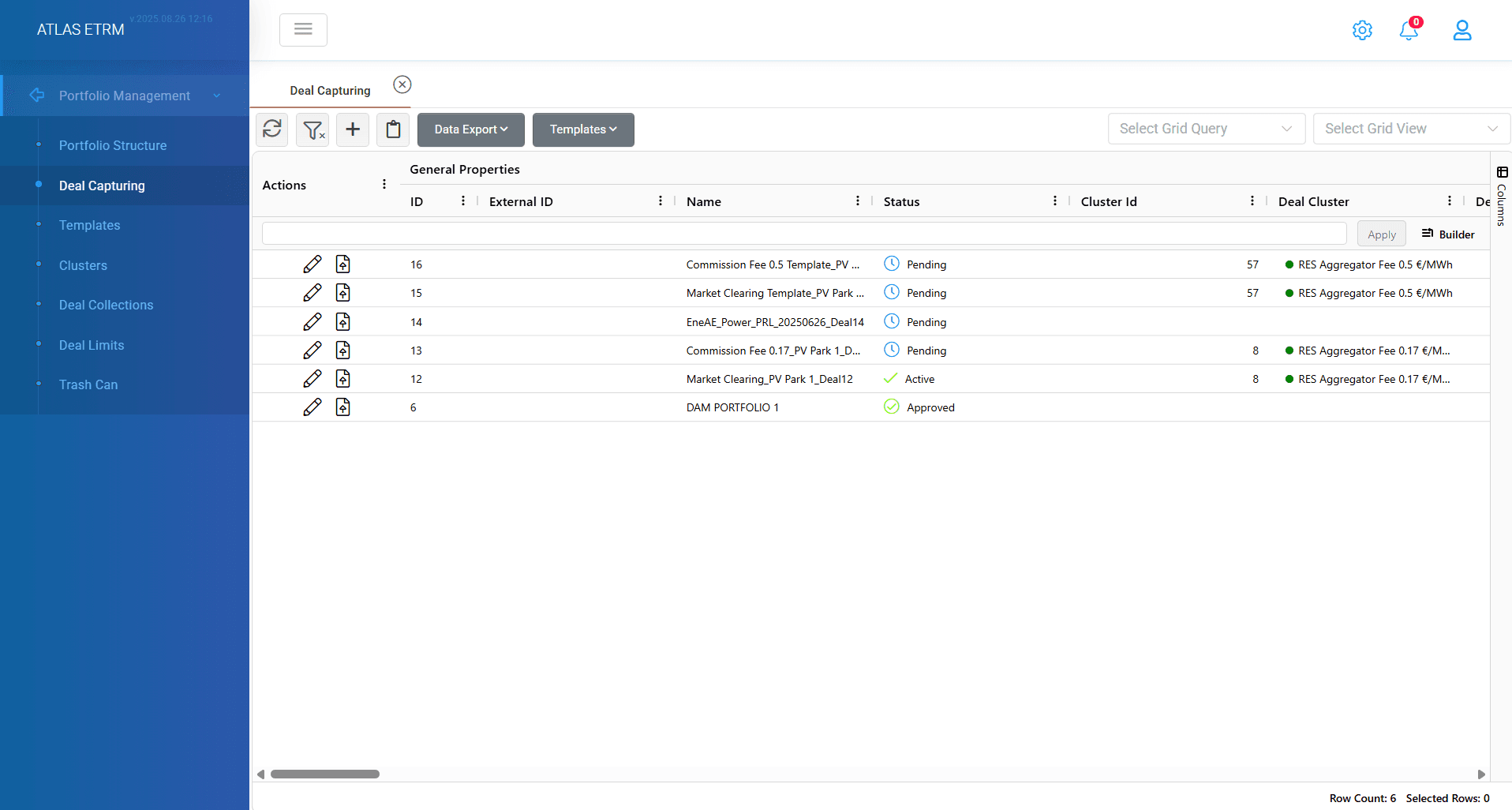
“Deal Capturing” menu item is for entering the details of trading transactions. It can involve recording the financial and physical aspects of each type of deal. In this page the user can view, download, and modify the different deals available in the portfolio, which are presented in grid form.
Many types of deals are supported, such as standardized futures / forwards, customized OTC with possibility of various profiles (e.g., contracted, forecasted, market schedule, allocated, metered, etc.), swaps, CfDs, options, spot (DAM / IDM), balancing (balancing services provision), imbalance (uninstructed imbalance), import / exports, capacity. All transaction types are applicable to any market and commodity (e.g., power, gas) configured in the system. Regarding spot and imbalance deals, these may be appropriately linked with the Scheduling module (which incorporates forecasting, bidding and dispatching functionalities), so that they are automatically updated (e.g., with half-hourly market schedules) after everyday trading.
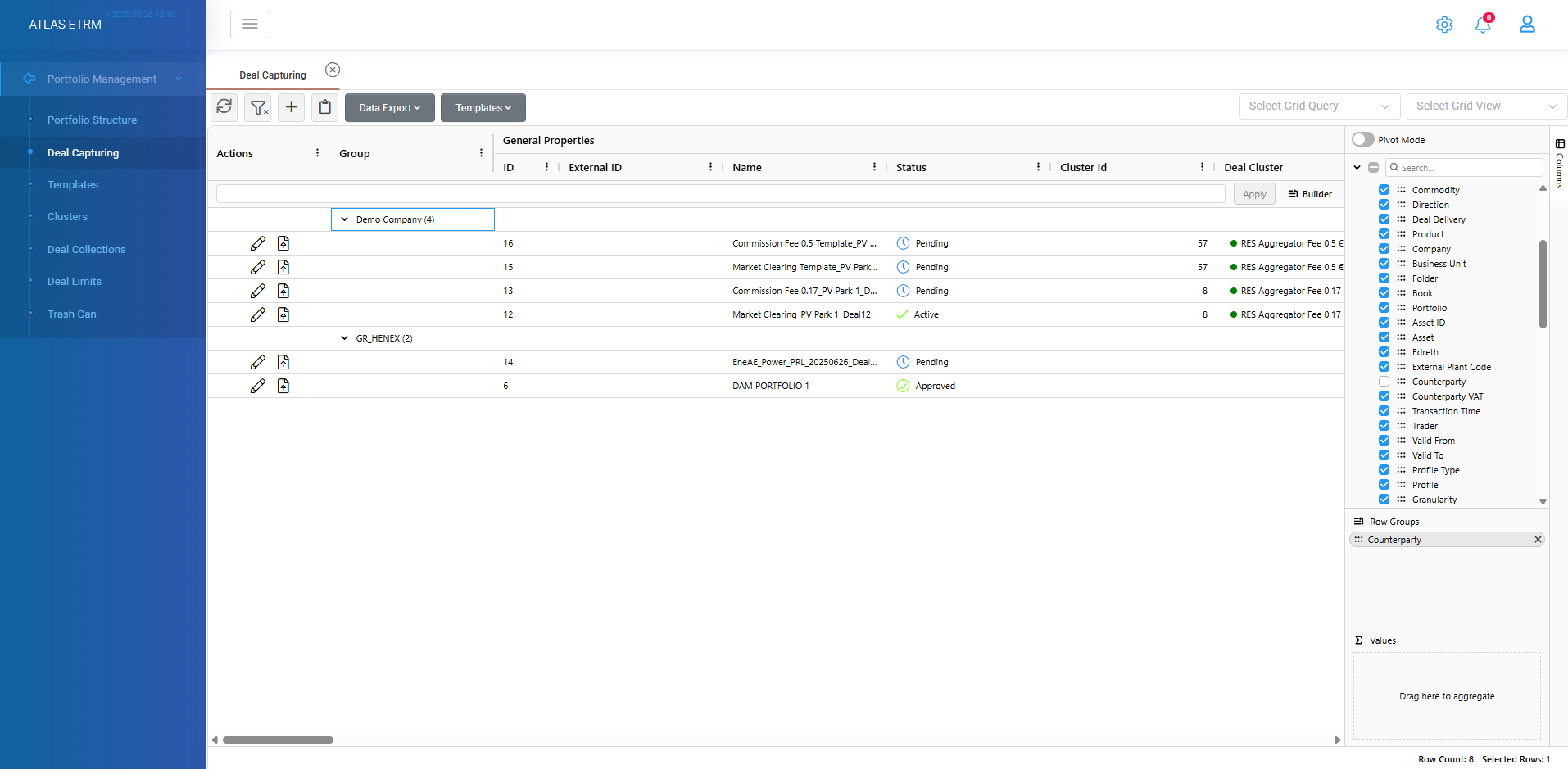
An initial summary table (grid) of the trading workbench, presenting all captured deals along with their properties (by scrolling to the right using the horizontal bar on bottom of screen), is available to help the user to navigate among the deals and download selected deals / groups of deals according to filtering criteria for easy tracking. The system provides a grouping functionality, which serves also for reporting purposes, in case the user wants to report (and download) the deals based on certain grouping criteria. Grouping can be easily done (refer to grouping article) and per multiple columns. For example, in the image below we see a grouping per counterparty.
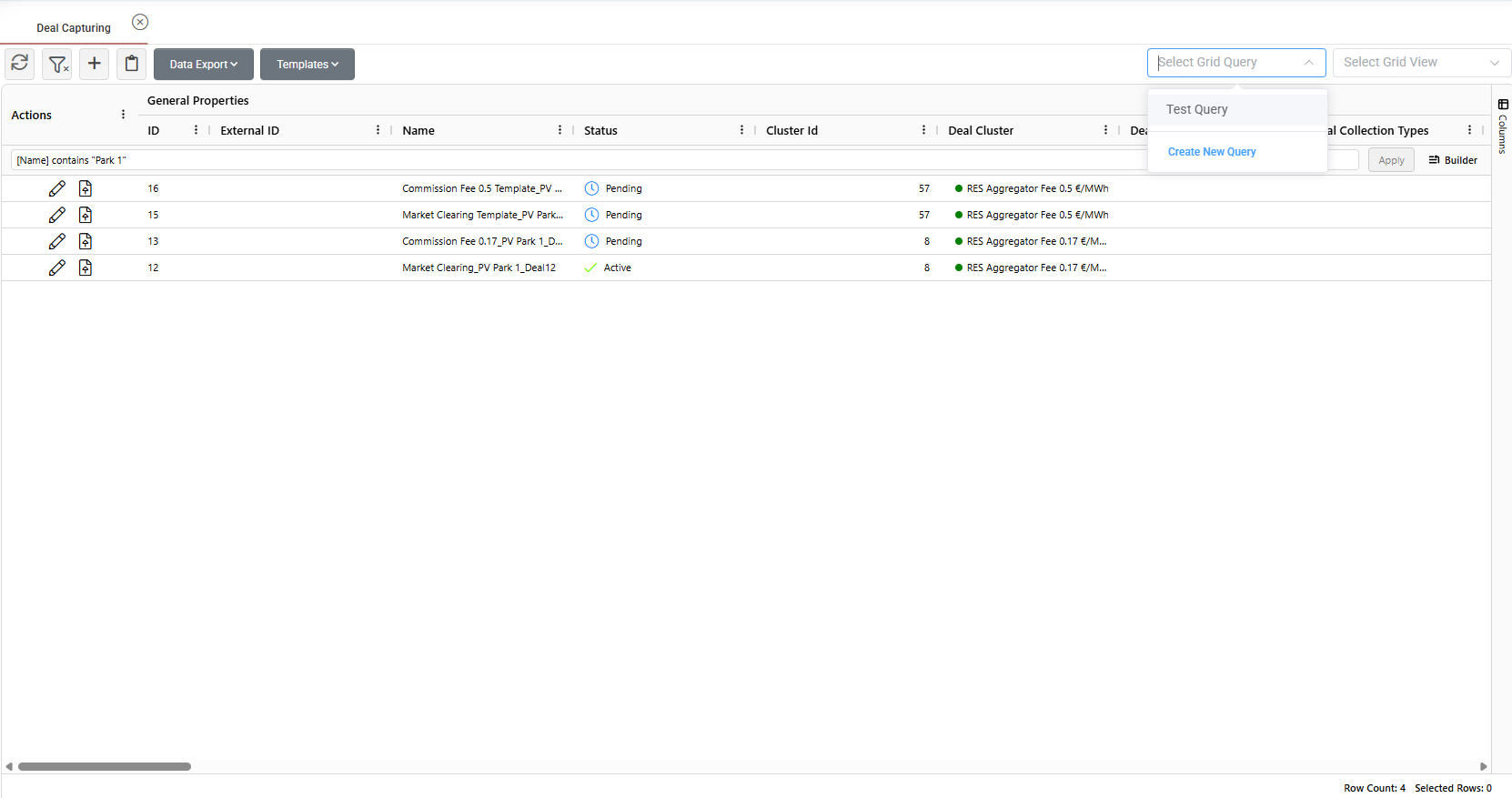
Deals can also be organized depending on their properties with the creation of queries at the box below column names. Queries can be saved by selecting query field (circled box below) and pressing create new query, so that jobs and calculations calling these queries of deals can be automatically updated each time a new deal is inserted with the selected criteria.
How to create a new deal
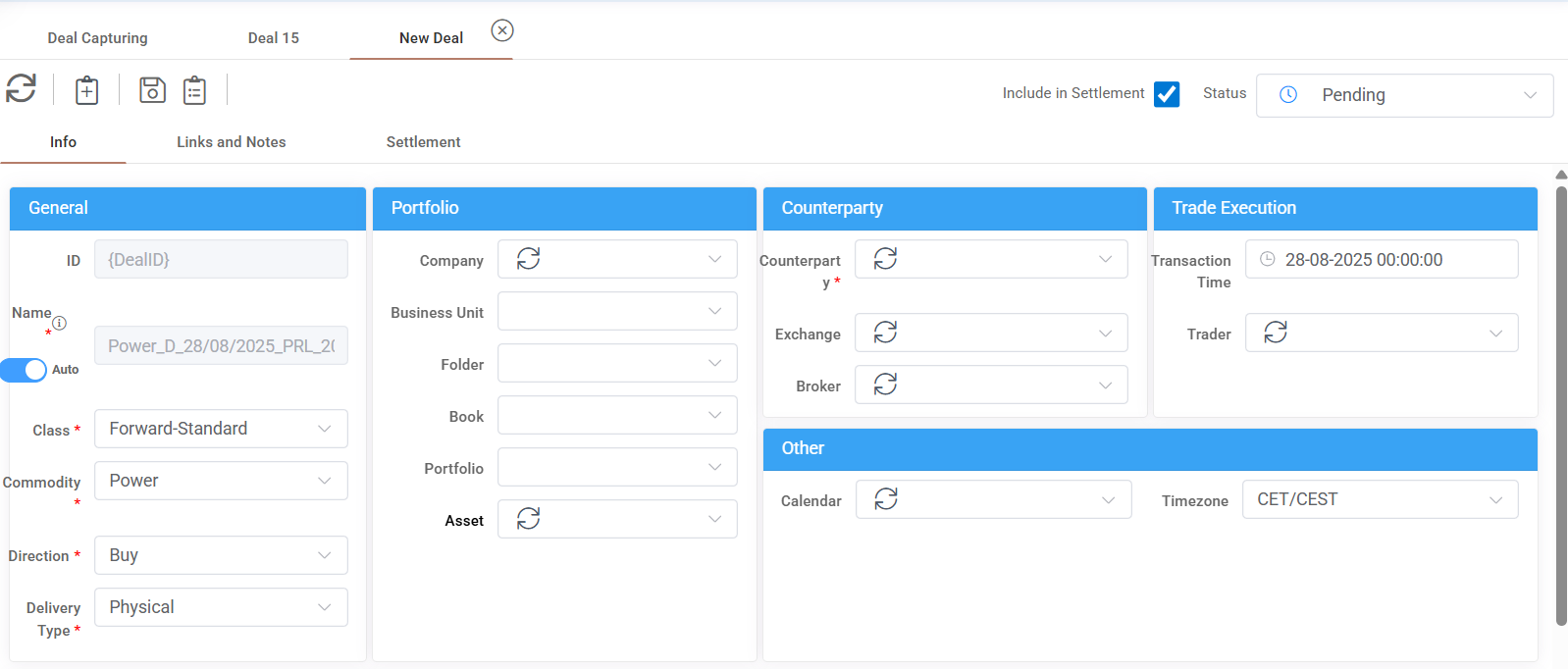
A new deal can be created by pressing the "+" icon on top of grid. Then a new screen opens that contains numerous deal properties in order to create and manage each separate deal. The main layout is standard for all types of deals for homogeneity purposes, although the interface is adjusted accordingly in specific places to host particular information of a deal type.
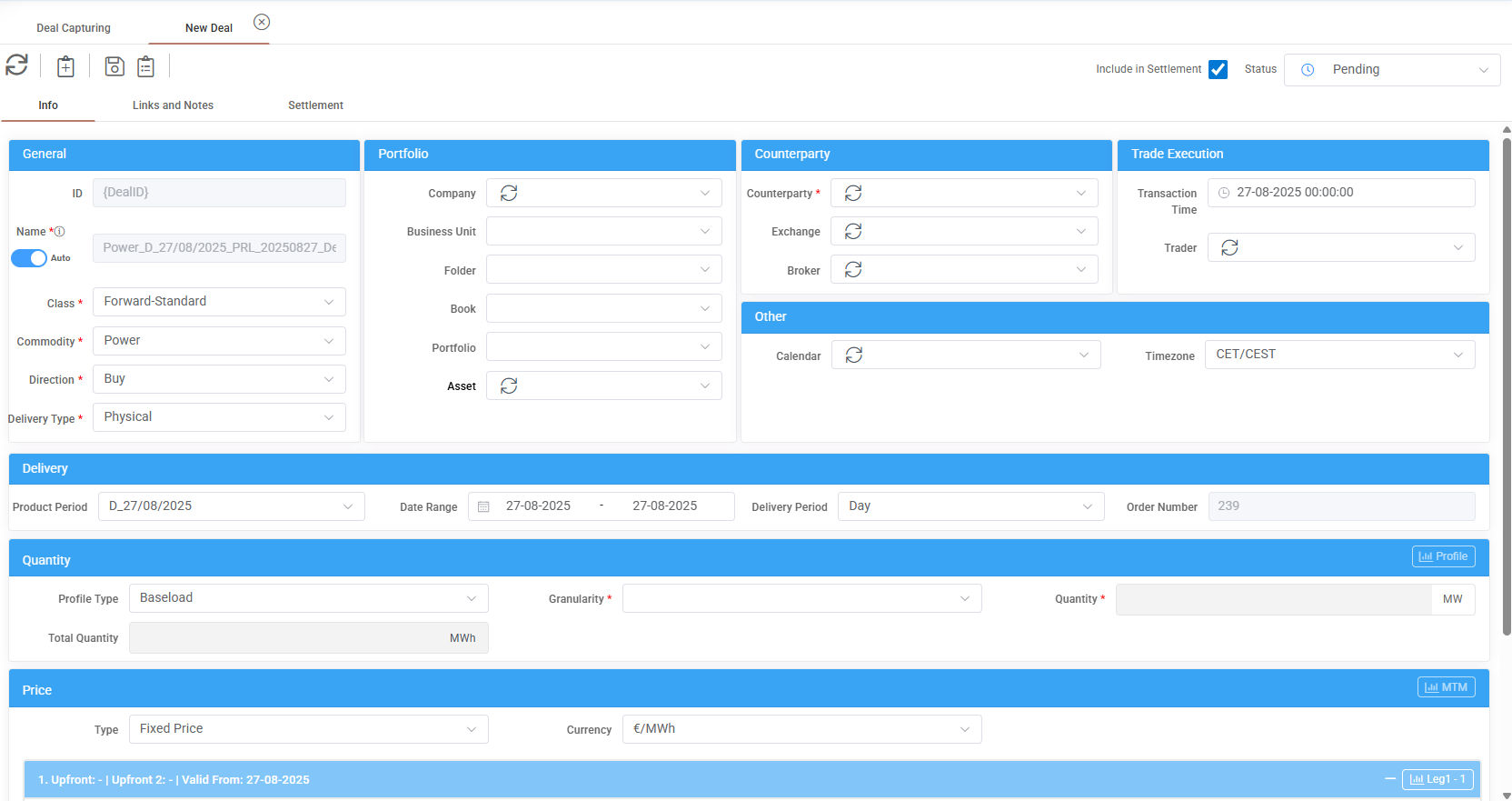
The main types of information of a deal are:
General
Deal status: It is located in the upper right corner of the screen. There are some standard system statuses (Pending, Active, Approved, Rejected, Confirmed), but user can configure custom statuses according to needs.
Include in Settlement: Next to deal status there is a checkbox. If it is checked the deal will produce order items for settlement reasons.
Deal Id: It is produced by system during the save of a new deal.
Name: There is option to let the system provide an auto name or user can provide a name manually by clicking the checkbox "Auto" next to Name field.
Class: The class of deal between the available options that are described below.
Commodity: User can choose from the available options that are described below.
Direction: User can choose the direction of deal between buy and sell. Buy refers at expenses of your company, while sell refers to income.
Delivery Type: There are options for "Physical" and "Financial" delivery. These options change automatically according to the class selection.
Portfolio
Company: Options list that comes from portfolio structure according to configuration.
Business Unit: Options list that comes from portfolio structure according to configuration.
Folder: Options list that comes from portfolio structure according to configuration.
Book: Options list that comes from portfolio structure according to configuration.
Portfolio: Options list that comes from portfolio structure according to configuration.
Asset: User can select a specific asset that it is linked to a deal (from the available assets that are registered in the Back Office module).
Counterparty
Counterparty: The counterparty company of the deal(initially registered in the Back Office module).
Exchange: User can select the exchange that the deal was made (there are some systemic exchanges, but user may customize more from Administration section).
Broker: User may select the broker company that intervenes with the deal (you can choose only companies that have been registered in back office section with the option of counterparty type as broker/agent).
Trade Execution
Transaction Time: The date and time of the transaction that the deal was made
Trader: The name of trader that created the deal (you can choose from the list of users)
Other
Calendar: User can choose from the available calendars that will be user for the settlement of deal.
Time zone: user can choose from the available options list
Delivery
Product Period: User can choose among many prefixed periods (like specific days/weeks, months, quarters and years).
Date Range: By choosing a product Period this field automatically shows the relevant date range. User can configure also a custom period.
Delivery Period: This field is automatically populated according to the product period.
Order Number: Field it automatically changed according to previous options.
Quantity
Profile Type: The profile type can be baseload, peakload, off-peakload.
Granularity: Choose the granularity of the metered quantity (quarter-hourly, half-hourly etc).
Quantity: User needs to insert the quantity of the deal in MW.
Synthetic Profiles: In case a custom class is selected in "Class" field the profile type and granularity fields are grayed out and a new field opens with the name of "Synthetic Profiles". Here the user can select between the available data series (that are registered in Data Room).
Total Quantity: This field automatically calculates the total MWhs of the deal according to the previous provided data.
Price
Type: user can choose between fixed, indexed and click price. Each option affects the next fields that are described below. Fixed price refers to a standard price that is prefixed, indexed price to price based on data series. The difference with click price is that the Leg 1 Quotation is a specific market node (such as M+1, Q+1, Y+1) as settled on everyday level in the Futures market.
Currency: User can choose between the available currencies.
Upfront: It may contain several legs with the available options of upfront 1 and upfront 2 per leg. User can add new leg by pressing "Add Leg1" button.
Upfront 1: User fills the price of the deal.
Upfront 2: User can model more complicated price schemes (for example by filling at upfront 2 a broker fee that affects the total price).
Valid From: Automatically if filled with the start date of the product period. User can use this field to add multiple legs and specify the price validity (from example price may change after a month).
Multiplier and Leg1 Quotation: These fields appears only when the type of price is indexed or click price Leg1 Quotation takes as input data series. Upon writing a few letters the system already suggests the relevant data series in the Data Room containing this sequence of letters for easy selection. This data series may be sourced from an external system or it may be also the result of calculations among other data series through the Math Editor. Any time the data series selected is updated with new data, all actions relevant to this deal (such as P/L, settlement, risk metrics) are also updated accordingly. In this case the below formula is applied:
Price = Upfront 1 + Multiplier * Leg1 Quotation
At indexed price we can have multiple legs, while click price it consists only from 1 leg.
MTM: Mark-to-Market (MTM) is a financial measure used to assess the current value of a deal compared to its original value. It reflects the unrealized profit or loss of a deal based on prevailing market prices.
Any given deal is featured by a Price and a Quantity, with appropriate mask for inserting the relevant data / selecting data series from the Data Room. For example, the user may insert a standard futures deal with a baseload profile and a fixed price directly in the Deal Capturing mask, or a custom OTC deal with a non-standard profile and an indexed price previously managed in the Data Room (e.g., received from an external source and possibly handled with Math Editor). The possibility of inserting various profiles in the same deal is also provided, to simulate appropriately the whole life-cycle of the deal; for example, a certain deal may be linked with the following profiles depending on the chronological availability of each profile: contracted, forecasted, market schedule, allocated, measured, etc. Trade fees are also supported.
These types of information allow the user to follow efficiently the complete life-cycle of the deal. Dedicated permissions may be provided to different users for accessing and modifying the afore-mentioned deal attributes (for example, a certain user may only modify deals of a given book).
It is important to save the deal after completing the relevant fields by pressing the save button (💾) on top of screen.
Deal Class
The Class Options are:
Forward – Standard: A standardized physical contract between two parties to buy or sell a commodity at a specified price (fixed, indexed clicked) on a future date/period. A standard forward contract typically has predefined terms and conditions.
Forward – Custom: Similar to a standard forward, but the terms are negotiated between buyer and seller, allowing for customization in contract size, expiration date, and the asset involved according to asset production. Multiple data series can be used in synthetic profiles with priority (
PRIORITYNOTNULL, first data series in list will be used and when data missing the second data series will be used etc.).Futures: A financial agreement to buy or sell a particular commodity at a predetermined price at a specified time in the future. Futures are standardized to facilitate trading on a futures exchange.
Swap – Standard: A derivative contract through which two parties exchange financial instruments, typically involving the exchange of cash flows between the two parties based on a predetermined notional amount. A standard swap would have set terms such as the duration and the payment intervals.
Swap – Custom: Similar to a standard swap, but the terms are negotiated between buyer and seller, allowing for customization in contract size, expiration date, and all terms involved.
Amount: A physical or a financial contract that describes only the total amount.
Commodity
Power
Gas
GO (Guarantee of Origin)
PTRs (Physical Transmission Rights)
HFO 1%
HFO 0,5%
GAS OIL 0,1%
EURODIESEL
Additional actions
During a new deal creation user can reload the deal, create a deal from template or even make a template from the existing deal. All these can be done by the relevant buttons on top of screen (as shown in the figure below).
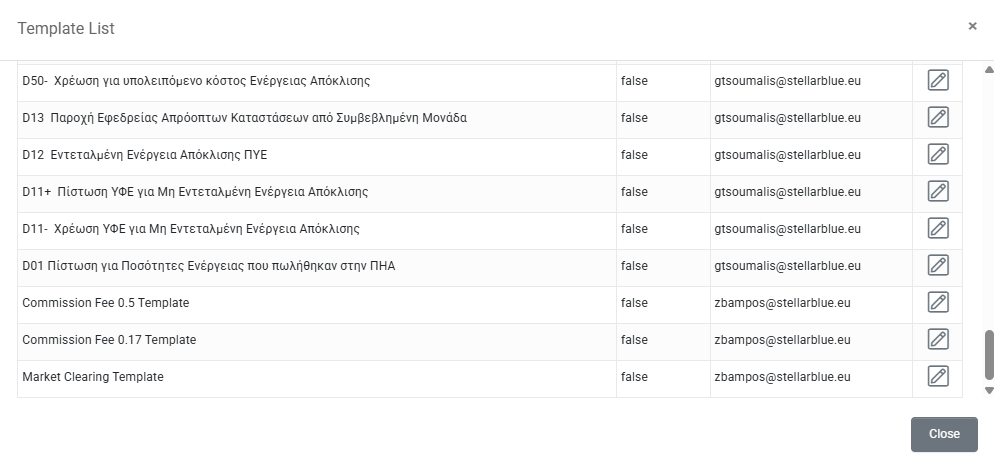
When user select to add a deal from template a new box appears with a list of the available templates. User can click the pencil icon and the fields in the new deal will automatically be filled with the values from template for easier creation. Templates are described in next article.
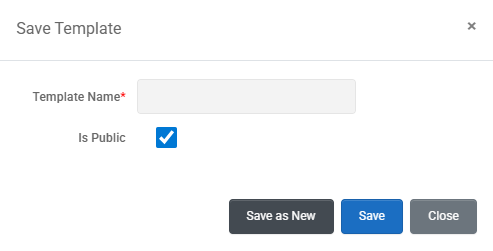
Lastly, user can save the deal as template. In the new box a name should be provided for the template and then user should press "Save" button. More functions in deal capturing are described in next article.
Appendix: Field availability according to deal class
Items | Forward - Standard | Forward – Custom | Futures | Swap – Standard | Swap – Custom | Amount | |
Name | ✓ | ✓ | ✓ | ✓ | ✓ | ✓ | |
Commodity | ✓ | ✓ | ✓ | ✓ | ✓ | ✓ | |
Direction | ✓ | ✓ | ✓ | ✓ | ✓ | ✓ | |
Delivery Type | ✓ | ✓ | ✓ | ✓ | ✓ | ✓ | |
Company | ✓ | ✓ | ✓ | ✓ | ✓ | ✓ | |
Business Unit | ✓ | ✓ | ✓ | ✓ | ✓ | ✓ | |
Folder | ✓ | ✓ | ✓ | ✓ | ✓ | ✓ | |
Book | ✓ | ✓ | ✓ | ✓ | ✓ | ✓ | |
Portfolio | ✓ | ✓ | ✓ | ✓ | ✓ | ✓ | |
Asset | ✓ | ✓ | ✓ | ✓ | ✓ | ✓ | |
Counterparty | ✓ | ✓ | ✓ | ✓ | ✓ | ✓ | |
Exchange | ✓ | ✓ | ✓ | ✓ | ✓ | ✓ | |
Broker | ✓ | ✓ | ✓ | ✓ | ✓ | ✓ | |
Transaction Time | ✓ | ✓ | ✓ | ✓ | ✓ | ✓ | |
Trader | ✓ | ✓ | ✓ | ✓ | ✓ | ✓ | |
Calendar | ✓ | ✓ | ✓ | ✓ | ✓ | ✓ | |
Timezone | ✓ | ✓ | ✓ | ✓ | ✓ | ✓ | |
Product Period | ✓ | ✓ | ✓ | ✓ | ✓ | - | |
Date Range | ✓ | ✓ | ✓ | ✓ | ✓ | ✓ | |
Delivery Period | ✓ | - | ✓ | ✓ | - | ✓ | |
Order Number | Default | - | Default | Default | Default | - | |
Profile Type | ✓ | Default | ✓ | ✓ | Default | - | |
Granularity | ✓ | Automatically calculated | ✓ | ✓ | Automatically calculated | - | |
Quantity | ✓ | - | ✓ | ✓ | - | - | |
Deal/Synthetic Profile | - | ✓ | - | - | ✓ | - | |
Total Quantity | Automatically calculated | Automatically calculated | Automatically calculated | Automatically calculated | Automatically calculated | ✓ | |
Price Type | ✓ | ✓ | ✓ | ✓ | ✓ | - | |
Currency | ✓ | ✓ | ✓ | ✓ | ✓ | ✓ | |
Upfront | ✓ | ✓ | ✓ | ✓ | ✓ | - | |
Amount | - | - | - | - | - | ✓ | |
Multiplier | ✓ | ✓ | ✓ | ✓ | ✓ | - | |
Leg 1 Quatation | ✓ | ✓ | ✓ | ✓ | ✓ | - | |
MTM | ✓ | ✓ | ✓ | ✓ | ✓ | - |
Was this helpful?