5.3 Deal Capturing 2
Overview of Profit and Loss and more
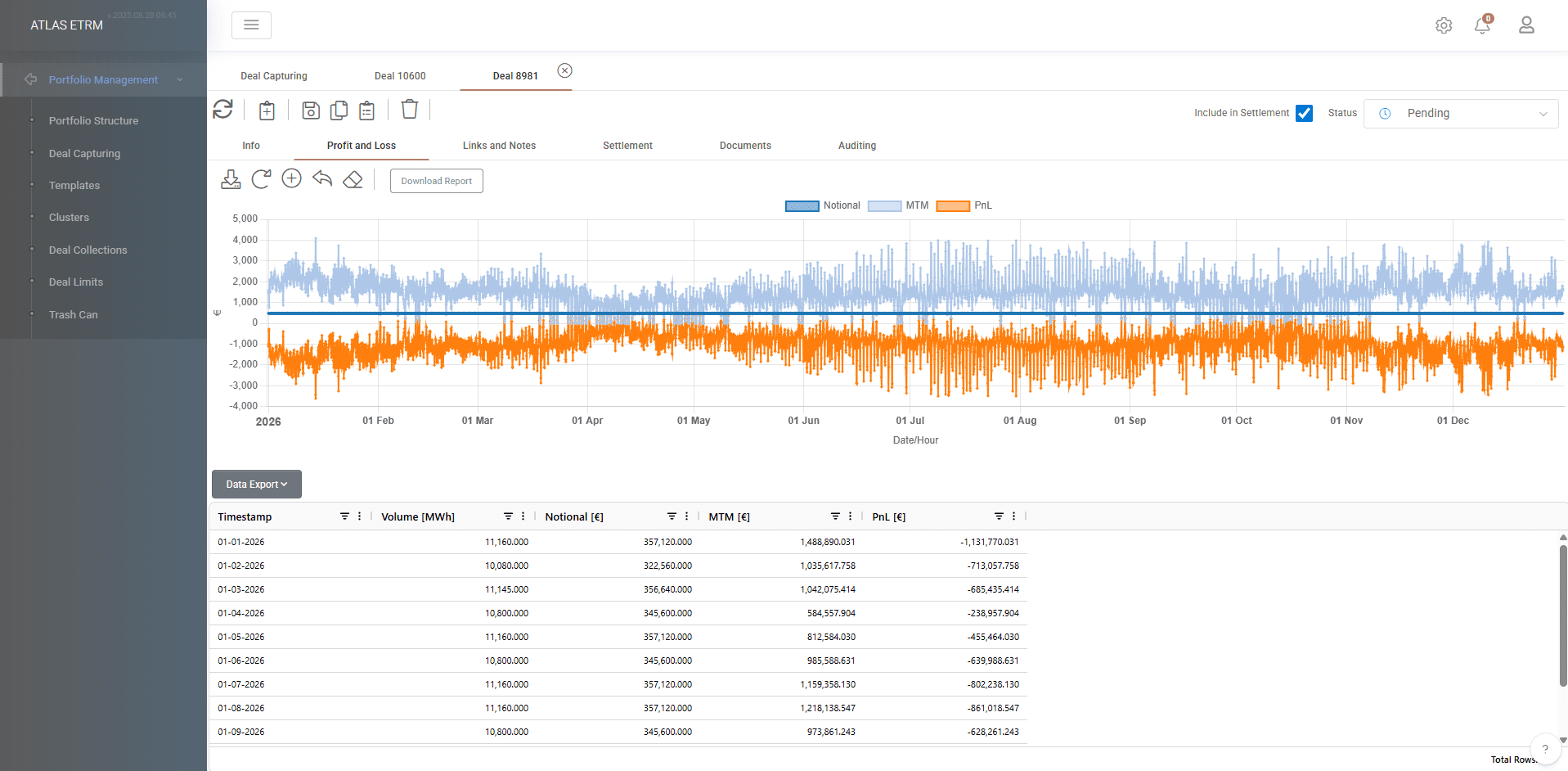
Profit and Loss
The Profit and Loss sub-tab within each deal provides real-time P&L information, including the underlying volume, notional, and MTM values.
For analysis across multiple deals, portfolios, or other business-defined groupings, P&L can be presented through embedded Metabase reports. These reports are updated automatically in real time and can be customized according to the customer’s business case, including the required KPIs, breakdowns, and visualizations.
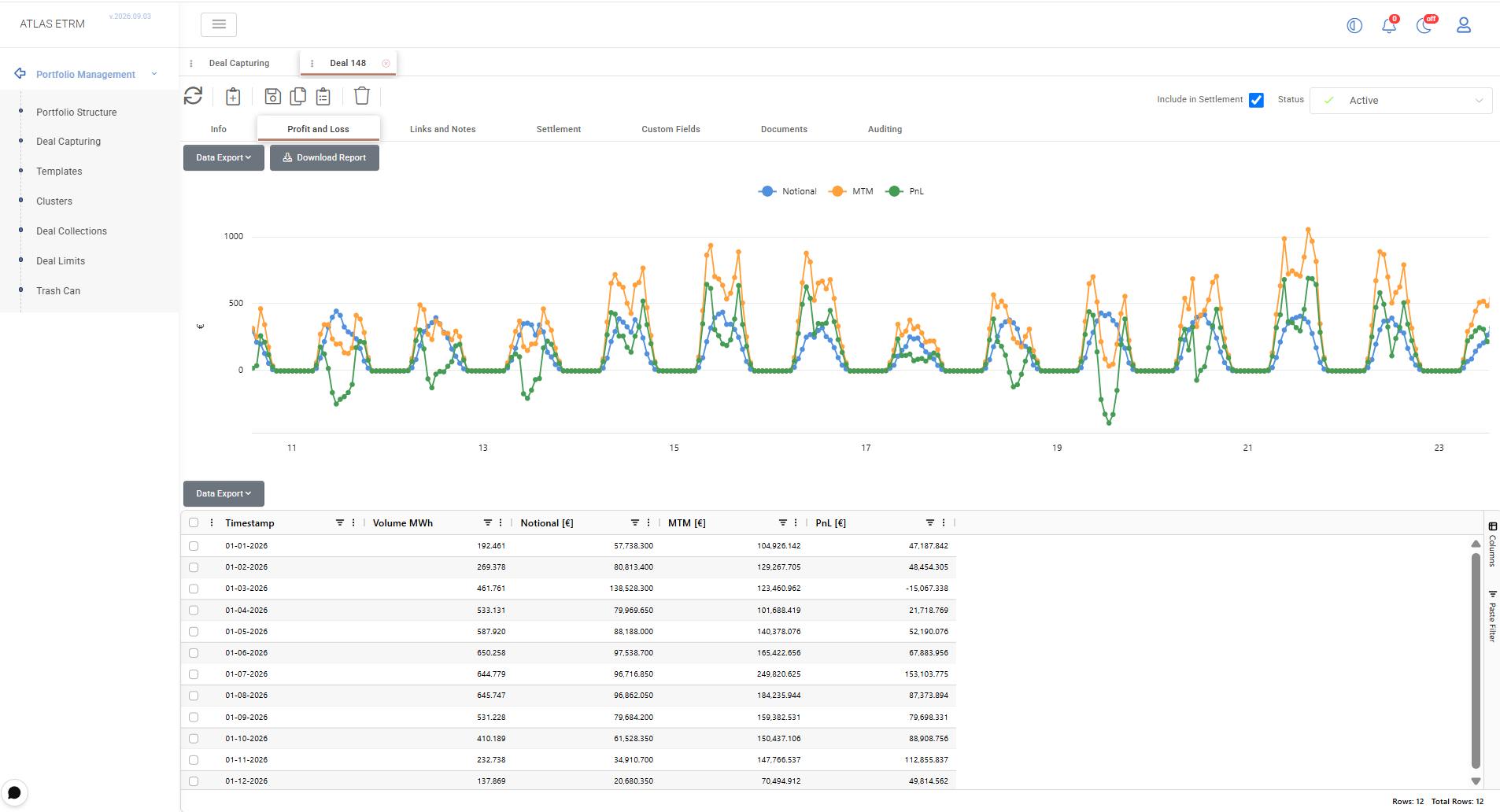
Charts can be downloaded as images through the Data Export option. From the same menu, users can also export the underlying data in XLSX or CSV format. Alternatively, the Download Report option can be used to download the P&L report data in Excel format.
Link and Notes
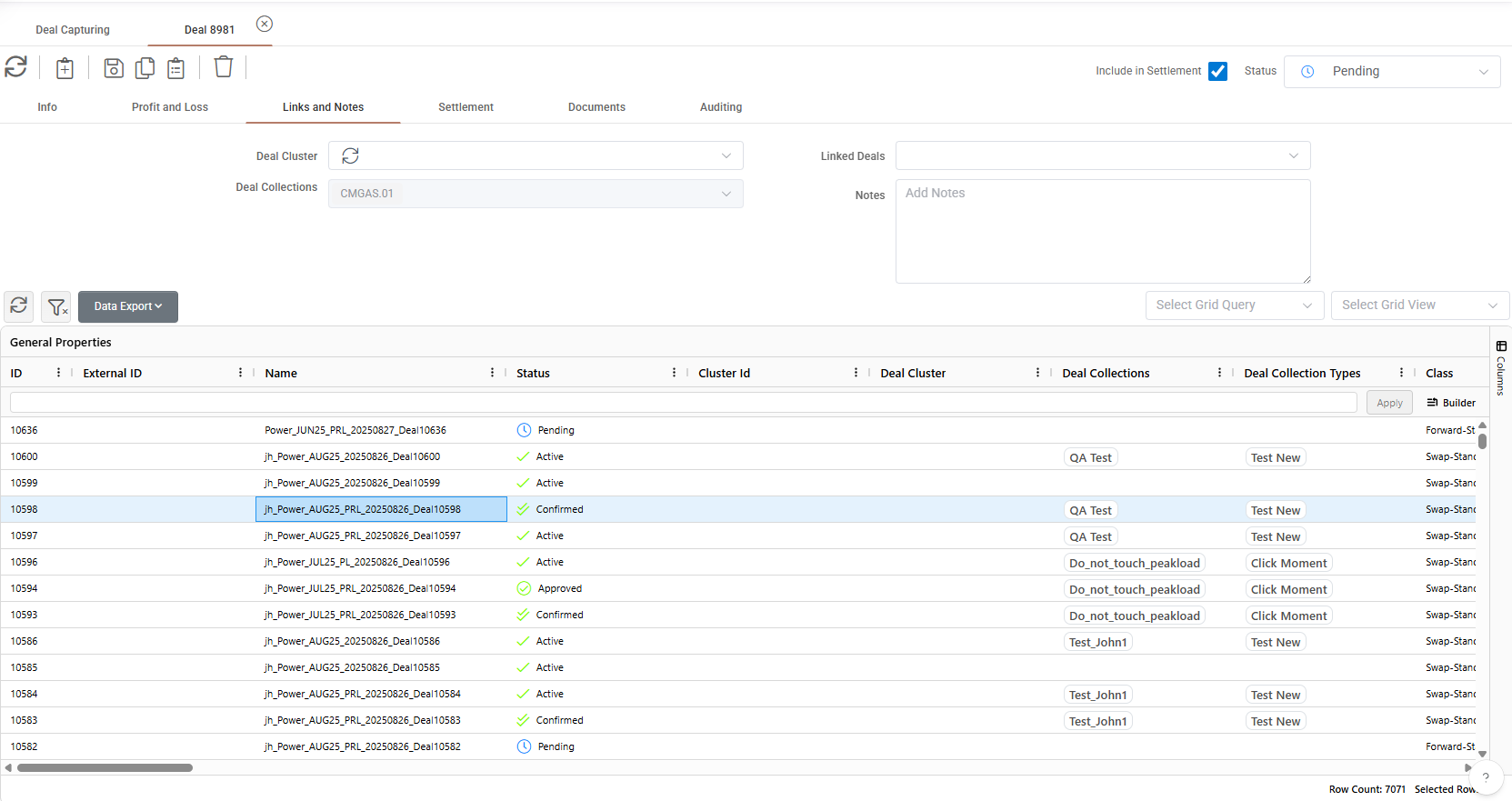
In this sub-tab user see the connections of deals with deal cluster, collections and/or other deals. Specifically:
Clusters: User can view the cluster that was used to create the deal (if applied) or connect the deal to a specific cluster. Clusters are described in an article below.
Deal Collections: User can view only the collection that this deal is included (if applied).
Linked Deals: User can view the linked deals. Also, on the bottom of the grid there are all system's deals and user can apply a specific query in the box above them to locate specific deals. By right clicking on them an option "Add Link" appears.
Notes: Lastly, the user can enter additional remarks or comments for future reference.
Settlement
Through the “Settlement” sub-tab inside a deal , the user is able to specify the settlement parameters and calculate the Order Items of this deal on an ad hoc manner.
Primary Configuration Fields:
Payment Term:
Select the applicable payment term for the deal (as registered in the Back Office).Settlement Period:
Automatically populated based on the selected payment term.This value can be manually adjusted to meet specific settlement needs.
Decimals:
Choose the number of decimal places to be used in settlement calculations.Is Balancing:
Specify whether the settlement refers to a balancing arrangement. If the box is checked the flag is true.VAT Calculation Type:
Select one of the following:Pre-VAT
VAT
After-VAT
If VAT or After-VAT is selected, the VAT Rate (%) field must be completed (see below).
Profile Order:
In cases where multiple input quantity data series are involved, specify which payment terms should be combined with the afore-mentioned data series for the settlement calculation.
Add Settlement Terms:
By clicking the “Add Settlement” button, users can insert multiple settlement rules per deal, enabling the configuration of complex payment policies.
Additional Options:
Link to Master Agreement:
Associate the deal with a registered Master Agreement (must match the same counterparty as registered in Back Office module).Settlement Horizon:
Defines the period over which settlement is calculated, in full calendar months relative to the current date.Accepts positive values (future) and negative values (past).
Calendar:
Select a country-specific calendar to account for national holidays when using payment terms based on business days.Currency:
Choose between:EUR/MWhEUR/kWh
IBAN:
Select the appropriate IBAN linked to the payment of the deal (as registered in the Back Office).VAT Rate (%):
Enter the VAT percentage.This field is mandatory if the VAT calculation type is set to VAT or After-VAT.
In the bottom of screen user can view the order items thar were produced from the specific deal. User can trigger manually the creation of order items by pressing the calculator button, as shown below. After this, all order items are shown in the grid below the settlement and of course they are available in relevant back office section for inspection and order creation.
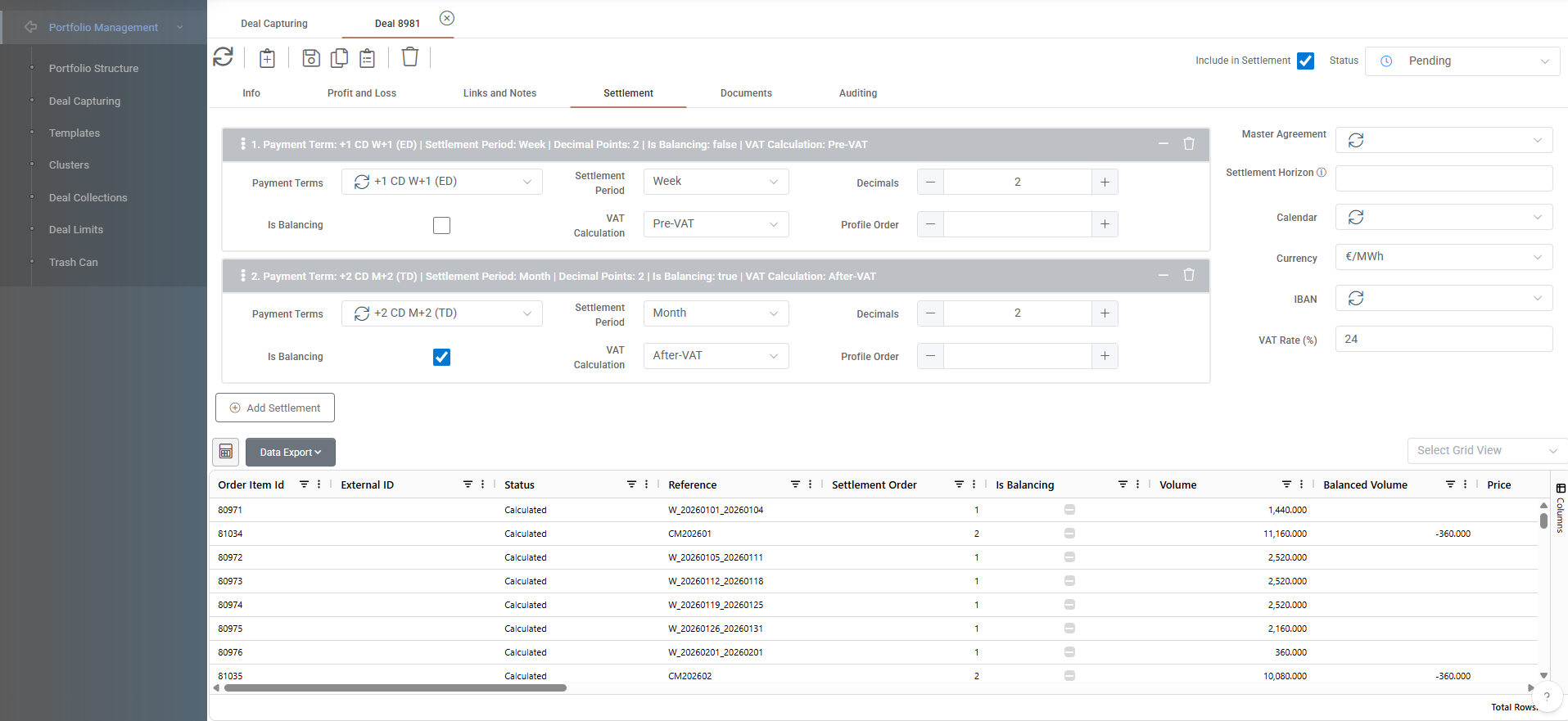
Depending on the settlement cycle, the Order Items produced through the Order Items job (e.g., on every day basis) may be:
Final Order Items (meaning that they have been calculated with the already materialized volumes and prices for the settlement period in question).
Future Order Items (meaning that the have been calculated with the future volumes and prices available in the deal, relevant to the future settlement period).
The final Order Items may be added inside an Order to proceed with settlement as discussed previously (see Back Office / Orders). The future Order Items will be re-calculated by the same job in the days to come, based on the updated volumes and/or prices for the future settlement period received in each day. The future Order Items are utilized for the future cash flow (cash flow projection) discussed under Back Office / Order Items / Cash Flow.
Documents
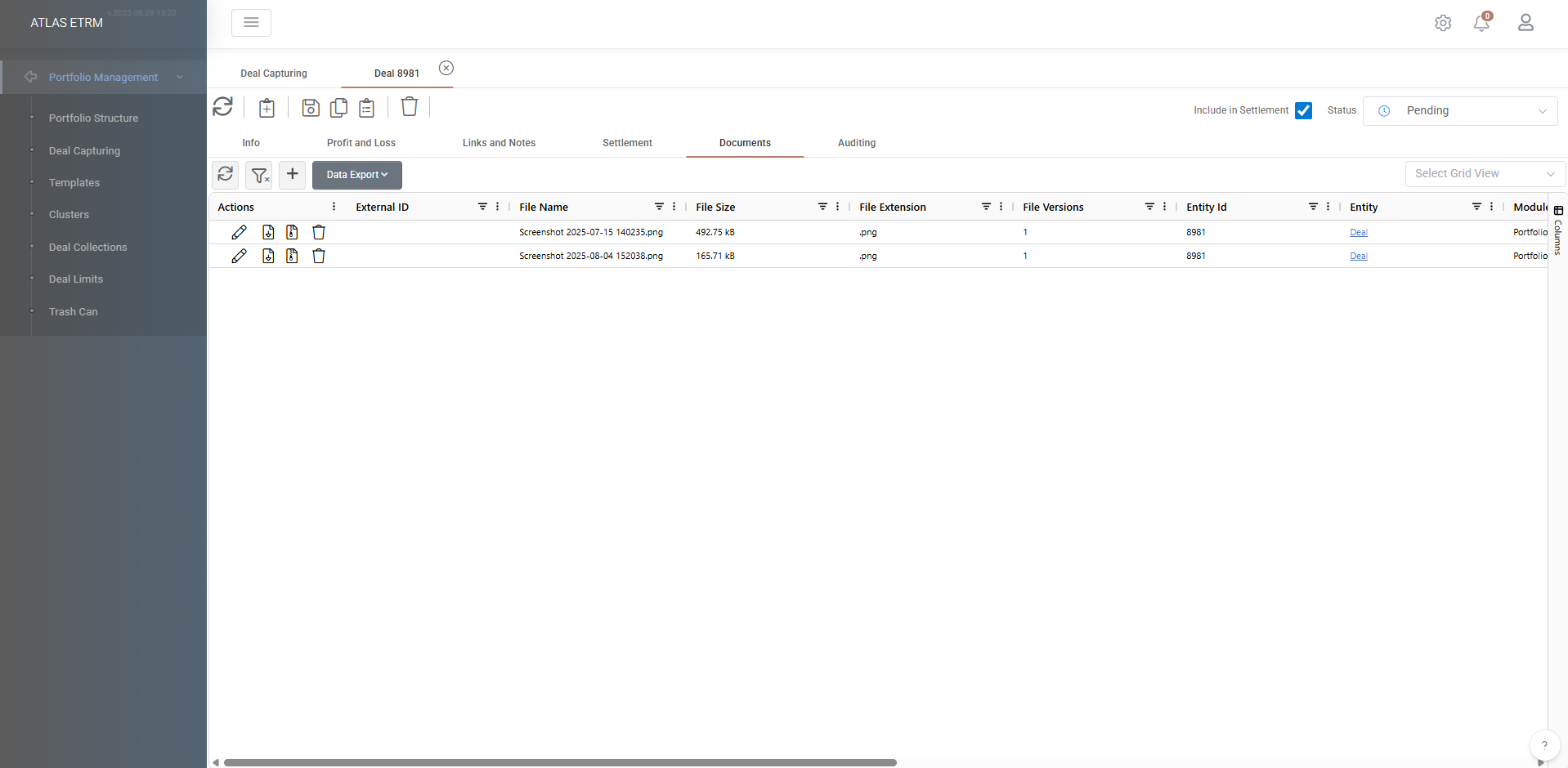
The user has the possibility to add one or more documents inside a deal under sub-tab Documents. Term-sheets, confirmation letters, emails, or other supporting material may be uploaded here to complete the evidence of the deal in question. By pressing "+" button on top of grid a new pop-up window opens where user can upload the documents.
Auditing
In this sub-tab a full history is kept about the actions that have been made to a specific deal. It is available the type of action, the user that made the action and the timestamp that the action was performed. All these data can easily be exported to excel (from relevant button on top) and provide a clear report for easier traceability.
Deal Capturing – Right-Click Context Menu
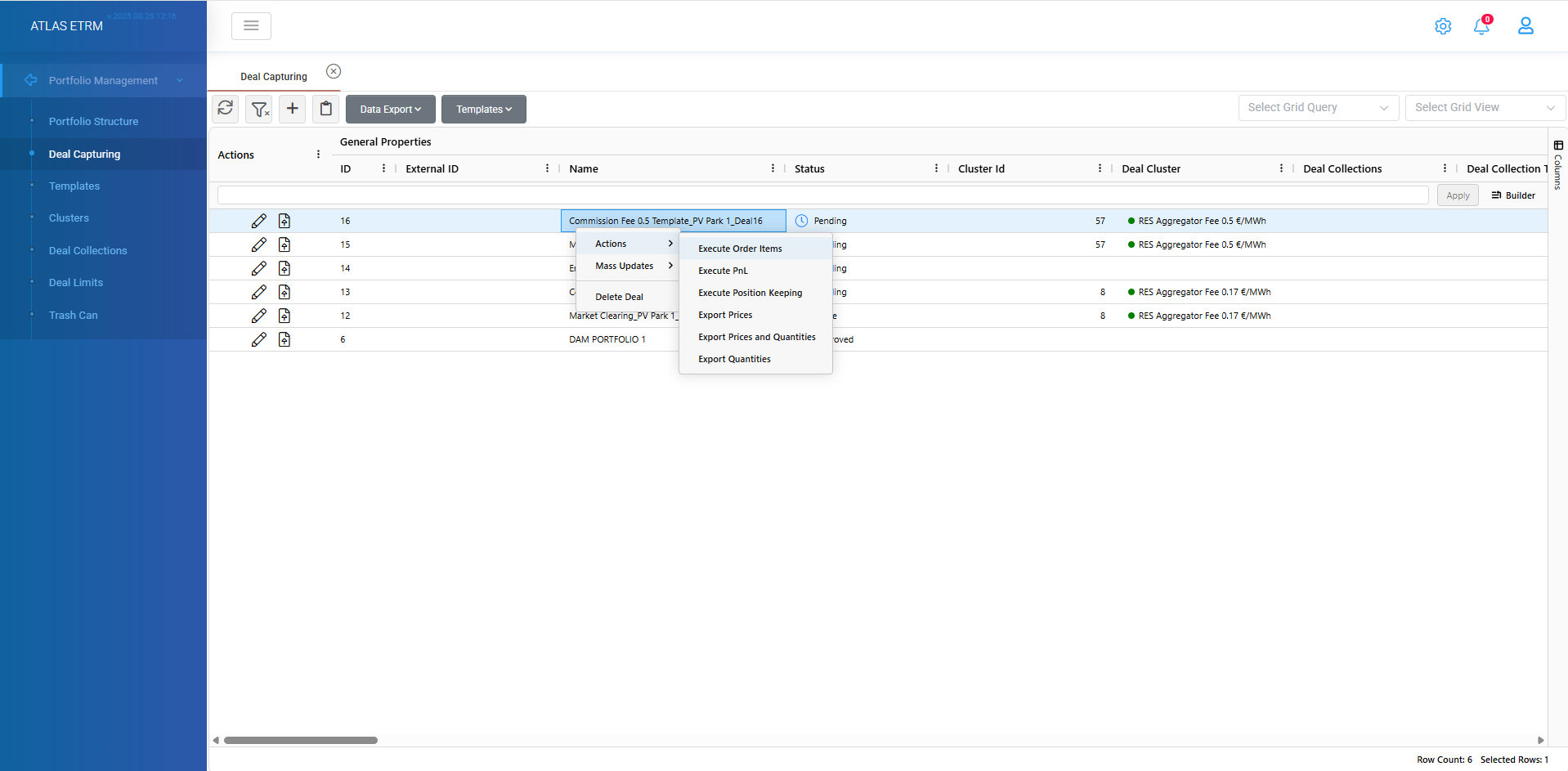
Within the Deal Capturing screen, right-clicking on one or more selected deals opens a context menu offering three main categories of functionality: Actions, Mass Updates, and Delete Deal.
These tools allow users to interact more deeply with deal data, perform calculations, and extract reports on demand.
1. Actions
• Execute Order Items
Triggers the manual creation of Order Items for the selected deal(s).
⚠ This option is only available if the deal(s) include valid Settlement Rules.
Upon successful execution, a confirmation message appears in the bottom-right corner of the screen.
• Execute PnL
Runs the Profit and Loss (PnL) report for the selected deal(s).
This opens a new tab displaying detailed financial results, including realized/unrealized gains, breakdowns by leg, price structures, and more — as described in the relevant PnL report section above.
• Execute Position Keeping
Performs a Position Keeping calculation on the selected deal(s).
This process:
Calculates open and closed positions, aggregating exposure per index or per deal. Optionally user can select a specific time period for the execution of position keeping. If the fields are not filled the action will run for the whole product period of the selected deals (the biggest product period will take effect).
Reflects changes in net position after each deal is captured, updated, or canceled.
Enables traders and risk analysts to understand the current exposure, hedge effectiveness, and market participation across portfolios.
This action opens a results tab with positional data structured by delivery periods or instrument.
• Export Prices
Exports a spreadsheet including:
Deal metadata
Unit prices
Indexation and pricing structure
• Export Prices and Quantities
Exports both:
Prices
Quantities
alongside deal-level information.
• Export Quantities
Exports deal data including only:
Quantities
Deal identification details
These exports are especially useful for reconciliation, audit support, or integration with external pricing and valuation tools.
2. Mass Updates
The Mass Updates functionality in the Deal Capturing module enables users to perform bulk modifications across multiple selected deals. This tool enhances efficiency by allowing key deal attributes to be updated simultaneously through a guided interface.
The following options are available for mass update:
🔹 Leg 1 :
Modify the Upfront 1 and/or Upfront 2 prices across selected deals.
🔹 MTM (Mark-to-Market)
Assign or replace the MTM Data Series by typing and selecting the relevant data series name from the list.
🔹 Cluster
Change the associated Deal Cluster for all selected deals.
🔹 Portfolio Structure
Update one or more of the following portfolio fields:
Company
Business Unit
Folder
Book
Portfolio
🔹 Collections
Assign selected deals to an existing Deal Collection.
🔹 Notes
Add or overwrite Notes across multiple deals simultaneously.
🔹 Settlement
Modify the Settlement Rules in bulk, including payment terms and VAT calculation.
🔹 Include in Settlement
Toggle whether the selected deals should be included or excluded from the settlement process (whether they generate Order Items).
Requires input of a "Valid from" date for this change.
🔹 Delivery Period
Update the Delivery Start and Delivery End dates (i.e.,
Valid From/Valid To) for all selected deals.
🔹 Master Agreement
Change the linked Master Agreement across multiple deals.
The system performs a validation check to ensure that the selected Master Agreement’s validity period aligns with the deal’s delivery period. A confirmation message will appear if the action is successful.
🔹 Deal Status
Bulk update the Status of deals (e.g., from Pending to Approved).
🔹 Cluster Status
Modify the Cluster Status of selected deals:
From Active to Non-Active
Or revert from Non-Active to Active
🔹 IBAN
Update the IBAN associated with the selected deals.
🔹 VAT Rate
Modify the VAT Rate for all selected deals in one operation.
These mass update tools are essential for streamlining portfolio management, especially in high-volume trading environments. Each action is logged, and user permissions may restrict access to certain update types based on organizational roles.
3. Delete Deal
User can delete massively deals. Deals will not be deleted permanently from the system, but they will moved in trash can.
Was this helpful?