5.4 Templates
Overview of Templates
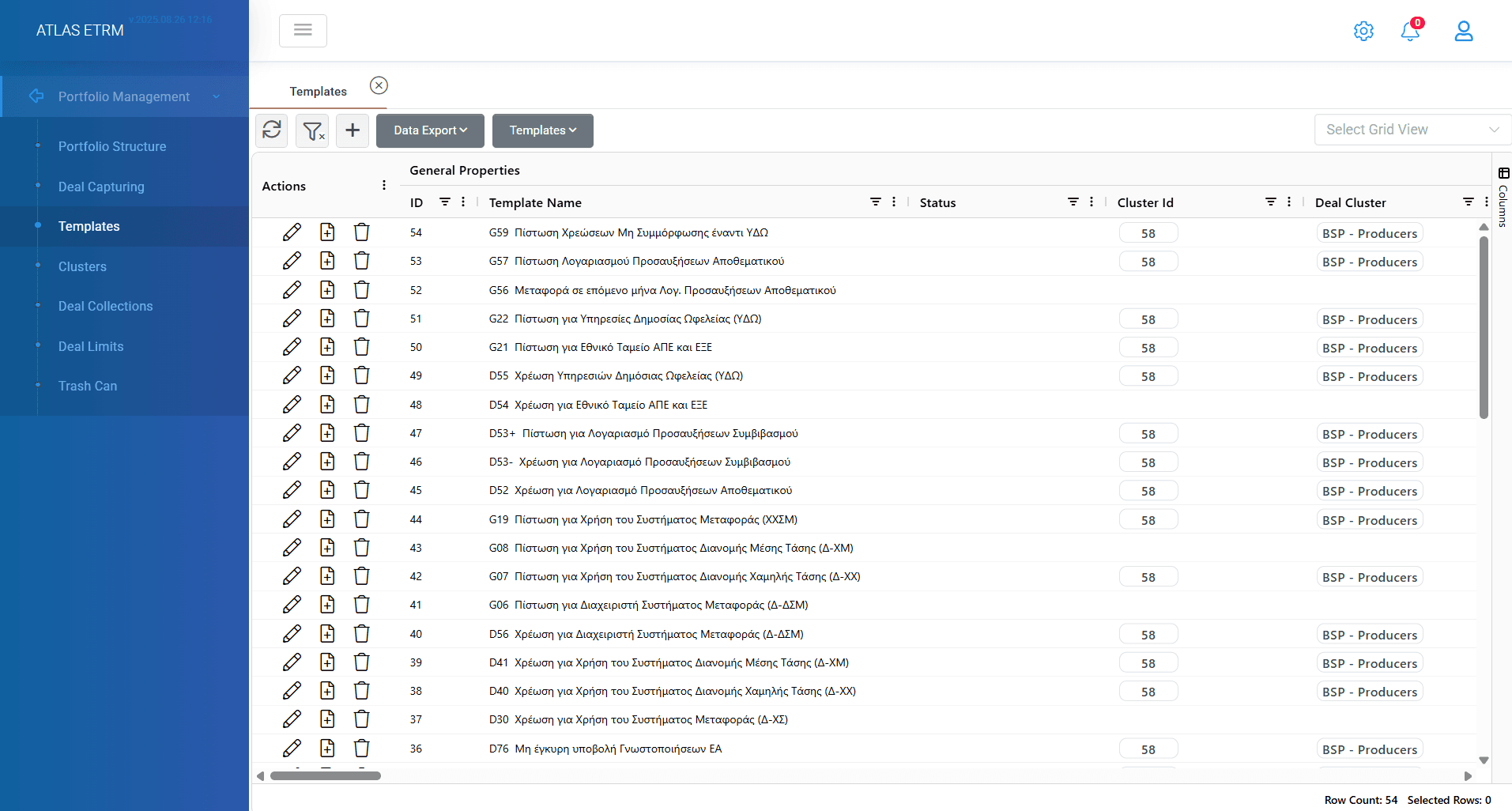
The Deal Templates screen allows users to streamline the deal creation process by defining and reusing preconfigured settings. This functionality is especially useful for massive or repetitive deal entry, ensuring consistency and saving valuable time.
How Deal Templates Work
Deal templates follow the same structure and logic as standard deal creation, with one key difference - templates do not carry a status. When a deal is created from a template, it is automatically assigned a “Pending” status by the system.
Create a new template
To create a new template:
Navigate to the Templates screen under
Portfolio Management.Click the “+” button located at the top of the grid.
A new tab will open with a deal-like form.
Fill in the necessary fields based on the structure of the intended deals.
Template Name is a mandatory field — make sure to assign a clear and descriptive name.
After completing the configuration, click the “Save” button (see figure below).
Once saved, the template will be available for reuse in the deal capturing screen by selecting “Add from Template” on top of screen.
Edit/delete a template
User can view the details of a template and edit it by either pressing the "pencil" icon in actions area or by double clicking a template. Middle action button "Create Deal From Template" can be used to create easily a deal using the specific template and the "trash can" icon to delete a template. A confirmation message will show to confirm deletion.
Multiple templates can be combined later in clusters for specific policy creation. It is important to keep templates up-to-date to have proper deals in system.
Was this helpful?