6.7 Block Orders
Overview of Block Orders
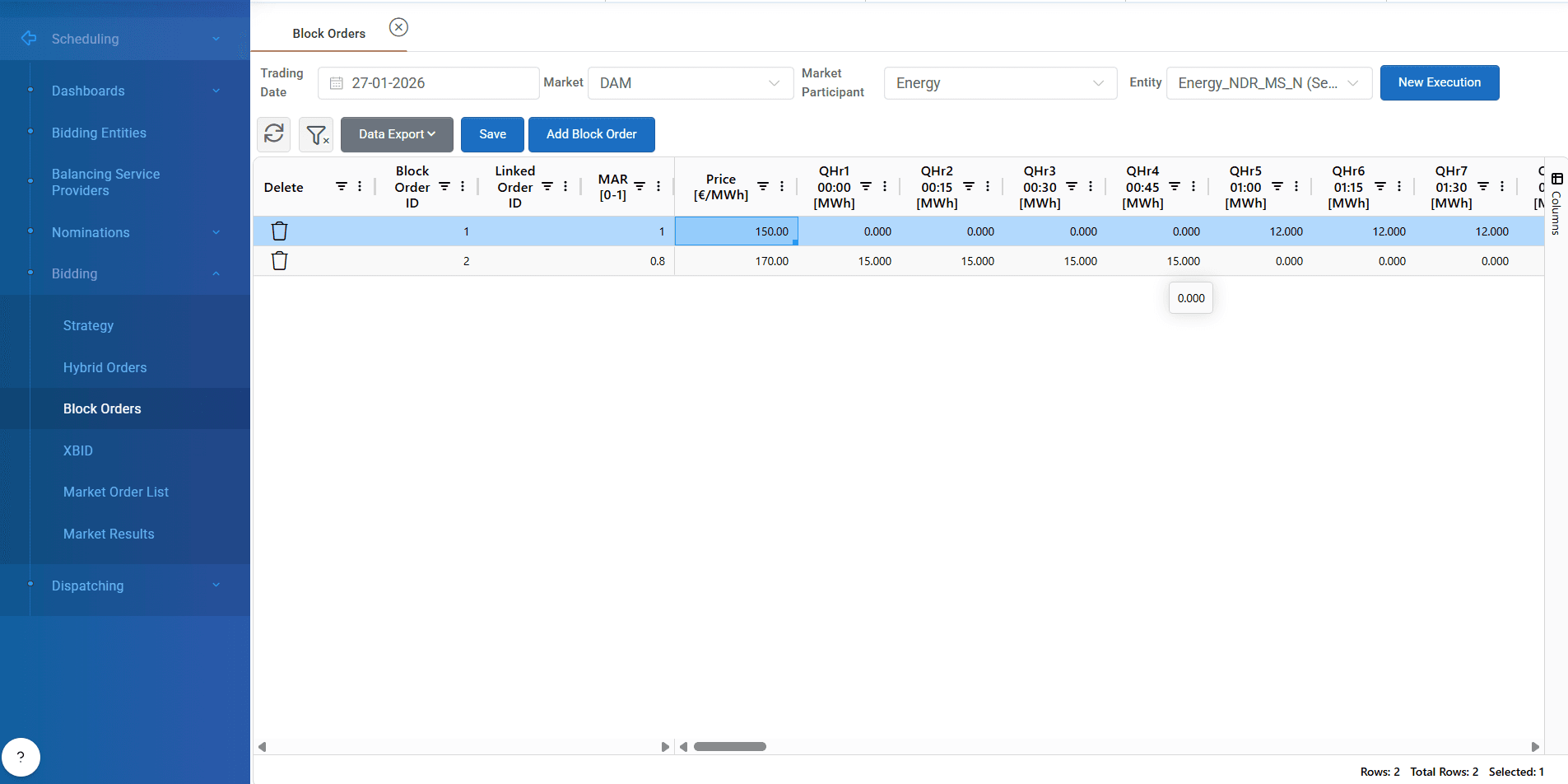
The Block Orders feature in ATLAS ETRM provides a powerful and intuitive interface for managing block order submissions in the spot market for a selected trading date and market. Similar in design to the Stepwise Orders screen, this module is tailored for block-style bidding strategies, allowing users to define complex order logic, manage groupings, and ensure compliance with market rules. Block orders are used mostly for thermal units, that want to have a guarantee production for several timesteps due to their technical limitations.
Step 1: Market & Participant Selection
To begin, users select:
The target trading date (by default the next day is selected).
The market (e.g., DAM, IDM).
Select the market participant.
Choose a specific bidding entity (unit or portfolio).
Upon selection, the system displays a block order grid where users can input and edit all necessary details for each block order.
Step 2: Block Order Fields
Each row in the grid represents a unique block order. The grid includes the following key fields:
Field | Description |
|---|---|
Block Order ID | Auto-generated unique identifier for each block order |
Linked Order ID (optional) | Used to link related orders by ID, allowing them to be managed as a group |
Minimum Acceptance Ratio (MAR) | A value between |
Price [€/MWh] | Price offered for the entire block order |
Quantity | Total energy quantity for the block order |
Step 3: Data Entry & Editing
Users can enter or edit data directly within the grid using:
Manual entry (inline editing)
Excel-style copy-paste for efficient bulk updates
To add multiple block orders user should press “Add Block Order” on the top of screen. Thus, system creates a new row with a new block order.
💡 Tip: Users can quickly populate columns by copying blocks of data from external tools or spreadsheets.
Step 4: Save
Once all block orders have been defined and validated:
Press the “Save” button to submit the orders to the system
Saved orders are transferred to the Market Order List, where they:
Are available for approval by authorized users
Can be submitted to the Market Operator for execution
Available actions
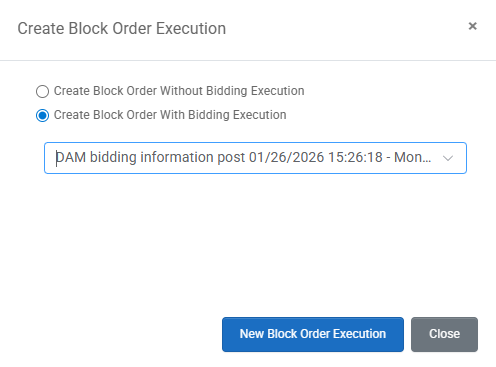
New Execution: The system can generate a fresh execution so it can be manually filled later by pressing “Create Block Order Without Bidding Execution” or automatically bring prefilled quantities by selecting a relevant strategy. After the above selection press “New Block Order Execution”.
Was this helpful?