3.4 Math Editor
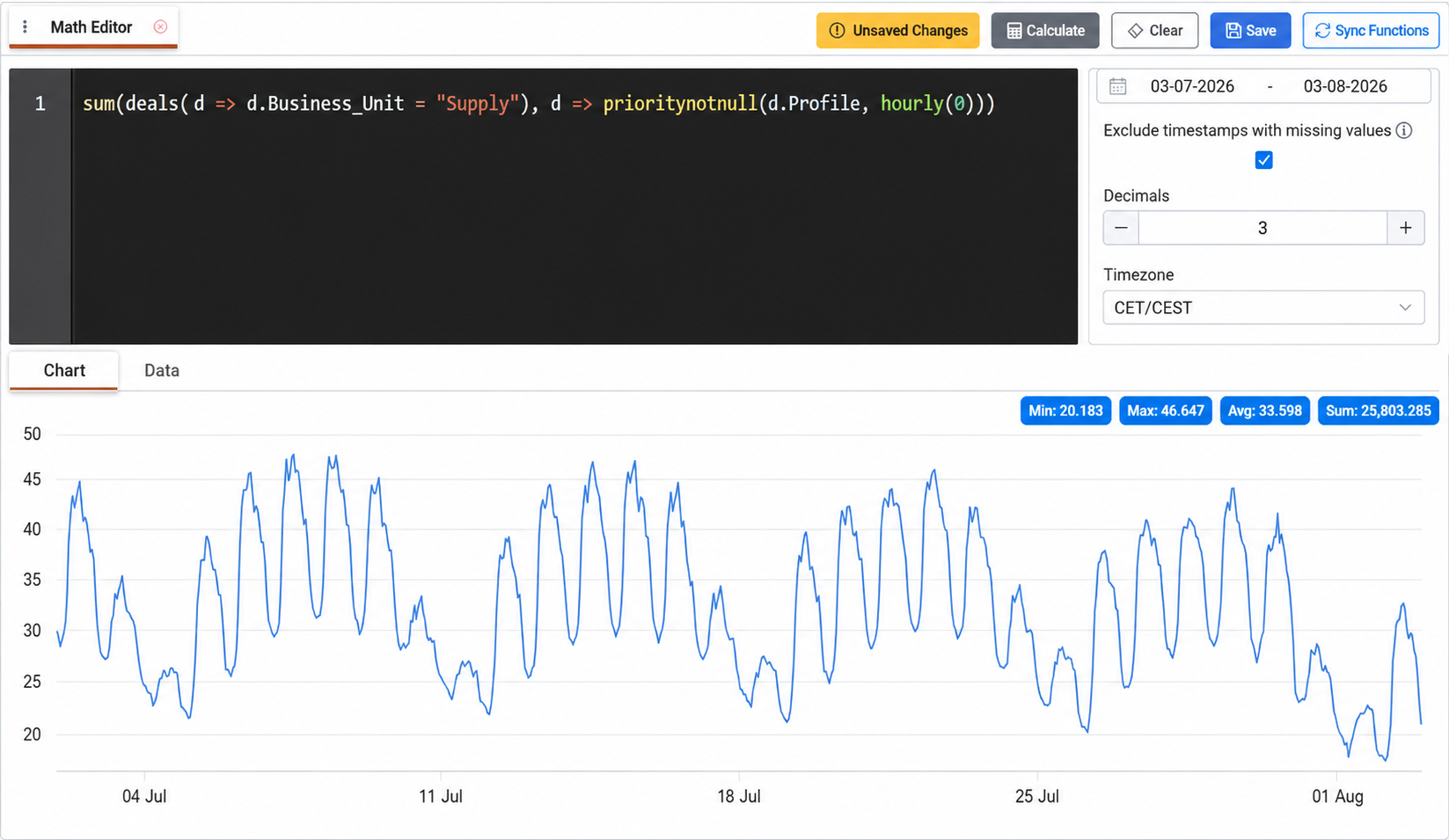
Overview
The Math Editor allows users to create calculated data series using data available across ATLAS.
Expressions can combine time-series data using mathematical operators, predefined functions and logical conditions. They can also reference live ATLAS objects, such as Assets and Deals, allowing calculations to use their current properties and associated data. Standing Data can be referenced as well to incorporate centrally maintained values into calculations.
Data series created using the Math Editor are dynamically recalculated whenever their underlying data changes. This makes them suitable for calculations based on regularly updated market prices, forecasts, metered volumes or data received from exchanges, TSOs and other providers.
Once created, the calculated series can be used across ATLAS. They may be assigned to Deals as calculated prices or volumes, used as inputs in further calculations, or displayed in Dashboards and Widgets.
Typical Use Cases
The Math Editor can support a wide range of business calculations, including:
Creating complex price formulas based on one or more commodities or market components.
Adding, comparing or prioritising different volume profiles.
Calculating ad hoc KPIs, such as forecast accuracy indicators.
Performing market reconciliation and other time-dependent analyses.
Combining actual and forecast data according to their chronological availability.
When used in Deal Capturing, Math Editor prices and volumes can be combined with the available deal classes to model different contract structures without requiring contract-specific development.
Creating a Calculated Data Series
Building an Expression
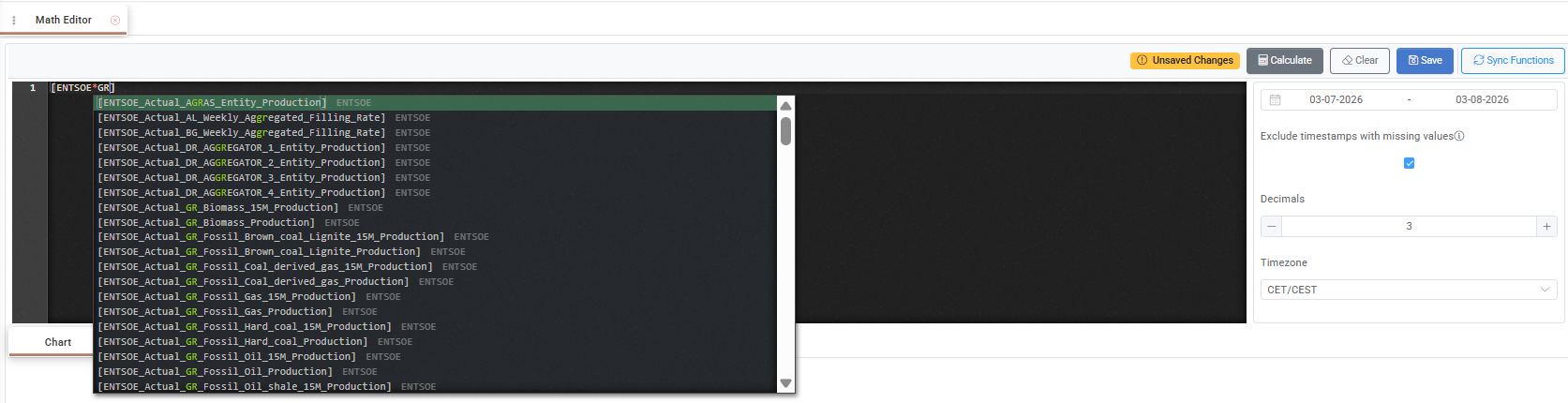
Expressions are created in the Math Editor command box. Data series are referenced using square brackets:
[DataSeriesName]
After entering an opening square bracket, users can search for and select a data series from the dropdown containing the data available in the Data Room.
Data series can be combined with mathematical operators, constants, predefined functions and logical conditions. For example:
if([MarketPrice] + Premium < [FloorPrice], [FloorPrice], [MarketPrice] + Premium)
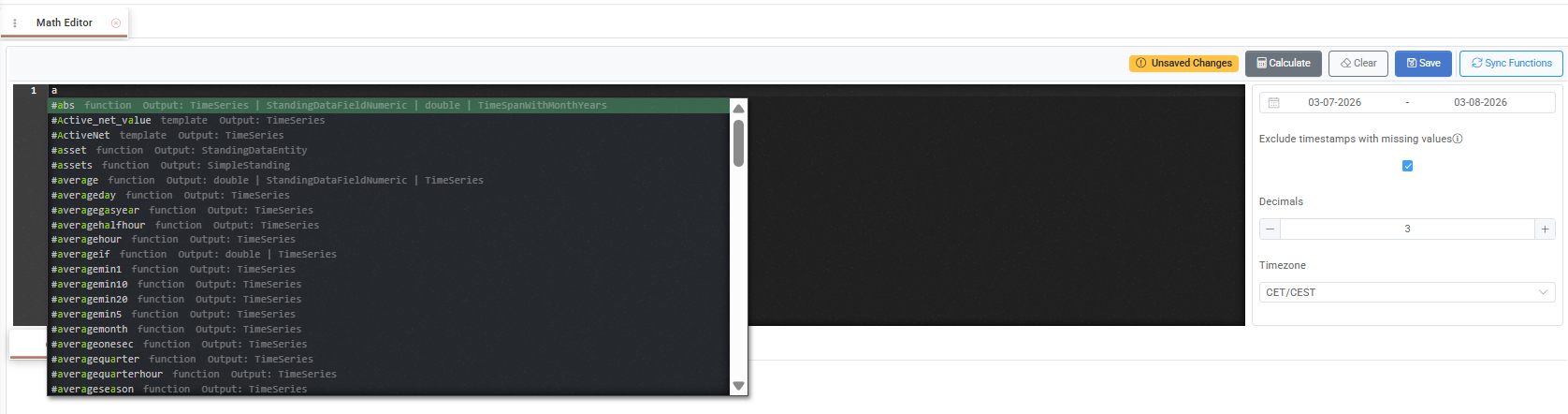
Entering text outside square brackets displays autocomplete suggestions for [built-in functions], synchronised [Math Editor Templates] available as custom functions, and [Standing Data].
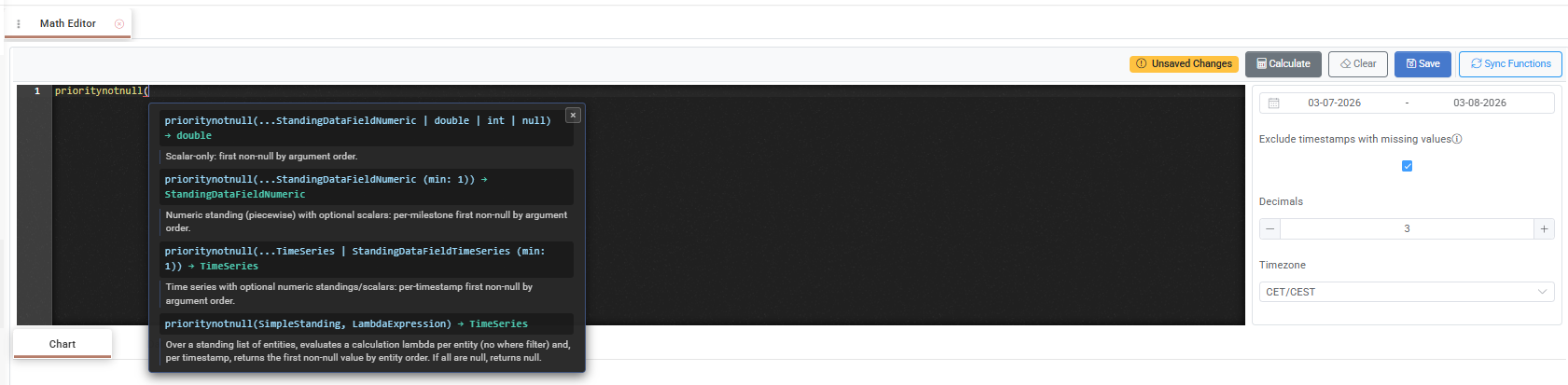
After selecting a built-in or custom function, its expected syntax is displayed to help users provide the required parameters correctly.
Using Functions
Functions allow expressions to perform calculations that go beyond basic arithmetic. Among other operations, they can be used to:
Shift a data series forwards or backwards in time.
Retrieve the value corresponding to the last day of a month, as may be required for certain gas products.
Aggregate values over a defined period.
Apply conditional calculation logic.
Combine realised values from one series with forecast values from another, based on a dynamically defined date such as
Today + 1.
For the complete list of supported functions, including their syntax, parameters and output, see [Math Editor Functions].
Calculating and Previewing the Result
After completing the expression, select the calculator icon to calculate it. The result can be reviewed in either Chart or Data view before it is saved.
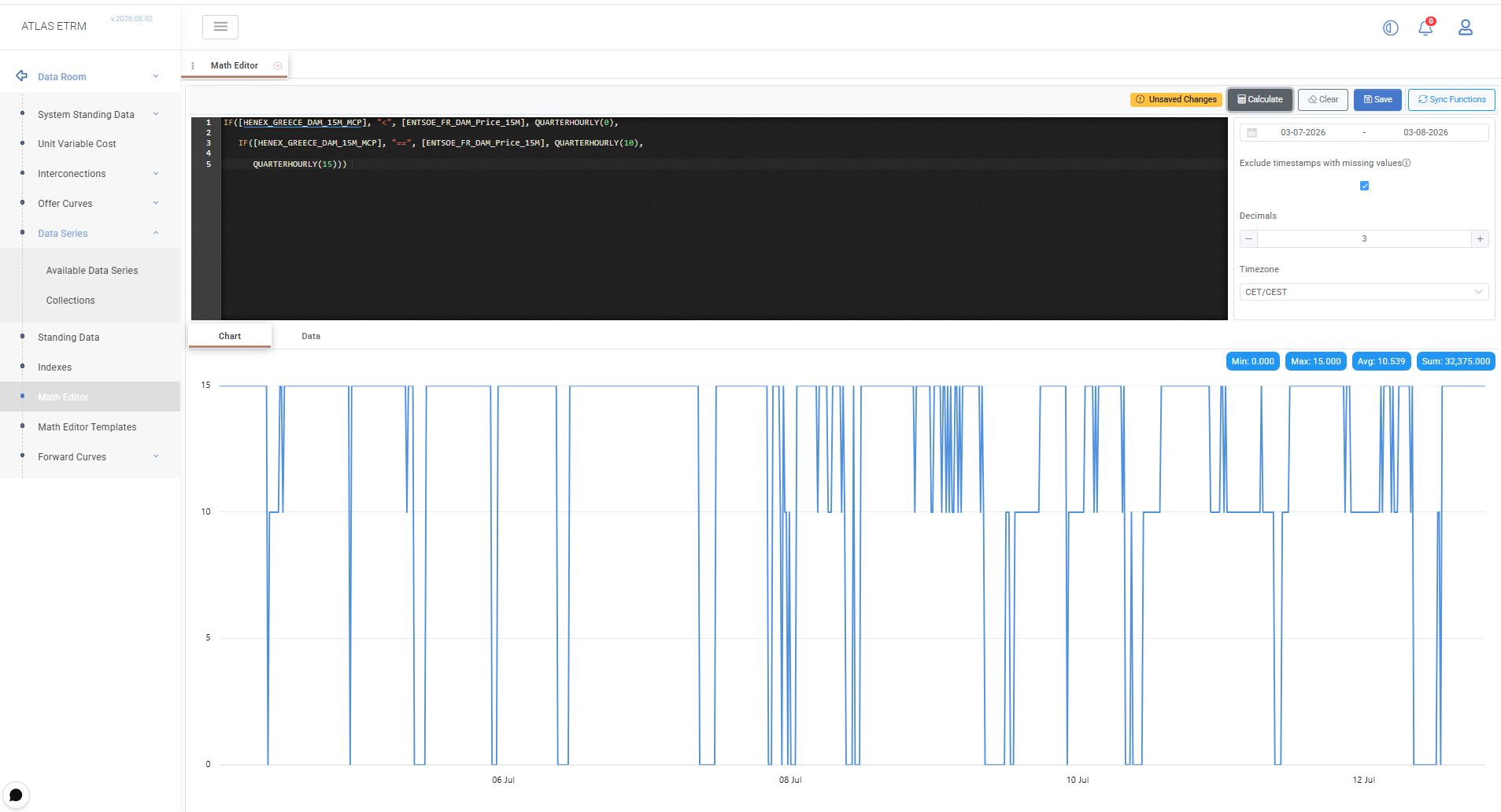
The Date Range defines the calculation period, while the Time Zone determines how timestamps are interpreted and displayed. The number of decimal places shown in the result can also be configured.
When Exclude timestamps with missing values is enabled, timestamps for which the expression cannot return a complete result are omitted. This is useful when the input series cover different periods or contain missing values.
The Clear icon removes the current expression and resets the command box. Sync Functions refreshes the functions available through autocomplete, ensuring that the latest functions can be selected when building an expression.
Saving the Result
After reviewing the calculation, select Save to store the result as a new data series. In the Formula window, define its Name, Type, UOM and Decimals. Tags, upsampling and downsampling methods, comments, and the handling of missing values can also be configured. The Timestep and Content are populated from the calculated expression. For details about the available fields and configuration options, see the [Data Series Appendix - Field Details].
The saved expression remains connected to its source data. When the underlying series are updated, ATLAS recalculates the resulting values automatically.
For complete calculation scenarios and sample expressions, see [Math Editor Examples].
Exporting Results
Calculated values can be exported in Excel or CSV format for analysis or use outside ATLAS. The exported data reflect the selected calculation period and the result of the current expression.
Appendix — Field Details
Field / Element | Required | Description |
|---|---|---|
Expression | Yes | Defines the calculation using data series, mathematical operators, functions, logical conditions, live ATLAS objects and Standing Data. |
Date Range | Yes | Defines the period for which the expression is calculated. |
Exclude timestamps with missing values | No | Omits timestamps for which one or more required input values are unavailable. |
Decimals | Yes | Defines the number of decimal places displayed in the result. |
Time Zone | Yes | Determines how timestamps are interpreted and displayed. For the available options, see Data Options. |
Calculate | — | Executes the expression and generates the result. |
Clear | — | Removes the current expression and resets the command box. |
Save | — | Saves the calculated result as a new data series. |
Sync Functions | — | Refreshes the functions available through autocomplete. |
Chart | — | Displays the calculated result as a chart. |
Data | — | Displays the calculated result in tabular form. |