3.5 Math Editor Templates
Overview
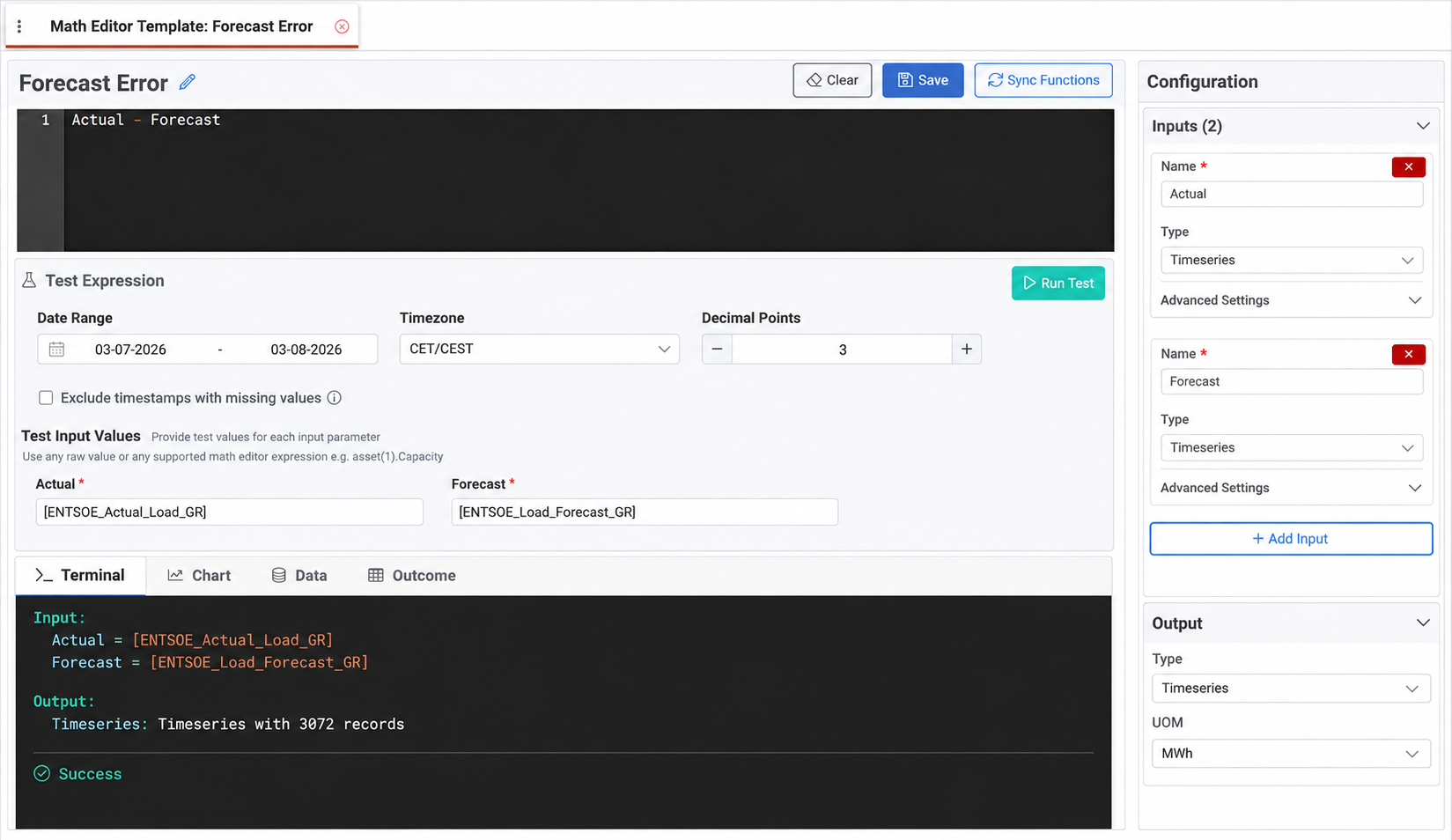
Math Editor Templates allow users to create reusable, parameterised calculations in ATLAS.
Each template combines a calculation expression with defined input parameters and an output configuration. This allows the same formula structure to be reused with different values instead of being recreated in multiple expressions.
Templates are maintained centrally, helping standardise calculations such as pricing formulas, risk metrics and operational analytics. This improves consistency and simplifies future updates.
Once synchronised, a template becomes available in the Math Editor as a custom function and can be called using its defined input arguments.
Typical Use Cases
Standardized price indexation formulas: Define a template for calculating indexed contract prices based on market benchmarks (e.g., IndexedPrice(BasePrice, IndexValue, EscalationFactor, CapRate)). When multiple bilateral contracts use the same indexation methodology but with different parameters, the template ensures all contracts apply identical calculation logic, while business analysts can update the formula centrally if the methodology changes.
Composite operational KPIs: Build templates for complex performance indicators such as heat rate efficiency curves, capacity factor calculations adjusted for forced outages, or renewable asset availability metrics. When the same KPI definition needs to be applied across multiple assets or reporting periods, the template ensures methodological consistency and simplifies auditing.
Creating and Configuring a Template
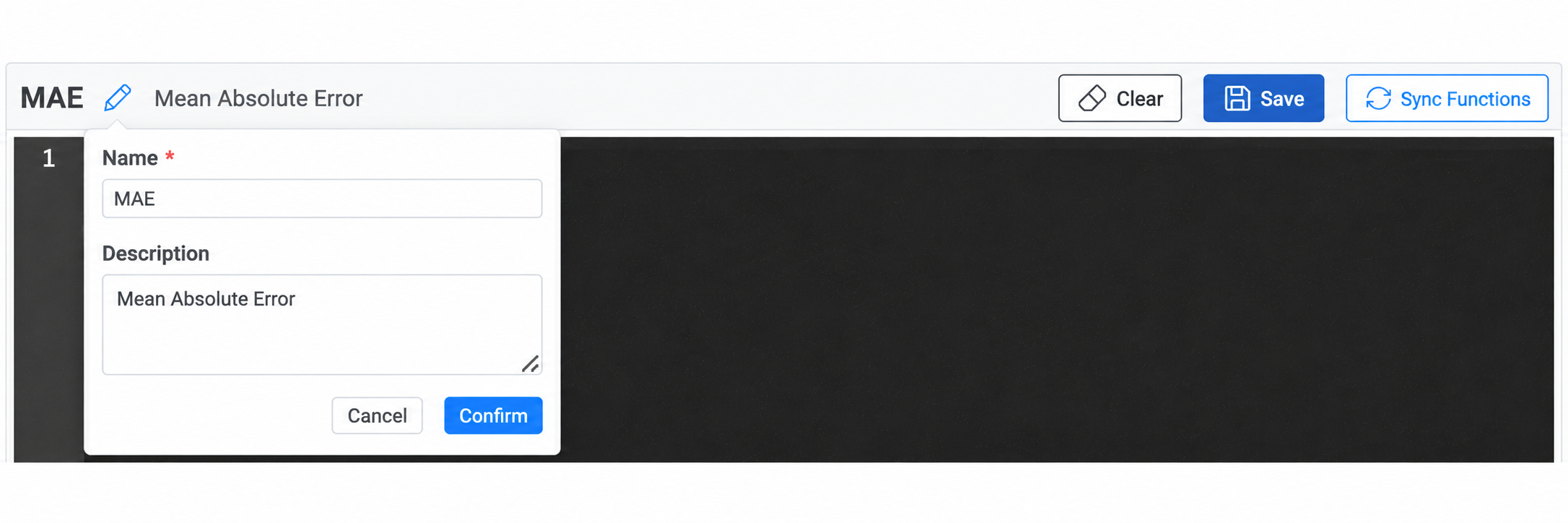
Select the + button to create a template and define its Name and, where needed, a Description. The template can then be configured by building its expression, defining the required inputs and specifying the expected output.
Building the Expression
The expression defines the calculation performed by the template. It can use the defined input parameters together with mathematical operators, functions and logical conditions.
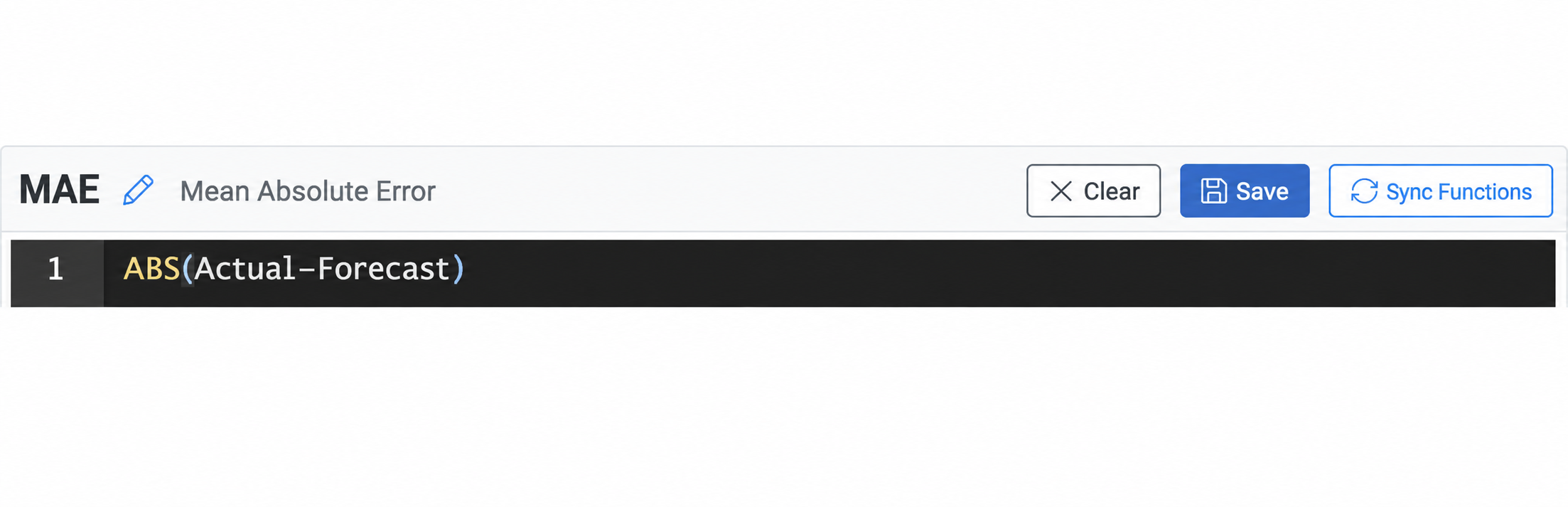
The same syntax principles apply as in the [Math Editor]. For details about the available functions and their required parameters, see [Math Editor Functions].
Defining Input Parameters
Input parameters define the values that must be provided when the template is used as a custom function. Select + Add Input to add as many parameters as required by the calculation.
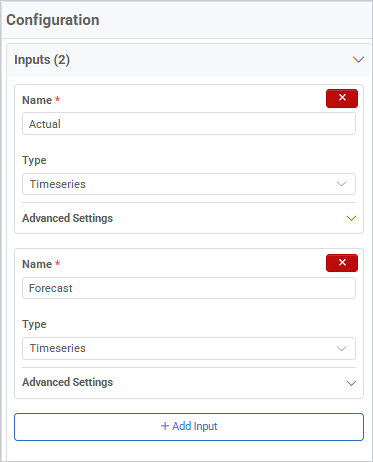
Each parameter is configured separately from the Configuration panel. For details about the available fields and input types, see the Appendix - Field Details.
Configuring the Output
The Output section defines the type of result returned by the template. The selected Output Type must be compatible with the result produced by the expression. A UOM can also be assigned where applicable.
Testing the Template
The Test Expression section allows users to validate the template before making it available in the Math Editor.
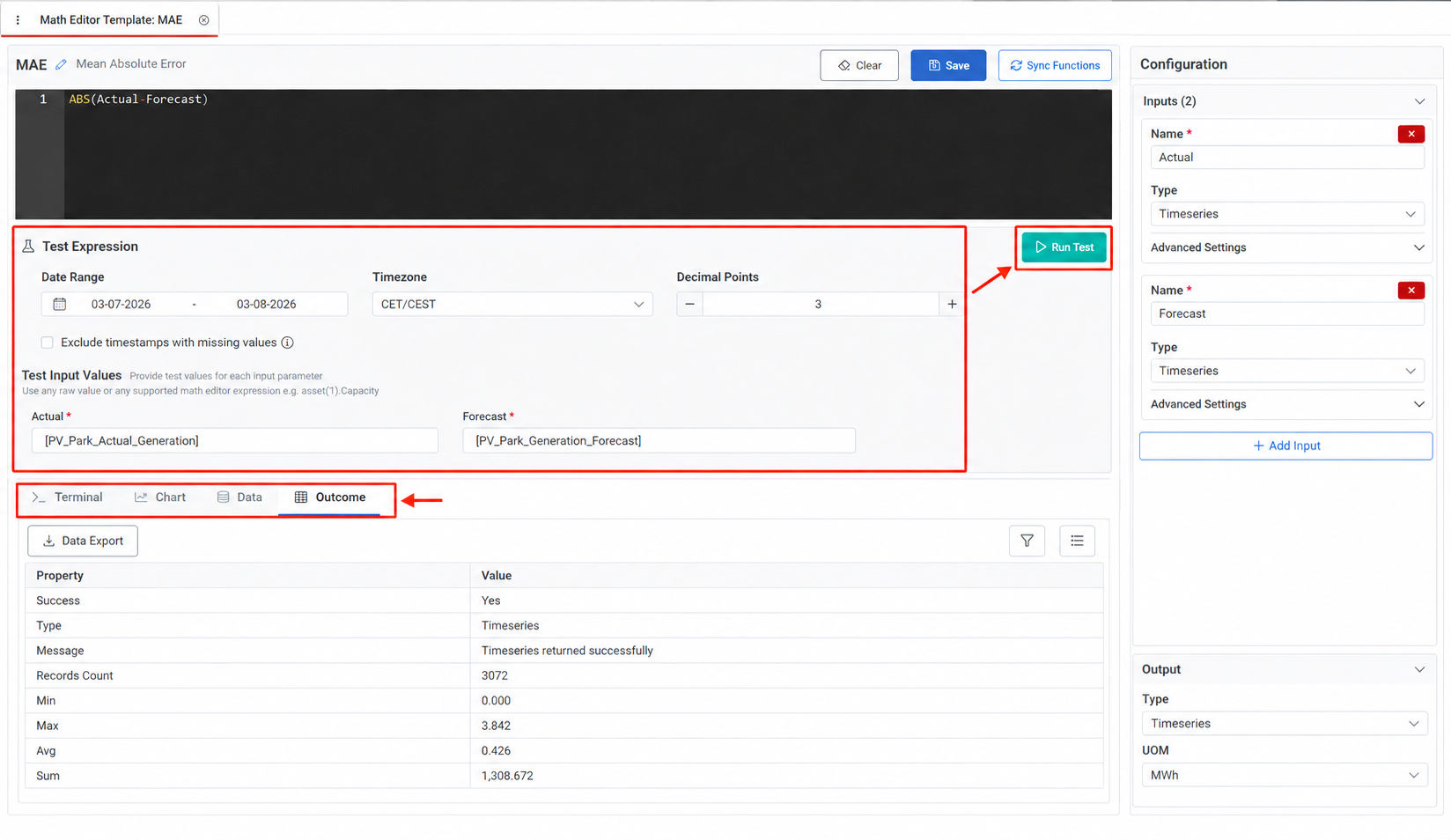
Configure the test period and provide representative values for the defined input parameters. Select Run Test to execute the expression.
Τhe result can be reviewed through different views. The Terminal focuses on the execution process, while the Outcome provides a structured summary of the result. Time-series outputs can also be examined through the Chart and Data views to verify the calculated output and identify any errors in the expression or test inputs.
Saving and Managing Templates
Select Save to store the template configuration. Existing templates can be opened from the grid to update their expression, parameters or output configuration. Templates that are no longer required can be deleted from the same grid.
After making changes, test the expression again to confirm that the template continues to return the expected result.
Synchronising Templates
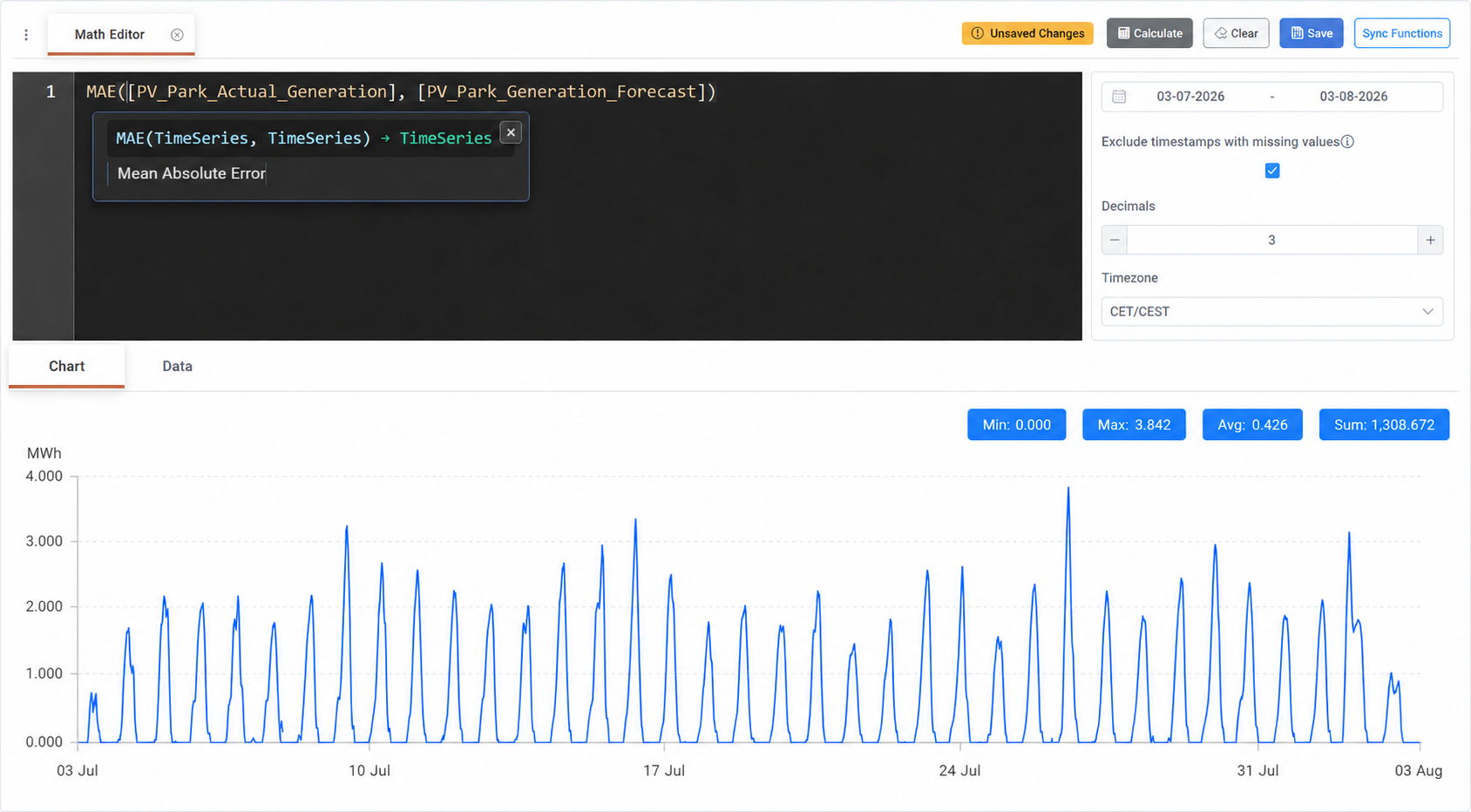
Select Sync Functions to update the custom functions available in the Math Editor. Once synchronised, the template can be selected from the autocomplete suggestions and called using its defined input arguments.

If the template is modified, save and synchronise it again to make the updated version available in the Math Editor.
Appendix - Field Details
Field / Element | Required | Description |
|---|---|---|
Name | Yes | Defines the name under which the template appears as a custom function in the Math Editor. |
Description | No | Provides additional information about the template and its purpose. |
Expression | Yes | Defines the calculation performed by the template. |
Input Name | Yes | Defines the name of the input parameter used in the expression. |
Input Type | Yes | Defines the type of value accepted by the parameter. Available options: Decimal, Int, Boolean, Timeseries, DateTime, String, Entity and List. |
Entity | Yes¹ | Defines the ATLAS object type accepted by an Entity parameter. Available options: Deal, Asset, Counterparty, Bidding Entity and Balancing Service Provider. |
Input Description | No | Provides additional information about the expected input value. |
Input UOM | No | Defines the unit of measurement associated with the input parameter. Selected from the predefined UOM list. |
Required | No | Determines whether a value must be provided when the template is called. |
Output Type | Yes | Defines the type of result returned by the template. Available options: Decimal, Int, Boolean, Timeseries, DateTime, String, Entity and List. |
Output UOM | No | Defines the unit of measurement associated with the result. Selected from the predefined UOM list. |
Date Range | Yes² | Defines the period used when testing the expression. |
Timezone | Yes² | Determines how timestamps are interpreted during testing. For the available options, see Data Options. |
Decimal Points | Yes² | Defines the number of decimal places displayed in the test result. |
Exclude timestamps with missing values | No | Omits timestamps for which the test expression cannot return a complete result. |
Test Input Values | Yes² | Provides representative values for the input parameters during testing. |
Run Test | — | Executes the expression using the configured test values. |
Terminal | — | Displays the test inputs, returned output type and record count, together with the execution status or any calculation errors. |
Chart | — | Displays time-series results as a chart. |
Data | — | Displays the calculated result in tabular form. |
Outcome | — | Displays a structured summary of the test result, including its success status, output type, message, record count and available summary statistics. The results can also be exported. |
Clear | — | Removes the current expression and resets the command box. |
Save | — | Stores the template and its current configuration. |
Sync Functions | — | Updates the custom functions available in the Math Editor. |
¹ Required only when Entity is selected as the Input Type.
² Required when testing the template.