
Docs / 4. Back Office
4.3 Departments
Overview of Departments
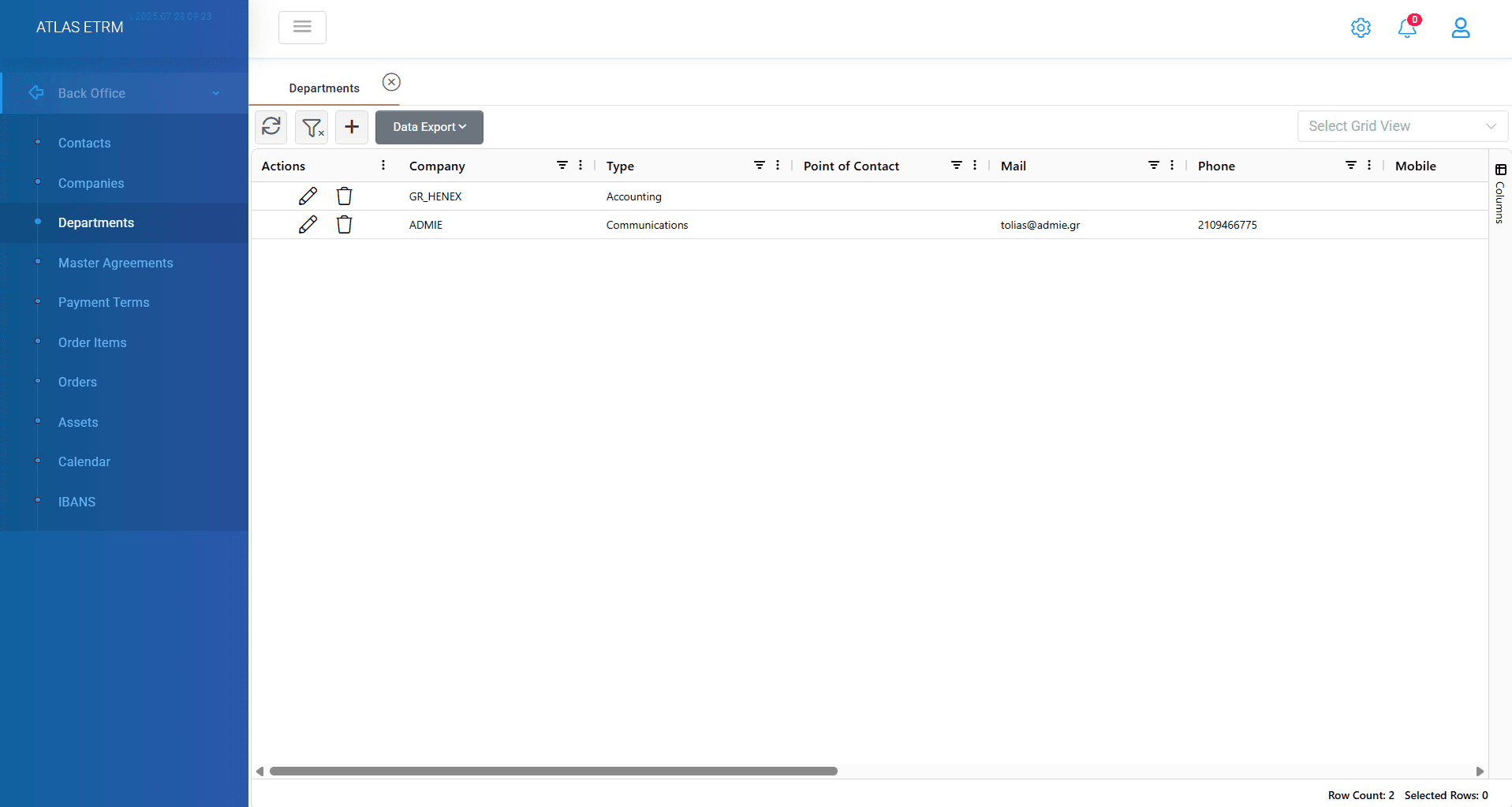
This screen displays the list of all departments registered under all companies that are available in system. This article provides step-by-step instructions for managing Departments information within the system. The system allows users to create, modify, export, and manage Departments’ data efficiently.
Create a new Department
The user can register a new department of a company by pressing the “+” button at the upper-left side of the window. Then, a pop-up window opens, as shown below, where the user can insert information about the department and press the “Save” button to save the new registry.
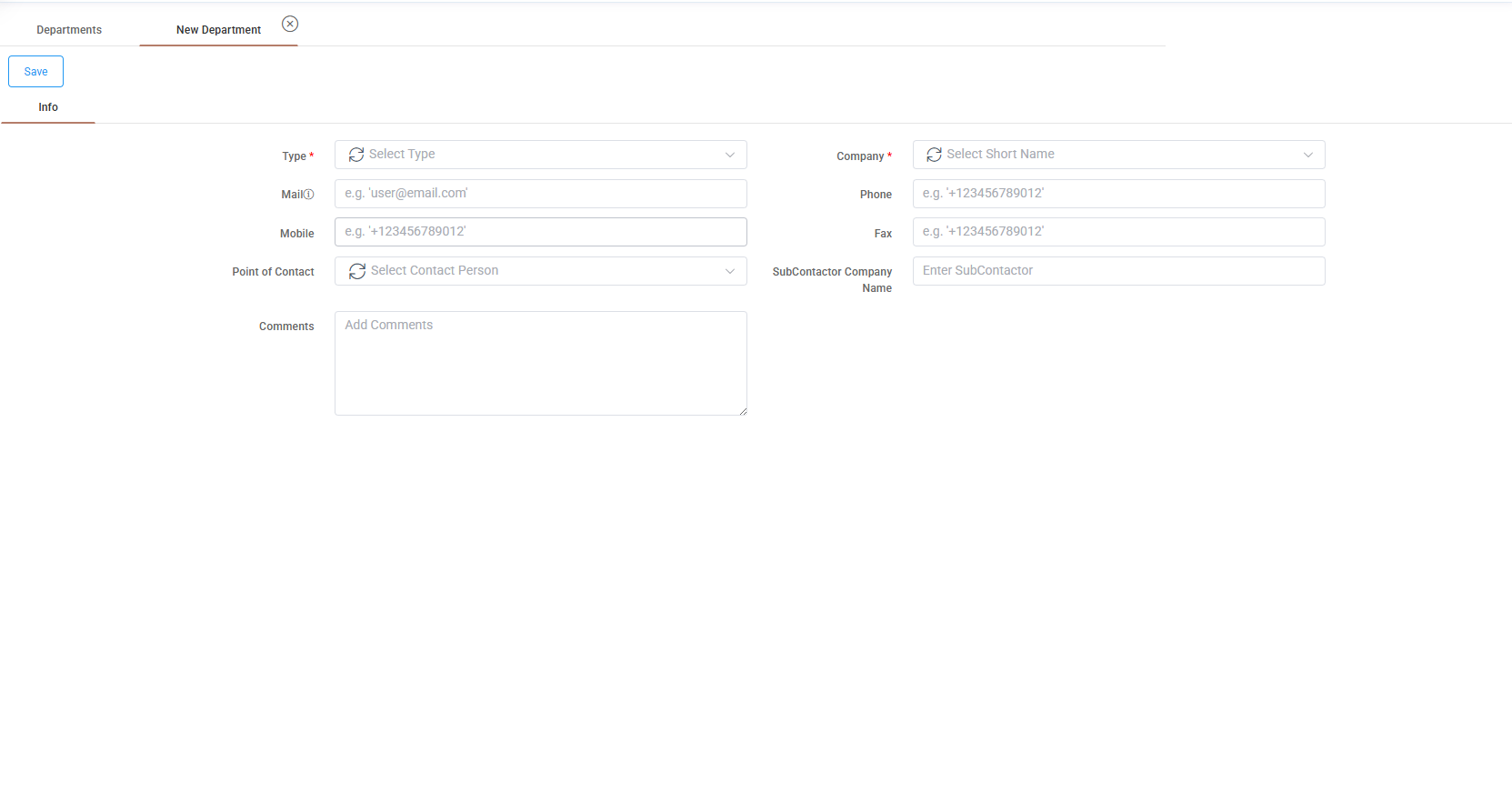
The required fields are the "Type" of department and the associated "Company" (this field includes a list from all the available companies withing the system to choose).
The “Type” standard options are:
Accounting
Communications
IT
Legal
Maintenance
Operations
It should be noted that user may configure custom departments types in administration section.
Additionally, several optional fields can be completed, like:
Email
Phone
Mobile
Fax
Point of Contact (available selections from the Contacts tab)
Subcontractor Company Name
Comments
Once all necessary details are entered, the user must click the "Save" button at the top-left corner of the screen to finalize the Department creation.
Edit/delete a Department
There are two ways to modify departments details:
by double-clicking on a department entry
selecting the "pencil" icon in the 'Actions' area.
The user shall make the necessary changes in the Department’s details and click the “Save” button to update the information. In the second subtab "Contact Persons" you can create a link between the department and the existing contacts that are involved in the specific department or even create a new contact from scratch (which can be later found on contacts tab, as well).
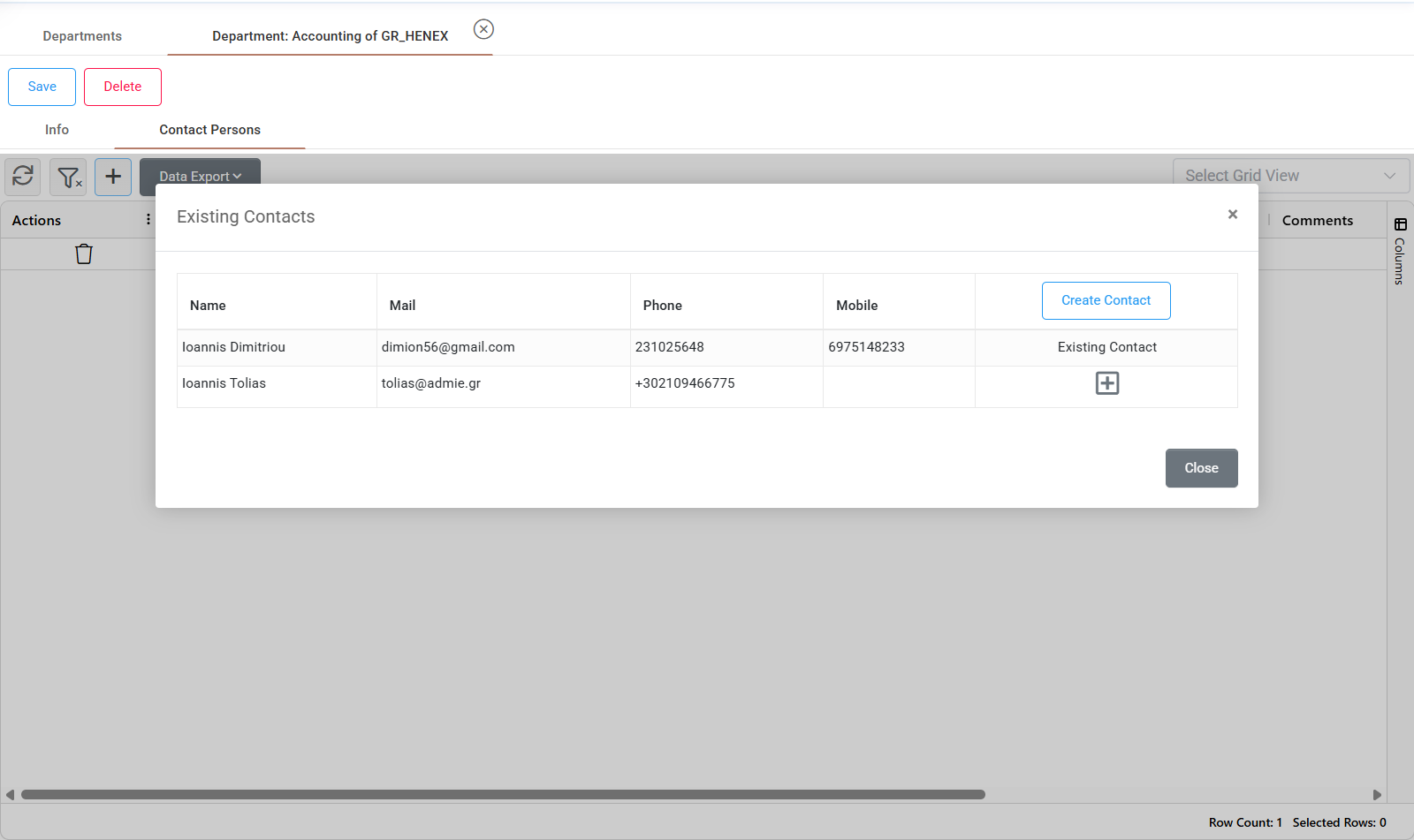
To remove a Department from the system the user shall:
1. right click on the specific department or press the "trash can" icon in actions area
2. select “Delete Departments”,
3. confirm the deletion when prompted to permanently remove the Department from the system.
Appendix: Input details
Field name | Type | Validation rules | Optional | Source | Multi-selection | Standard Options in List |
Type | List of options | - |
|
|
| YES |
Company | List of options | - |
| Company |
|
|
String | must have @ and domain and extension(with up to two dots) | YES |
|
|
| |
Phone | String | “+” character, spaces and digits | YES |
|
|
|
Mobile | String | “+” character, spaces and digits | YES |
|
|
|
Fax | String | “+” character, spaces and digits (12 digits) | YES |
|
|
|
Point of Contact | List of options | - | YES |
|
|
|
SubContractor Company Name | String | Alpharithmetic (200) | YES |
|
|
|
Comments | String | Alpharithmetic | YES |
|
|
|
Was this helpful?