
Docs / 4. Back Office
4.6 Pledges
Overview of Pledges
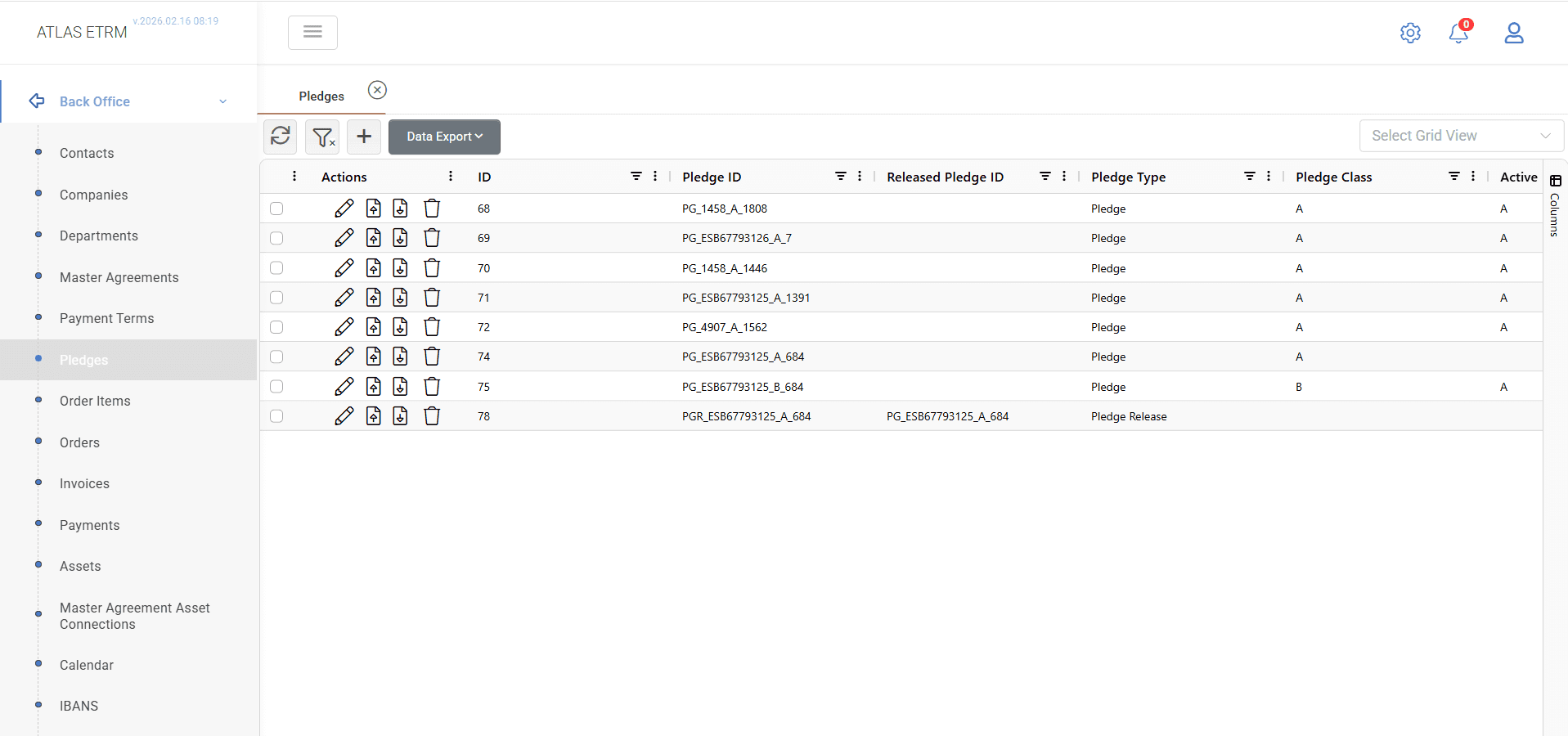
This screen displays the list of all registered pledge and pledge release records within the system. Each record is uniquely identified by a system-generated ID and represents a specific pledge action related to an asset and a counterparty.
The generated Pledge ID is composed of the pledge type (PG for Pledge, PGR for Pledge Release), the Counterparty VAT, the Pledge Class and the asset identifier (Edreth). For example, a Pledge for company with VAT 462587965, of class A and asset with edreth 46523 will be PG_462587965_A_46523.
The grid presents basic information such as the pledge type, the associated asset, the relevant counterparty and bank details, as well as the dates linked to the action. The fields Counterparty and Asset include navigation links that redirect the user to the corresponding Company and Asset records.
Each pledge record includes a Pledge Class (A or B). The system maintains an Active Pledge Status per asset, reflecting the currently effective class. If a higher-priority pledge (e.g., Class A) is released or deleted, any subsequent class (e.g., Class B) is automatically promoted to Active Class A. There should be no gaps in pledge class sequence.
Based on the registered pledge records, the system updates a flag at Asset level indicating whether the asset is pledged or not. The field is set to true when at least one active pledge exists for the asset.
From the main screen, the user can create new pledge or pledge release entries, edit or delete existing records, and upload or download the documents that support each action. Pledge records and their related documents are also visible within the corresponding Company and Master Agreement screens.
Create New Pledge
To create a new pledge record, the user must press the “+” button located at the top of the grid.
A pop-up window titled “Select Pledge Type” appears, where the user must choose one of the following options:
Pledge
Pledge Release
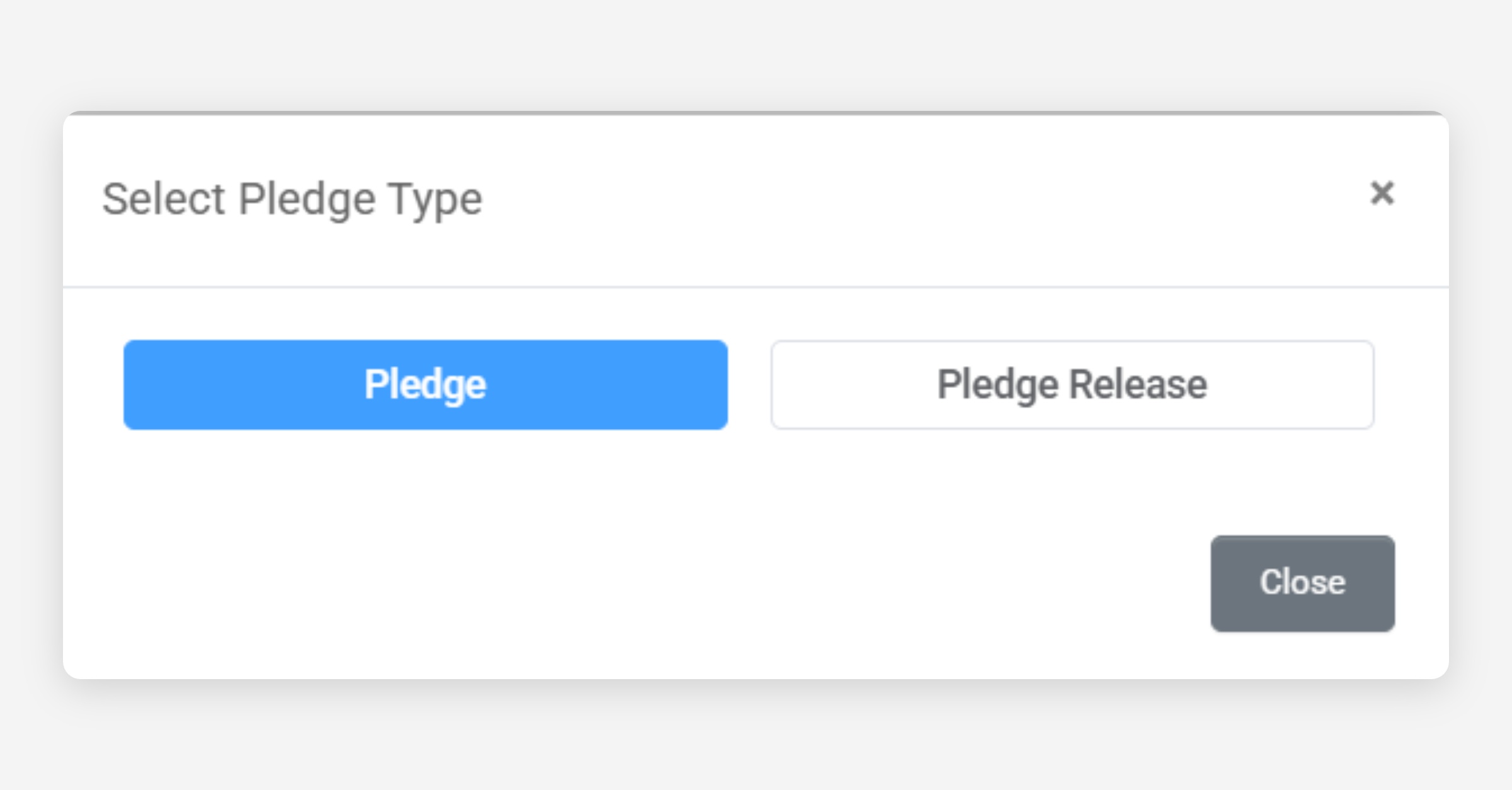
The selected option determines the structure of the form that will be displayed.
Create Pledge – Data Entry
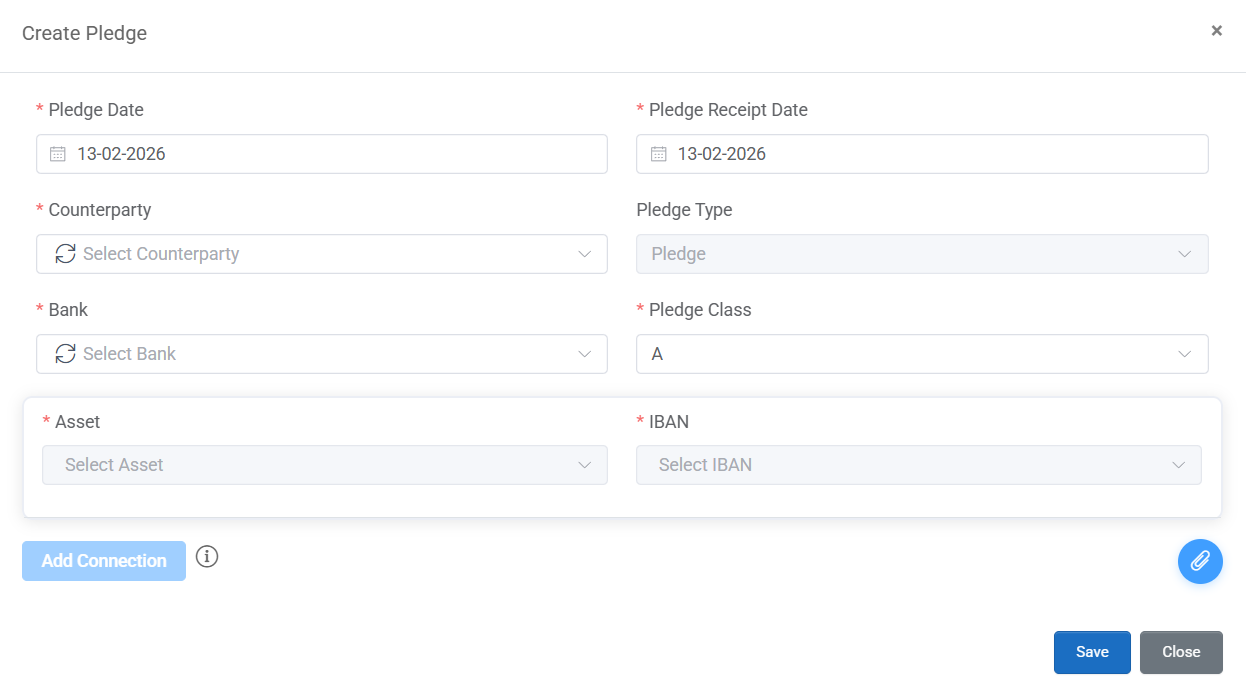
When “Pledge” is selected, the “Create Pledge” form is displayed. The user must complete the required fields before saving the record.
The available fields are:
Pledge Date – The date on which the pledge becomes effective.
Pledge Receipt Date – The date on which the supporting document was received.
Counterparty – Selection from the list of registered companies.
Pledge Type – Automatically populated as “Pledge”.
Bank – Selection of the relevant bank.
Pledge Class – Selection from the available classification options.
Asset – Selection of the asset to which the pledge applies. Only assets that are active and currently registered under the selected Counterparty through a valid Master Agreement are available for selection.
IBAN – Selection of the bank account to be associated with the pledge. The list includes IBANs that correspond to the selected Bank. An “Add IBAN” option is available, allowing the user to register a new IBAN directly from the form. Newly added IBANs are stored in the system and become available for future selections.
Fields marked with an asterisk (*) are mandatory.
To complete the process, the user must press the “Save” button. The “Close” button cancels the entry.
Create Pledge Release – Data Entry
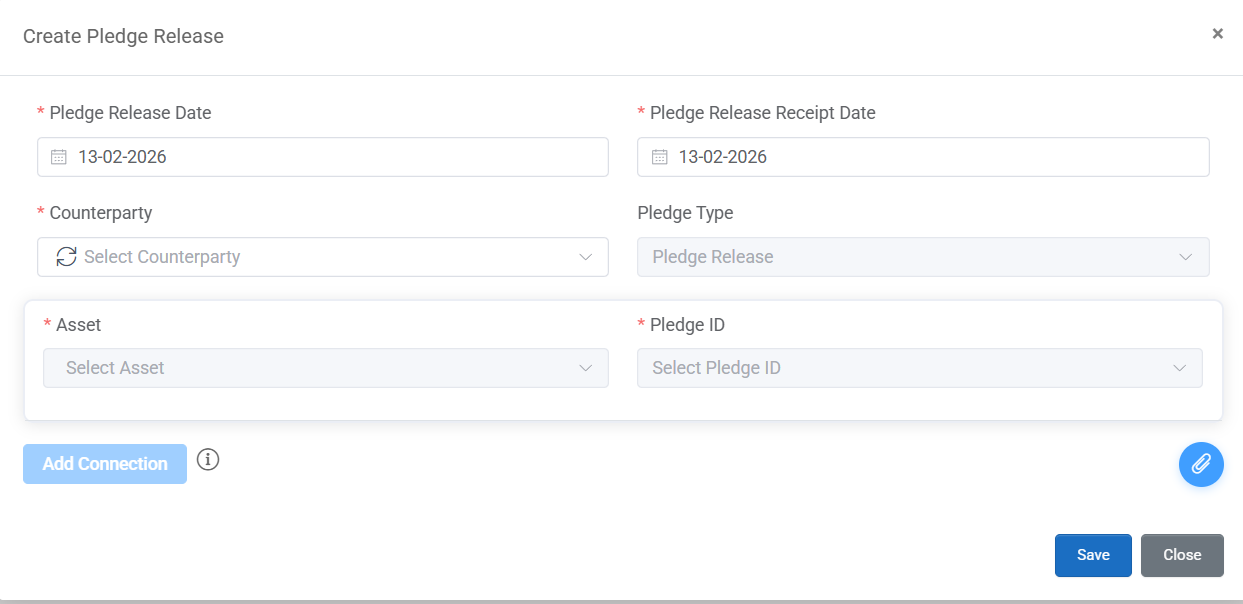
When “Pledge Release” is selected, the “Create Pledge Release” form is displayed.
The available fields are:
Pledge Release Date – The date on which the release becomes effective.
Pledge Release Receipt Date – The date on which the release document was received.
Counterparty – Selection from the list of registered companies.
Pledge Type – Automatically populated as “Pledge Release”.
Asset – Selection of the asset for which the pledge is being released. Only assets with an active pledge under the selected Counterparty are available for selection.
Pledge ID – Selection of the existing pledge record that is being released, based on the selected Asset.
Multiple Asset Connections
A single pledge or pledge release action may concern more than one asset. By using the “Add Connection” button, the user can define multiple Asset–IBAN pairs within the same form.
Each connection represents a unique combination of Asset and IBAN under the same Counterparty and Pledge Date. Although the user enters them within one screen, upon saving the form the system generates a separate pledge record for each Asset–IBAN pair.
This allows one pledge instruction covering multiple assets to be processed in a structured way, while maintaining distinct system entries per asset.
Document Handling
Each pledge or pledge release record may include supporting documentation. A document can be uploaded during the creation of the record using the attachment (paperclip) icon located at the bottom right of the form. The uploaded file is linked to the specific pledge record and can be downloaded from the grid through the available actions.
When a pledge or pledge release is created with multiple Asset connections within the same form, any document uploaded at that stage is automatically associated with all pledge records generated from that action (i.e. all Asset–IBAN pairs created upon saving).
After record creation, documents can be managed directly from the main grid. For a single pledge record, the user may upload a document, download an existing one, or delete it either through the available right-click options or via the corresponding action icons in the Actions column.
If multiple pledge records are selected simultaneously, the user may, through right-click, upload a document for all selected records in a single action. The selected file is linked separately to each chosen pledge record.
All document-related actions (including upload, download and deletion) are controlled by user access rights. Only users with the appropriate permissions for the Pledges screen may execute these actions.
Was this helpful?