
Docs / 4. Back Office
4.9 Assets
Overview of Assets
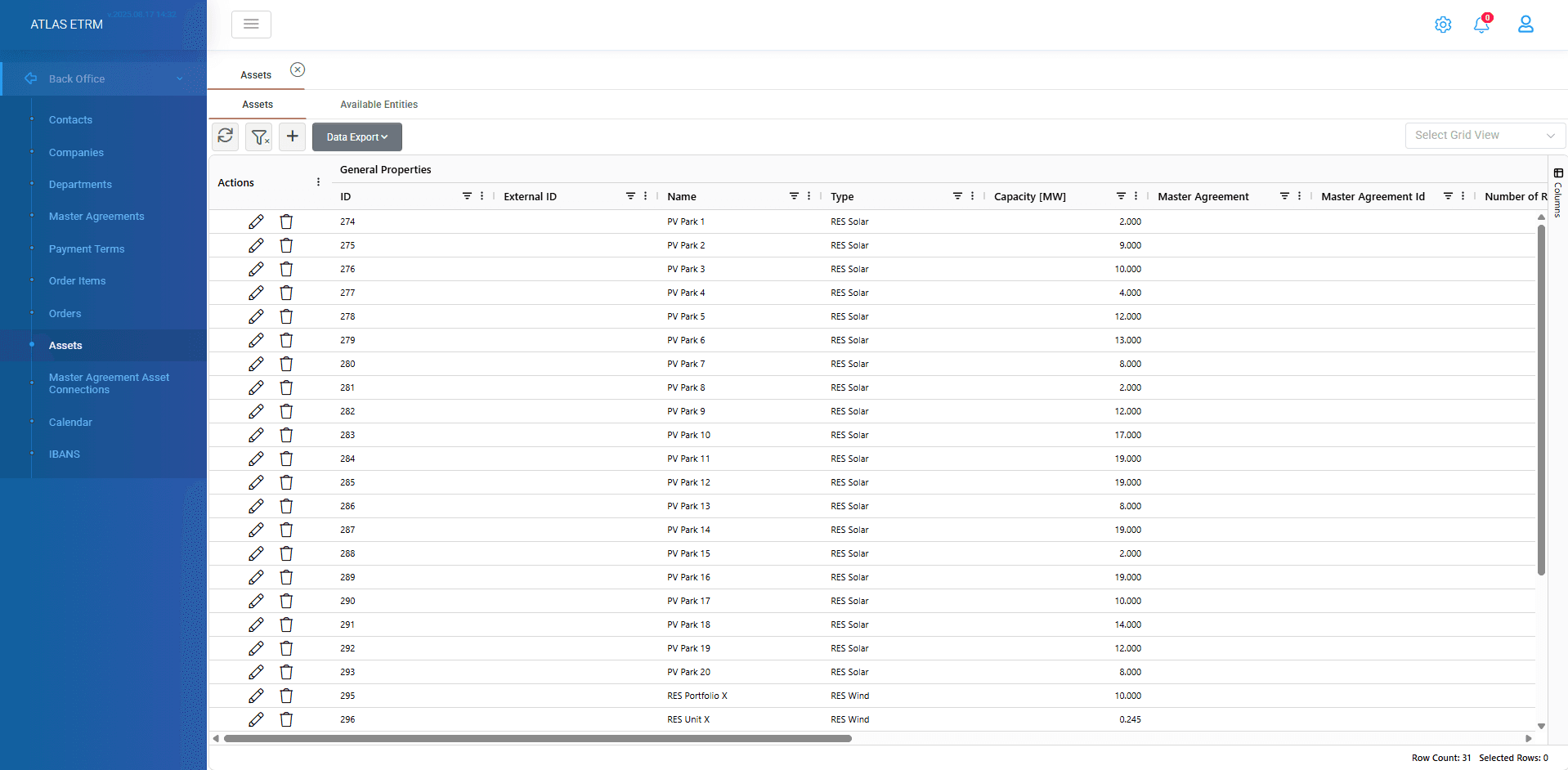
The Assets are all “Available Entities” included in the Standing Data in the Data Room menu item that the user represents in the wholesale electricity market. The Assets tab contains two sub-tabs.
The first sub-tab is the Assets section, where all available assets (Units, load meters, Interconnections) are displayed. These assets can be utilized for various purposes, such as:
Connecting them to Deals or Master Agreements for settlement purposes
Using them for bidding
From this first tab, the user can:
Create new assets
View, sort, and export assets to Excel
Right-click on an asset to access additional action.
When right-clicking on an asset, the following actions are available:
View Deals per Asset – Displays a list of all deals associated with the selected asset
View Timeseries - Opens the Asset Timeseries tab with the selected asset pre-filtered. Users can select one or more time series, which - if linked to the asset- are displayed in the graph.
Update Custom Fields - Opens a panel containing all Custom Fields defined for Assets. After selecting the appropriate field and entering the desired value, the update is applied across all selected asset records.
If the selected custom field is configured as time-sliced, the user must also define the “Valid From” date for the value.Delete Asset – Removes the asset from this tab. However, the asset remains available in the Forecasting module.
Add a new asset
To add a new asset user should click on “+” icon on top of grid. A new tab opens in which users should fill in the name and the type of assets (from the available types e.g. RES Wind, RES Solar, Storage etc.) and optionally some more details can be filled (like code of asset, location and coordinates). By adding coordinates, the map automatically updates and the pin shows the exact location.
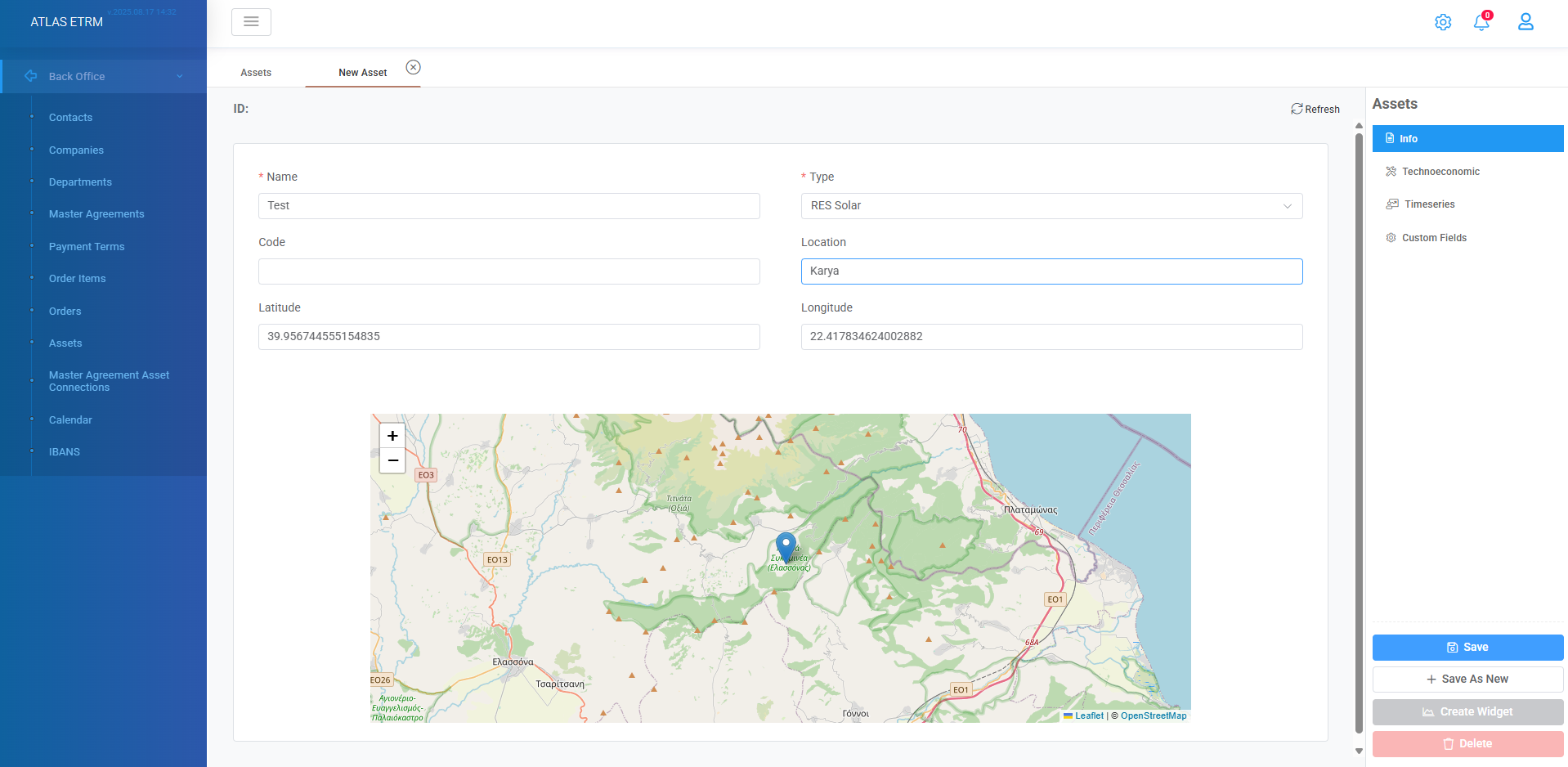
Additionally, on the right side of the panel there are more details that should be filled.
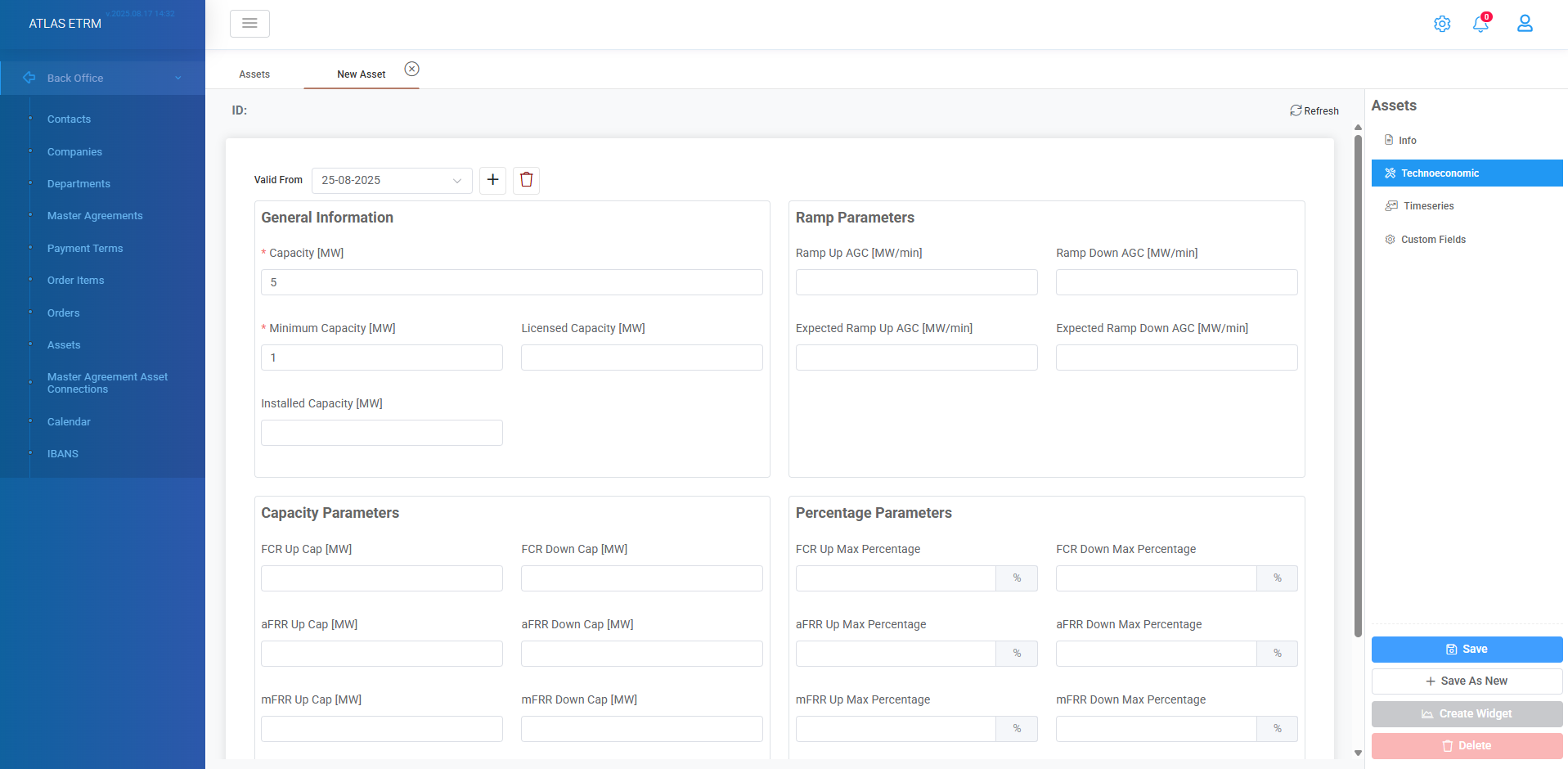
Technoeconomic tab contains all relevant technical information for the asset. Capacity and minimum capacity are mandatory fields and need to be filled, while all other fields are optional. An asset capacity history can be stored by selecting new date at “Valid From” field at top of grid. When a change on the technoeconomic data is made on the asset we can have a history log like that.
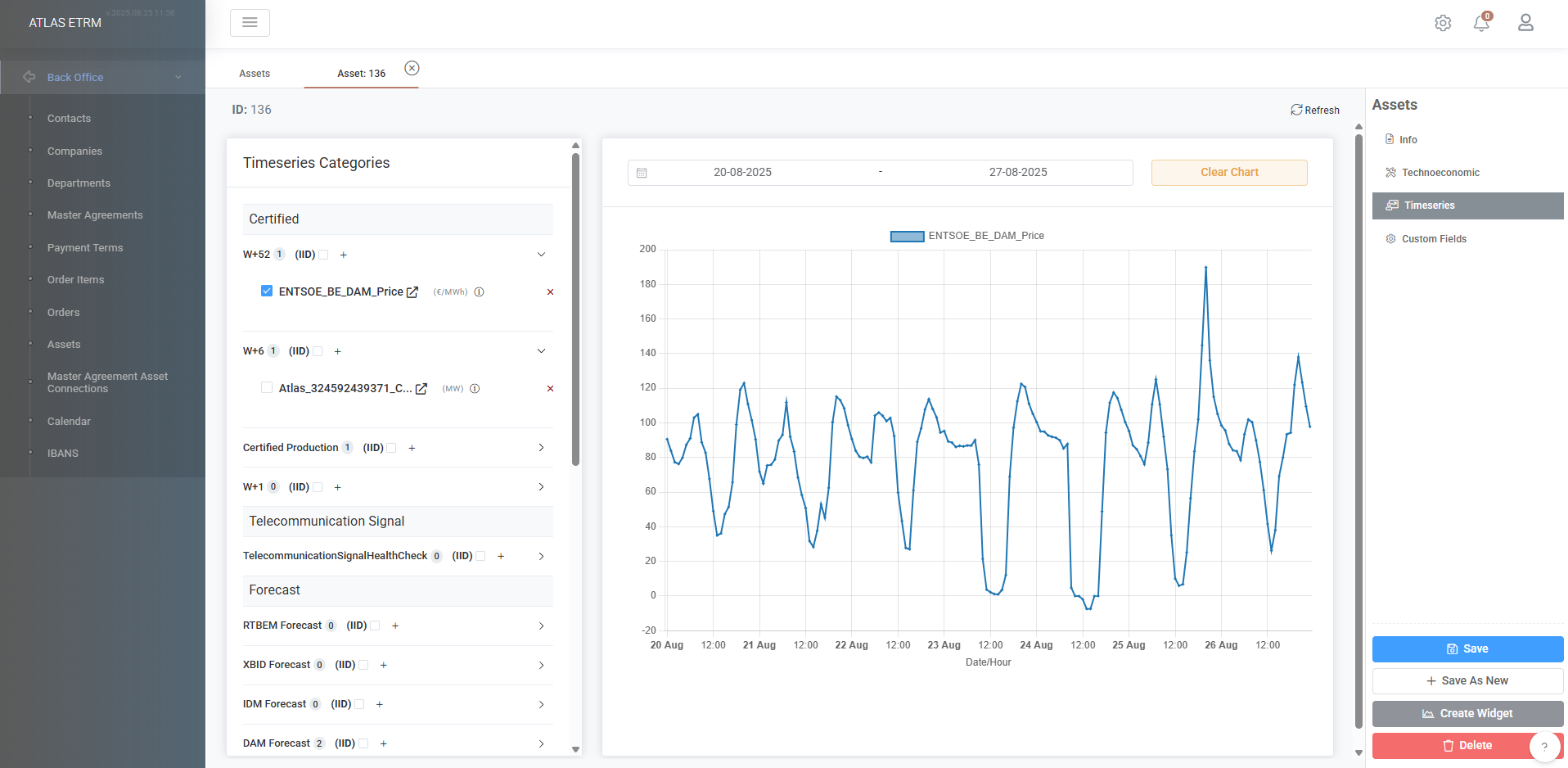
There is a timeseries tab which contains all relevant information for asset’s production/consumption with many options (Theoretical production, Certified, SCADA, Forecast, Dispatching Signal etc.). From here user can view desired data series and the index IID refers to data series that are used in deals for settlement purposes (like certified production).
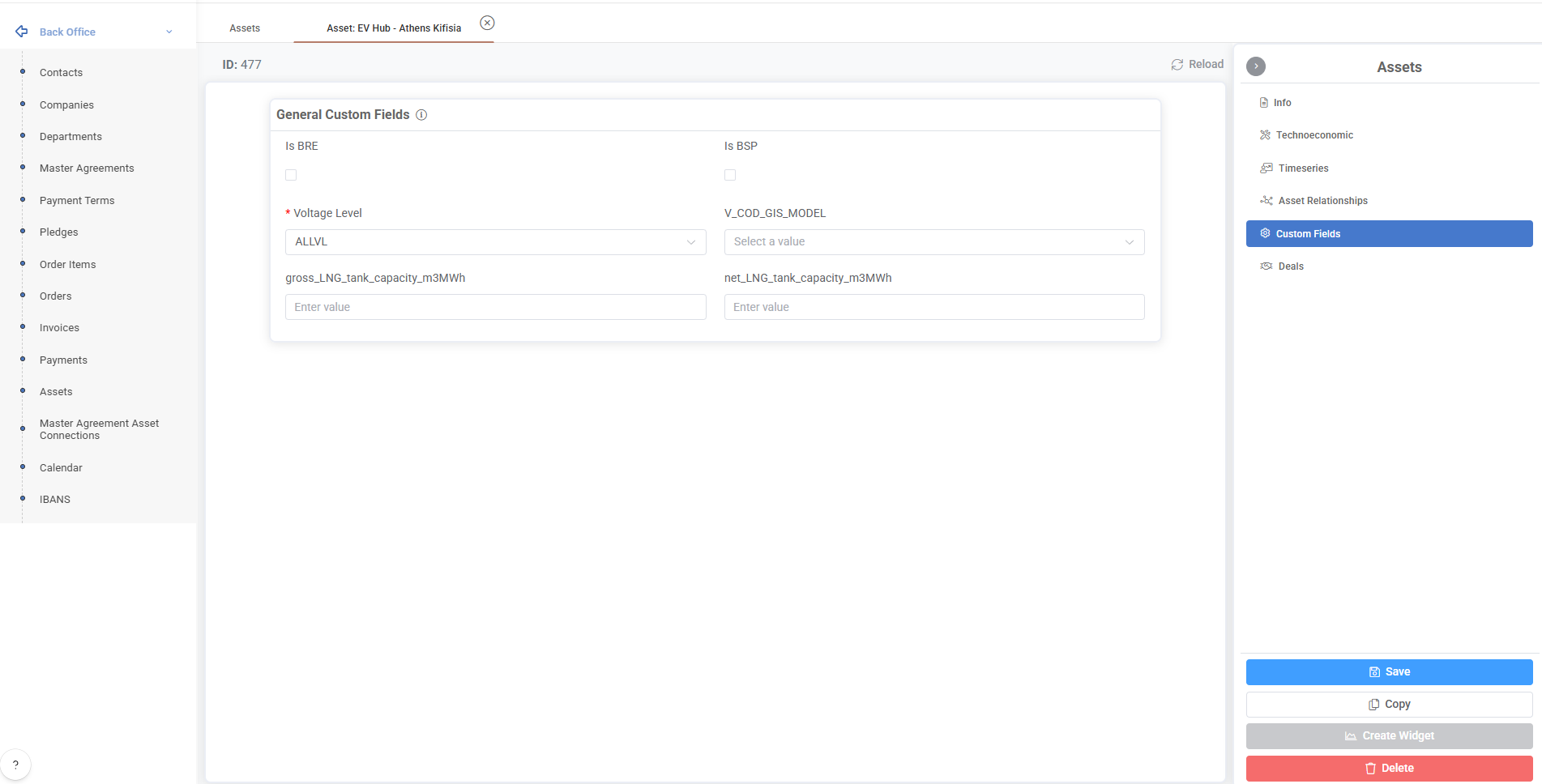
Custom fields tab allows users to add custom details connected to the asset according to their needs. These custom fields can be configured in Administration section.
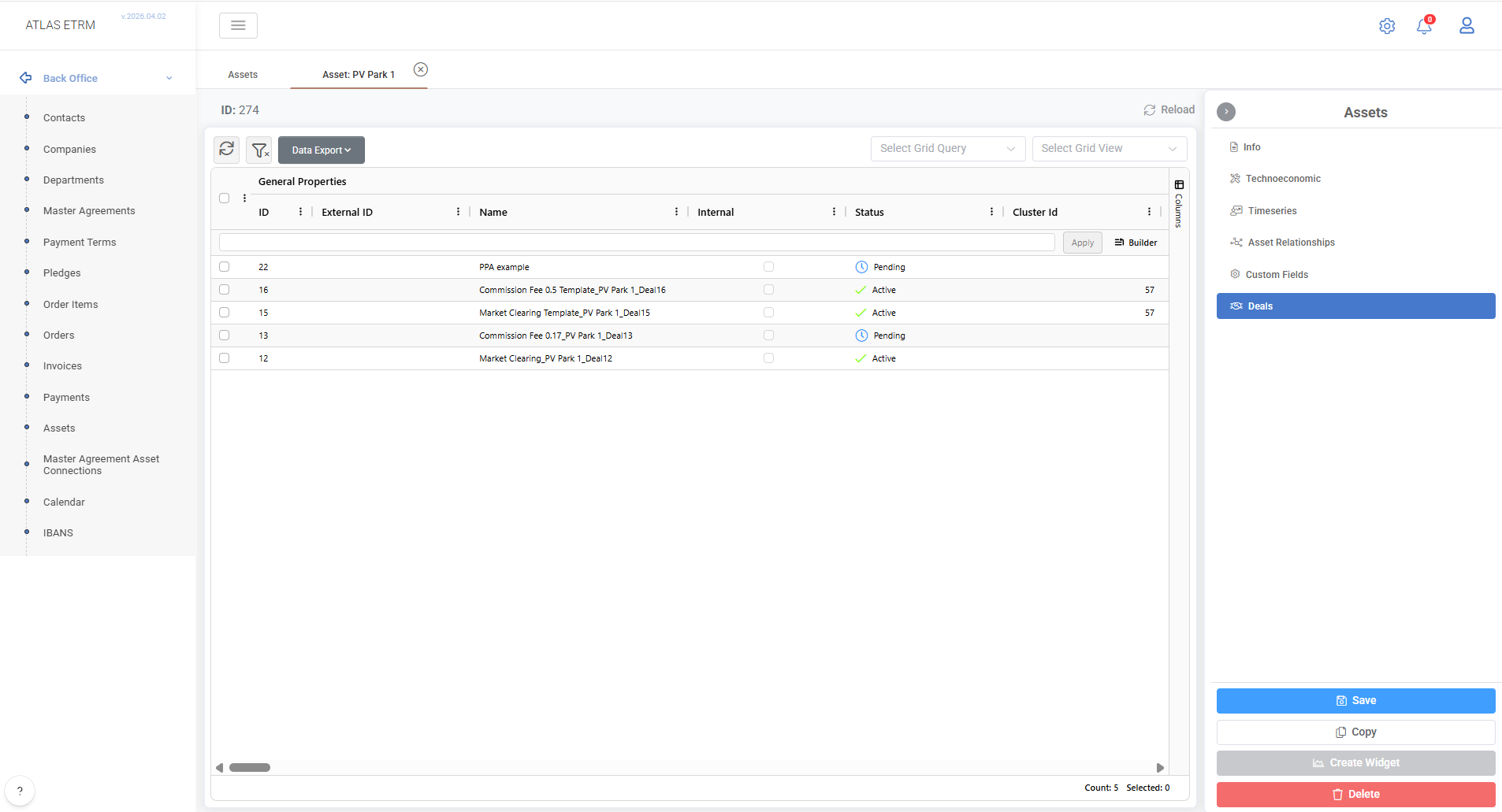
Finally, the Deals tab displays all Deals associated with the selected asset, allowing users to review their details and status.
Important: After changes are made user should click "Save" button on the right side.
Additional actions
On the right side except from save user can make any changes to the asset and save it as new ("Save An New" button) for easier asset creation. Also, when we have selected timeseries we can use the "Create Widget" button το easily get redirected to a new tab where the set up of the new widget can be made in order to be used in Dashboards (refer to Widgets and Dashboards articles).
Was this helpful?