4.2 Companies
Overview
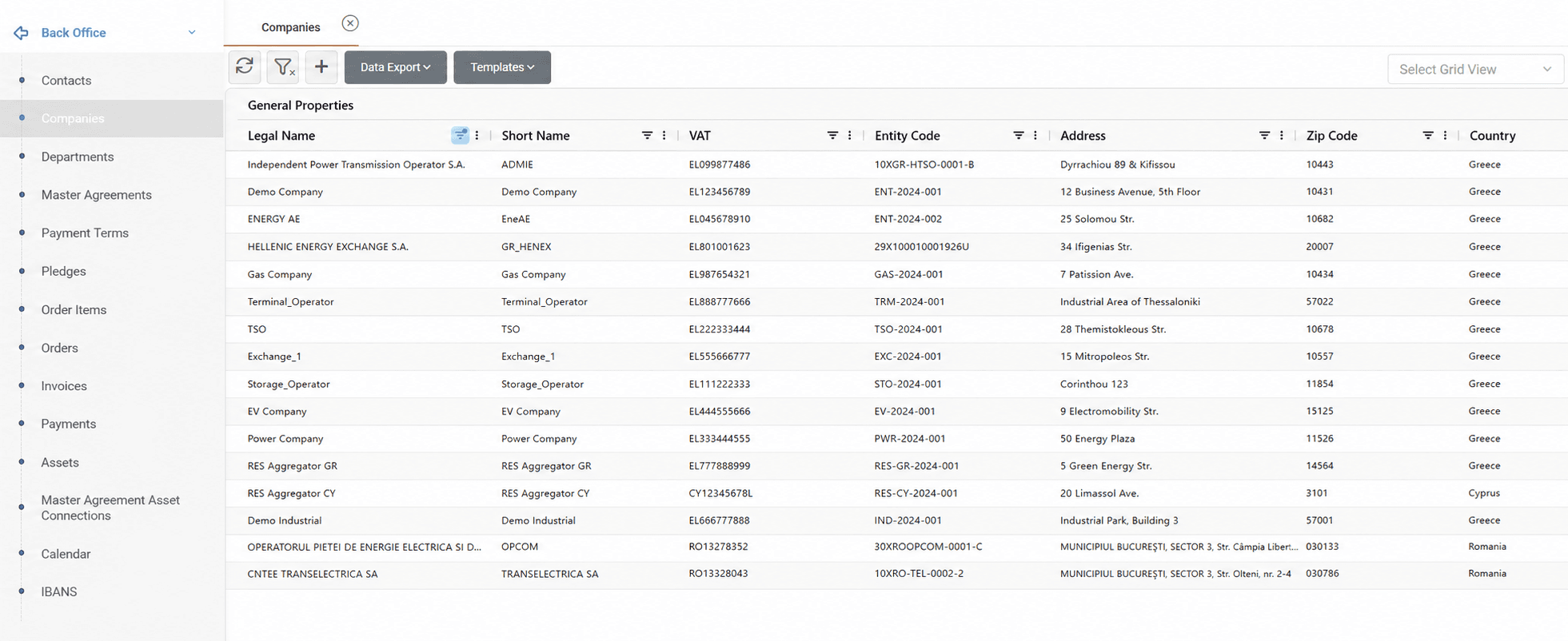
The Companies screen is used to maintain information about legal entities registered in the platform. A company represents a business counterparty and may be linked to departments, contacts, master agreements, assets, deals, and other operational records.
Company records store corporate information, including legal and commercial identifiers, address and tax details, counterparty classification, self-billing information, and credit rating details.
Company information may be exported to Excel or CSV format using the Data Export option.
Creating a Company
There are three ways to create a company in the system.
Manual Creation
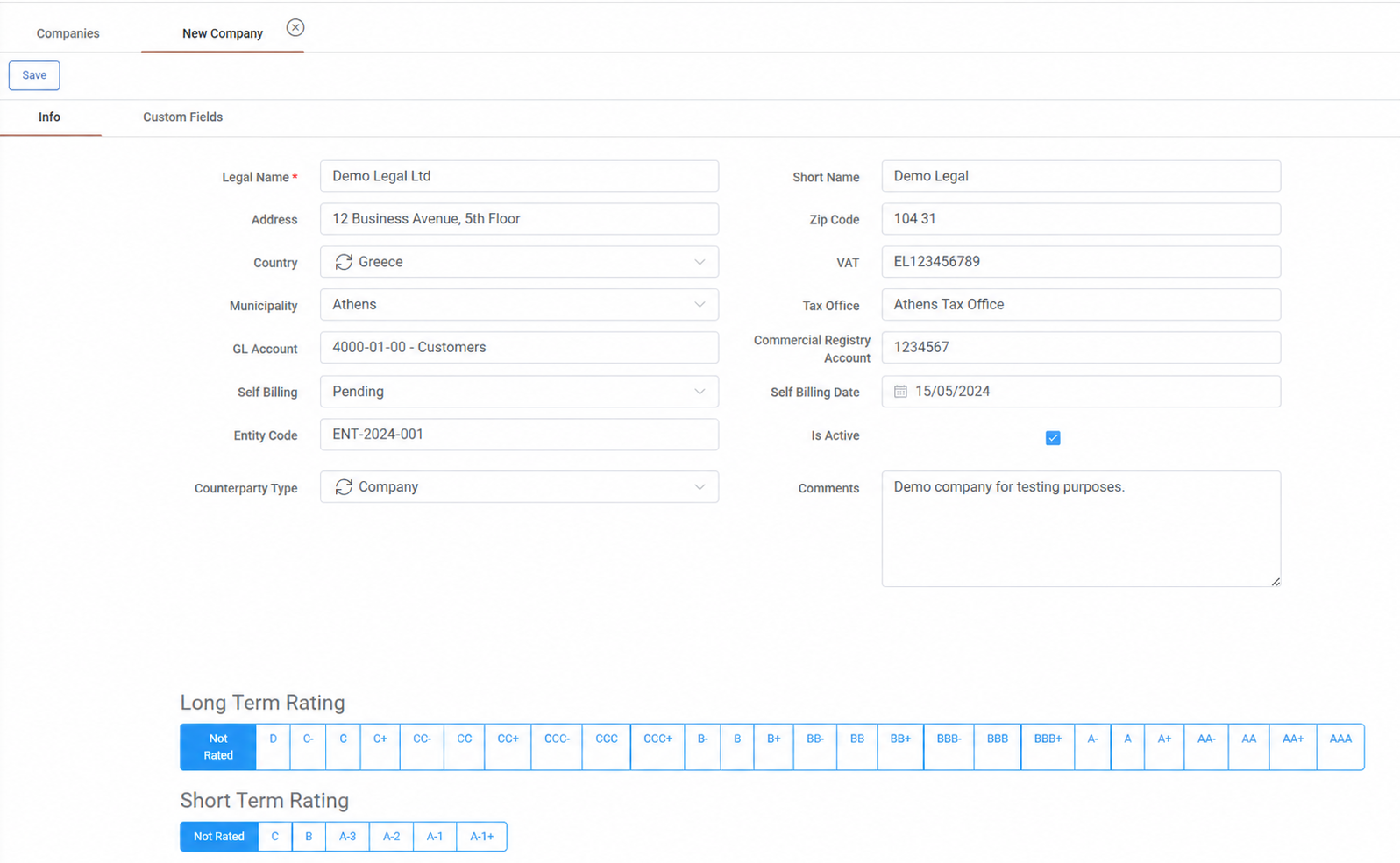
Click the + button at the top of the Companies grid. A company form opens where the company information can be entered.
The Legal Name field is mandatory. Additional information, such as address details, tax information, counterparty classification, self-billing settings, and credit rating details, may also be maintained.
Company-specific Custom Fields may be entered through the Custom Fields tab. The available fields are defined through the system configuration and may vary depending on the company type.
If no Custom Fields are available, selecting Add Custom Field redirects the user to the Administration section, where new Custom Fields can be created and configured.
Once all required information has been entered, click Save.
Creation via VAT Validation
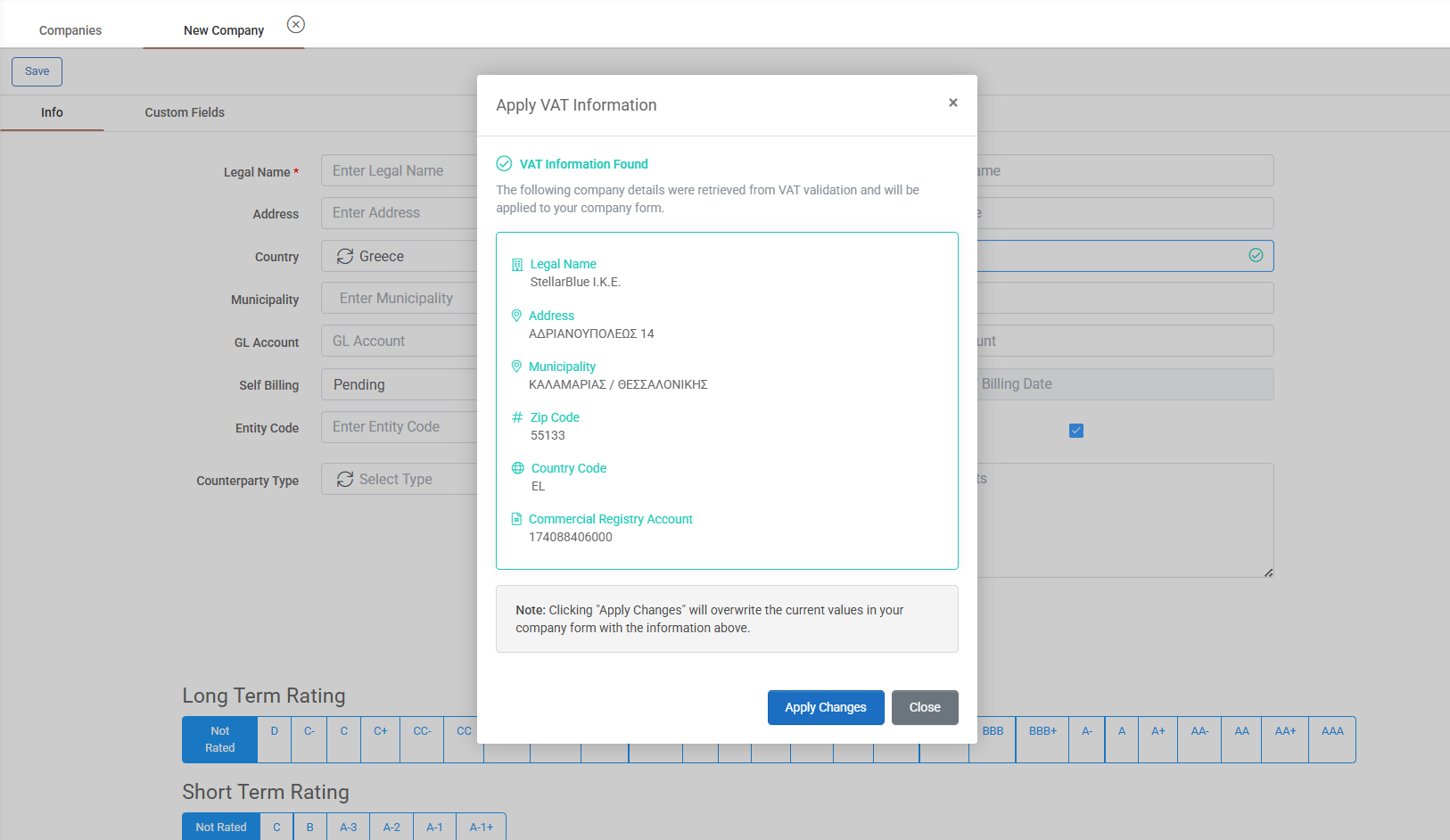
A company may also be created by selecting the country and entering the company's VAT number. The system retrieves the available company information from the European Company Database and displays the results in a separate window. The retrieved information can then be automatically inserted into the company record or entered manually if required.
Creation via ENTSOE Import
Companies may also be imported from the ENTSOE list. Click ENTSOE Import and select one or more companies from the available records. Multiple companies can be selected using Ctrl + Click. Once the selection is complete, click Save to create the company records in the Companies screen. Imported companies remain available in the ENTSOE list even if they are later removed from the Companies grid.
Editing and Deleting Companies
Editing a Company
To edit a company, double-click the desired record in the grid or click the Pencil icon displayed in the Actions area. Update the required information and click Save.
The Copy button creates a new company by duplicating the currently displayed record. The copied information can then be modified as required before saving it as a new company.
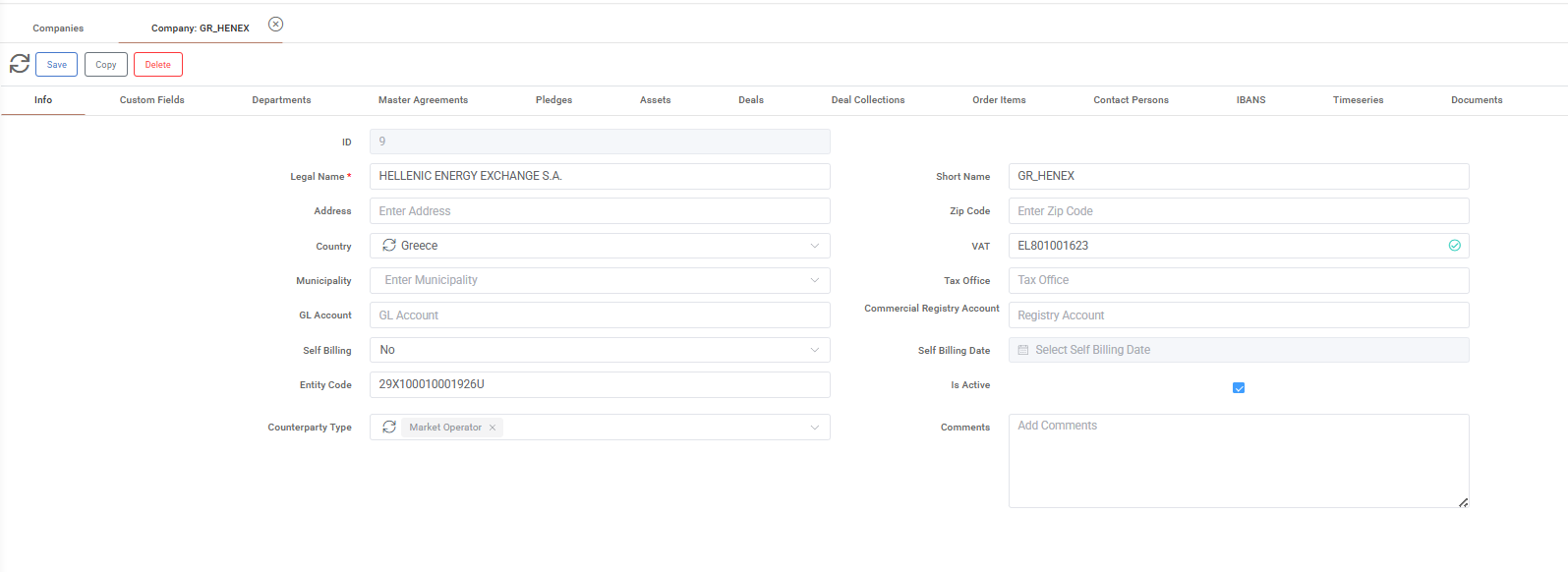
Company information is organized into the following tabs:
Info – Displays the company's general information, including corporate details, address and tax information, counterparty classification, self-billing settings, credit ratings, and comments.
Custom Fields – Displays additional company-specific fields configured in the system. Custom Fields allow organizations to capture information beyond the standard company attributes according to their business requirements.
Departments – Allows the creation, modification, and maintenance of departments associated with the company. When a new department is created from this tab, the company is automatically assigned. Contact associations may also be managed through the department record.
Master Agreements – Displays and manages the master agreements associated with the company. When a new agreement is created from this tab, the company is automatically assigned to the record.
Pledges – Displays all pledge and pledge release records associated with the company. Users may review, edit, delete, and manage the related documentation of these records.
Assets – Allows assets to be linked to or removed from the company. Asset associations are established through a selected Master Agreement and may include a defined validity period.
Deals – Displays all deals in which the company participates as a counterparty. Depending on user permissions, additional deal-related actions may be available from the context menu.
Deal Collections – Displays all deal collections associated with the company.
Order Items – Displays order items generated for the company and allows users to perform the available actions on those records.
Timeseries – Allows timeseries to be linked to and managed for the company. Users can search, filter, and visualize timeseries data within a selected date range and time zone.
Contact Persons – Displays and manages contacts associated with the company. New contacts created from this tab are automatically linked to the company.
IBANs – Displays all IBAN records associated with the company. New IBAN associations may be created from this tab. Removing an IBAN from the company only removes the association and does not delete the IBAN record from the system.
Documents – Displays and manages documents associated with the company. Users may upload, view, modify, or delete company-related documents.
Deleting a Company
A company may be deleted directly from the Companies grid by right-clicking the desired record and selecting Delete Companies, or by clicking the Trash Can icon displayed in the Actions area.
Alternatively, open the company record and click the Delete button.
Mass Actions
Creating and Updating Companies via Template
This process may be used to create new companies or update existing companies in a single upload.
Click Templates → Download Template.
Open the template in Excel and populate or modify the company information as required.
Save the completed file.
Return to the Companies screen and click Templates → Import Template.
Select the completed file and confirm the upload.
When the template contains existing Company IDs, the corresponding company records are updated. Rows without a Company ID are imported as new companies.
Updating Custom Fields
From the Companies grid, one or more company records may be selected and updated simultaneously through the Update Custom Fields action.
Select the required company records.
Right-click and select Update Custom Fields.
Select the desired Custom Field from the list of available fields.
Enter the value to be assigned.
Click Apply to update all selected records.
For time-sliced Custom Fields, a Valid From date must also be specified. The defined value is then assigned to all selected companies for the specified validity period.
The available Custom Fields are configured in the Administration section and may vary depending on the system configuration.
Appendix - Field Details
Field / Element | Required | Description |
|---|---|---|
ID | No | System-assigned numeric identifier of the company. |
Legal Name | Yes | Legal name of the company. |
Short Name | No | Abbreviated name of the company. |
Address | No | Registered address of the company. |
Zip Code | No | Postal code of the company's registered address. |
Country | No | Country in which the company is registered. |
VAT | No | Tax identification number of the company. |
Municipality | No | Municipality associated with the company's registered address. |
Tax Office | No | Tax authority responsible for the company. |
GL Account | No | General Ledger account associated with the company. |
Commercial Registry Account | No | Commercial registry reference associated with the company. |
Self Billing | No | Indicates whether the company operates under a self-billing arrangement. Standard values include Pending, Yes, and No. |
Self Billing Date | No | Date from which the self-billing arrangement becomes effective. Available only when Self Billing is enabled. |
Entity Code | No | Unique business identifier assigned to the company. |
Is Active | No | Check-box that indicates whether the company is active and available for operational use. |
Counterparty Type | No | Classification of the company according to its market function. Standard values include Transmission System Operator, Supplier, Producer, Credit Institution. For the complete list of standard values, refer to References → Data Options. Additional Counterparty Types may be created through the Administration → Dynamic Types → Counterparty Types section and become available for selection once configured. |
Long-Term Credit Rating | No | Long-term assessment of the company's creditworthiness and risk of default. |
Short-Term Credit Rating | No | Short-term assessment of the company's creditworthiness and risk of default. |
Comments | No | Free-text field for additional notes or remarks related to the company. |
Created At | No | Date and time the company was first created. |
Created By | No | Username of the user who created the company. |
Modified At | No | Date and time of the most recent modification. |
Modified By | No | Username of the user who modified the company. |