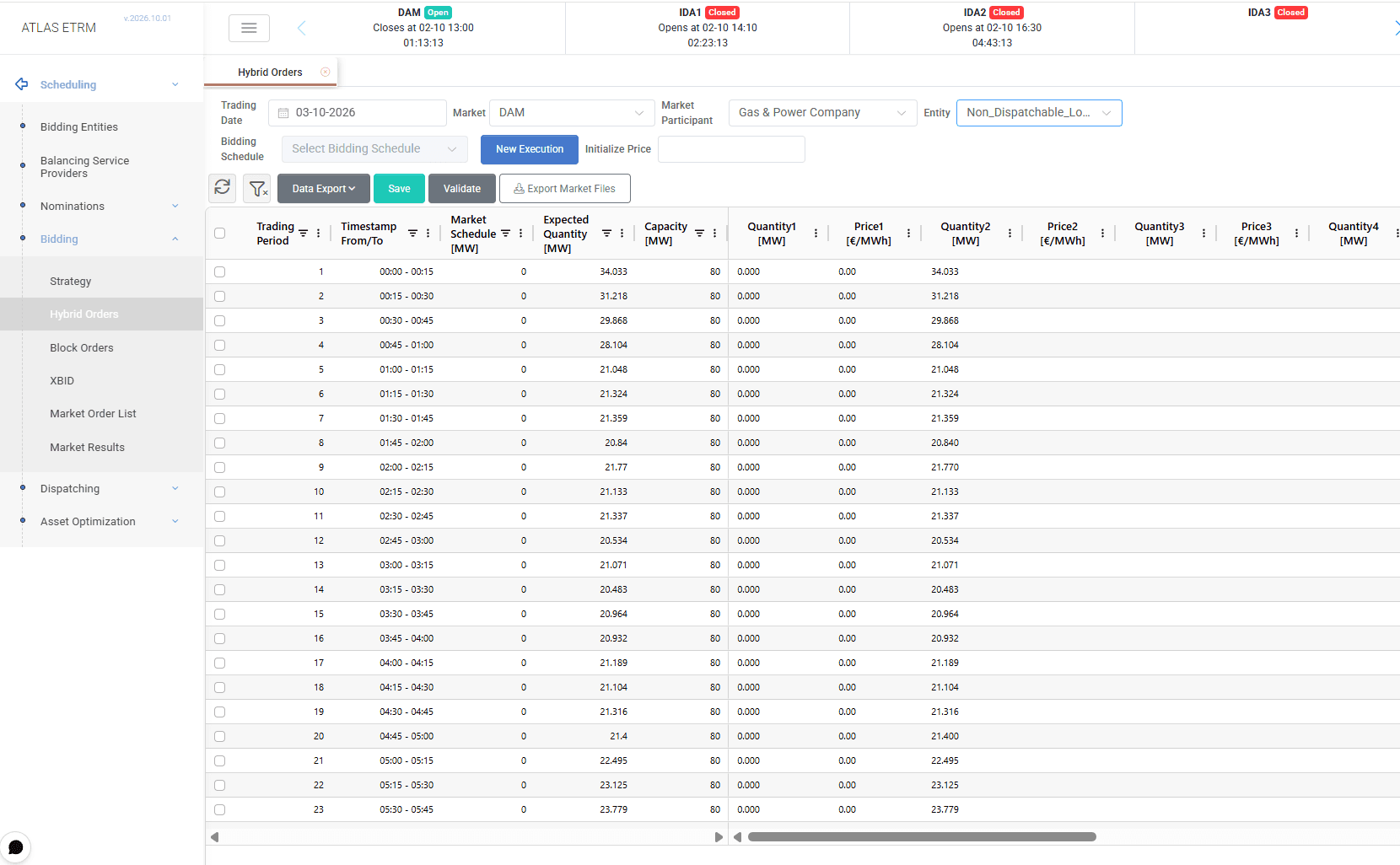
The Hybrid / Stepwise Orders screen allows users to define the price–quantity structure of spot market bids. For each trading interval, users can enter multiple quantity–price pairs according to the bidding steps permitted by the selected market.
Depending on the applicable market rules, the screen is named Hybrid Orders, for example in Greece, or Stepwise Orders, for example in Cyprus. Both support the same order preparation workflow, with the bidding structure and validation rules determined by the selected market.
Orders can be prepared using quantities calculated in Bidding Strategy or directly from the selected entity’s expected quantities. Once validated and saved, they are available in the Market Order List for review, approval and submission by authorized users.
Market, Participant and Entity Selection
The Trading Date defaults to the next delivery day and can be changed by the user. To prepare orders, select the relevant Market, Market Participant and Entity. The entity corresponds to the unit or portfolio for which the orders are prepared.
When accessing the screen through the Hybrid Orders / Stepwise Orders button in Bidding Strategy, the relevant selections and calculated quantities are carried over from the strategy.
The Bidding Schedule dropdown allows users to select an existing bidding schedule for review or further editing.
Creating an Execution
Select New Execution to open the order initialization dialog. Orders can be created with or without a bidding strategy execution.
With a bidding execution, the grid is initialized using the buy or sell quantities calculated in Bidding Strategy, including the effect of the strategy’s Multiplier and Adder adjustments. These quantities remain editable during order preparation.
Users can also start this process directly from the Bidding Strategy screen by selecting Hybrid Orders / Stepwise Orders, without repeating the initialization process separately.
Without a bidding execution, users can prepare orders directly, without first defining a strategy. The quantities of all offers are initialized to the expected production or consumption quantities of the selected entity, without applying Multiplier or Adder adjustments. Users can then modify these quantities and enter the corresponding prices.
See Bidding Strategy for information on calculating and adjusting strategy quantities.
Order Grid and Bidding Steps
Once initialized, the grid displays one row for each trading interval of the selected delivery day. Each row includes the trading period, its start and end time, the current market schedule, the expected quantity and the entity’s capacity.
The remaining columns contain the quantity–price pairs used to construct the bid: Quantity1 / Price1, Quantity2 / Price2, and so on. The available bidding steps follow the rules of the selected spot market.
Users define the quantities and corresponding prices for each interval. Quantities populated during initialization remain editable, allowing the final orders to be adjusted before saving.
In the illustrated example, the grid contains 96 trading periods of 15 minutes each. Quantities, market schedule and capacity are displayed in MW, while prices are displayed in €/MWh.
See Appendix – Field Details for descriptions of the selectors and grid columns.
Entering Quantities and Prices
Users can enter or modify quantities and prices manually, or copy and paste data from Excel or another external file into the grid. This supports bulk updates across multiple trading periods and bidding steps.
Keyboard shortcuts, such as Ctrl + ↓, can also be used to fill a column with repeated values.
For sell orders, prices are initially set to zero. Users can replace these values with the required prices for individual trading periods or initialize prices across the grid.
For buy orders, prices are not pre-filled and must be entered by the user.
To apply a common price, enter a value in Initialize Price and press Enter. The system fills the price cells across all trading periods with that value. Individual cells can then be edited where different prices are required.
Order Validation
Select Validate to check the prepared orders against the selected market’s rules and the entity’s constraints.
The validation covers:
Quantity and capacity checks: Quantities must be numerically valid, consistent with the entity’s constraints and within the applicable unit or portfolio capacity.
Price limits: Prices must fall within the permitted minimum and maximum values for the selected market and bidding zone.
Hybrid / stepwise bid structure: Price steps must follow the ordering required by the market, such as ascending prices for sales or descending prices for purchases, where applicable.
If a field fails validation, the system highlights the issue. Validation errors must be resolved before the orders can be submitted.
Saving and Reviewing Orders
Select Save to store the prepared orders or changes to an existing execution.
The saved orders are transferred to the Market Order List, where they are available for review. Authorized users can then approve and submit them to the market.
Saving orders in the Hybrid / Stepwise Orders screen does not itself submit them to the exchange. Approval and market transmission are handled through the subsequent order-management workflow.
See Market Order List for the review, approval and submission process.
Exporting Data and Market Files
The Data Export menu provides access to export options for the grid data.
The separate Export Market Files action allows users to export the prepared orders as market files.

If the connection to the market is unavailable, Export Market Files can be used as a fallback to export the prepared orders for manual submission to the market.
Appendix – Field Details
Screen Selectors and Initialization
Field | Description |
|---|---|
Trading Date | The delivery date for which orders are prepared. Defaults to the next delivery day and can be changed by the user. |
Market | The spot market for which the orders are prepared, such as DAM or an intraday market. The selected market determines the applicable bidding steps and validation rules. |
Market Participant | The market participant for which the orders are prepared. |
Entity | The bidding entity, corresponding to a unit or portfolio, for which quantities and prices are defined. The displayed selection may also identify the order direction, such as Buy or Sell. |
Bidding Schedule | Selects an existing bidding schedule to load for review or editing. |
Initialize Price | Applies a common price across all trading periods. Enter a numeric value and press Enter to populate the price cells. Individual values can subsequently be modified. |
Trading Period and Reference Data
Field | Description |
|---|---|
Trading Period | The sequential number identifying the delivery interval within the selected trading day. |
Timestamp From/To | The start and end time of the interval, for example 00:00–00:15. |
Market Schedule [MW] | The entity’s existing market schedule for the corresponding interval, displayed as reference information during order preparation. |
Expected Quantity [MW] | The expected production or consumption quantity for the entity and interval. When orders are created without a bidding execution, expected quantities are used to initialize the offer quantities without Multiplier or Adder adjustments. |
Capacity [MW] | The capacity of the selected entity for the corresponding interval, used as a reference for quantity validation. |
Quantity–Price Steps
Field | Description |
|---|---|
Quantity1 … QuantityN [MW] | The quantity entered for each bidding step and trading interval. Values are initialized from the bidding strategy or the entity’s expected quantities, depending on the selected creation method, and remain editable. |
Price1 … PriceN [€/MWh] | The price corresponding to each quantity step. Sell-order prices initially default to zero, while buy-order prices require user input. Prices can be entered manually, pasted into the grid or populated through Initialize Price. |
Each QuantityN / PriceN pair represents a bidding step. The number of available steps and the permitted ordering of prices depend on the selected market’s rules.
Screen Actions
Action | Description |
|---|---|
New Execution | Opens the initialization dialog to create orders with or without a bidding strategy execution. |
Save | Stores the prepared orders or subsequent changes and makes the saved orders available in the Market Order List. |
Validate | Checks quantities, capacity constraints, permitted price limits and the ordering of bidding steps. Fields that fail validation are highlighted. |
Data Export | Provides export options for the data displayed in the grid. |
Export Market Files | Exports the prepared orders as market files. |