Overview
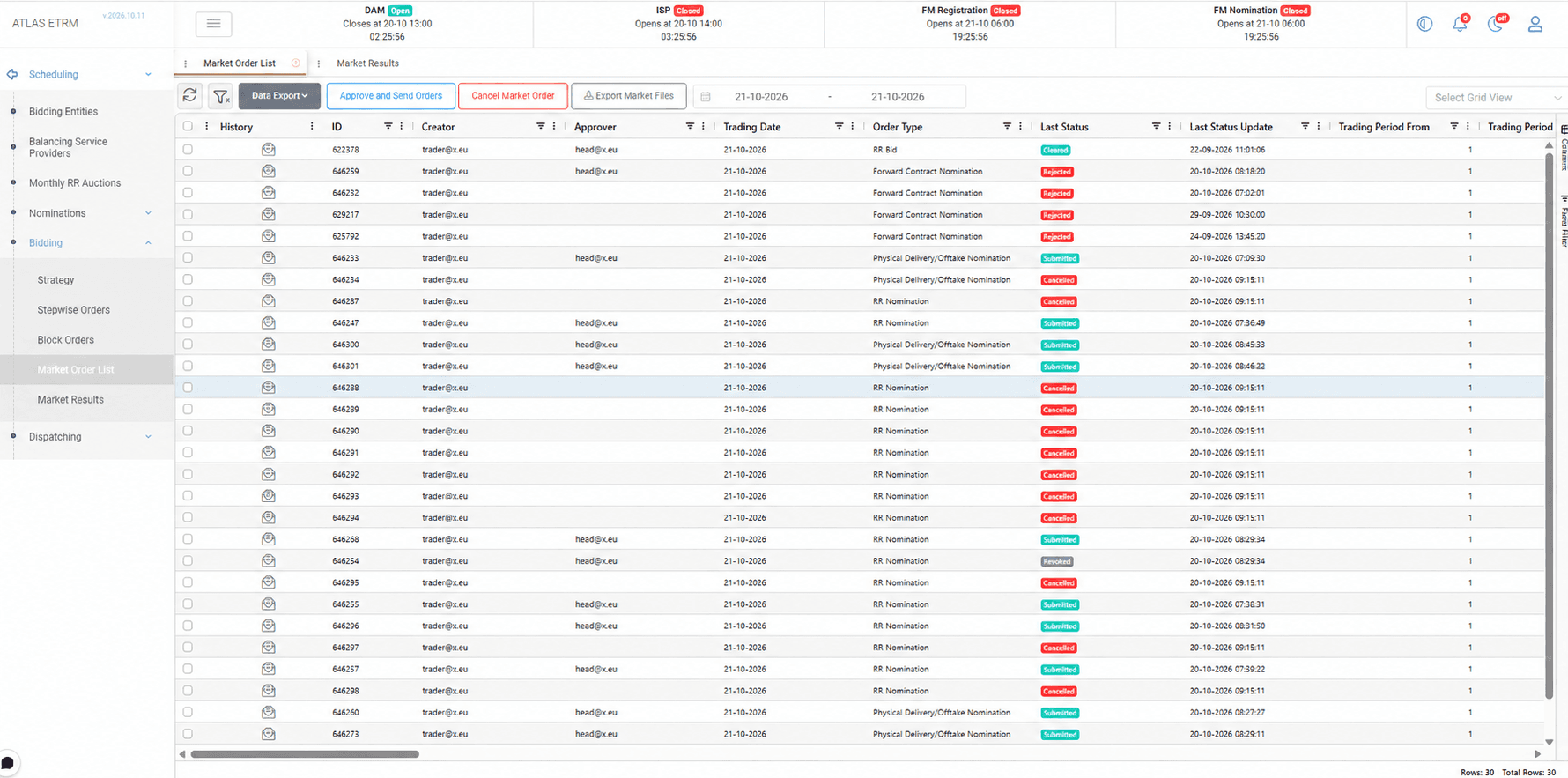
The Market Order List provides a centralized overview of all the spot market orders created in ATLAS ETRM, for the Day-Ahead Market (DAM), the Intraday Auctions (IDA1, IDA2 and IDA3) and the other supported markets. Orders created from the Strategy, Hybrid Orders and Block Orders screens, from the RES injection forecast and from the forward market operations (which are recorded here for auditing reasons) appear in the list with their current status. The screen serves as the supervisory step before the orders reach the exchange: the user verifies the prices, quantities, trading periods and target market of each order, and then approves and sends the orders to the market, cancels them or exports them as market files.
By default the screen opens on the next trading day, and the date range at the top of the screen can be changed to display the orders of other days. The grid supports grouping, filtering and data export, so that large numbers of orders can be organized by trading date, order type, status or any other column. Each user can choose the displayed columns through the Columns panel on the right edge of the grid and save the layout as a personal view through the Select Grid View list. Quantity columns are displayed in MW or MWh, depending on the market.
The status of each order is updated in real time as the exchange responds, without the need to refresh the screen. The row that changes is briefly highlighted, the groups that are expanded remain open, and only the orders that belong to the selected date range are updated. This allows the trader to follow the progress of a submission and to identify immediately any order that was rejected. Status changes made manually are recorded in the same way, together with the log message of the user.
The grid displays both the user who created an order and the user who approved it, which is useful for auditing and historical reports. For each order, the History column opens the full history of its status changes, including the date and time, the user and the log message of each change. The log message contains the reason for a rejection when the market does not accept an order.
The header of the screen displays the gate status of the spot markets (DAM, IDA1, IDA2 and IDA3), including the next opening or closing time and a countdown.
Approving and Submitting Orders

To send orders to the market, select one or more orders and choose Approve and Send Orders, either from the button above the grid or from the right-click menu. All the orders of the grid can be selected at once with the checkbox of the header. Approval by an authorized user is required before an order is submitted, in line with the internal governance of the company, and the action is available only to users with the relevant permissions.
Orders are sent to the market in phases, grouped per bidding entity and one entity after the other, so that large numbers of orders can be submitted without timeouts. A progress window displays the submission in real time. If an error or a timeout occurs, the process stops, the user is notified and the grid is reloaded, so that it always shows the actual status of each order. After the submission, the grid keeps the grouping selected by the user.
The gate times of the market apply to the submission. Orders cannot be submitted before the gate opens. If the market extends a gate, orders can still be submitted after the default closing time, but a warning message is displayed.
Once an order is sent, its status follows the response of the market and is updated automatically. The available statuses are described in the Appendix — Field Details section.
Cancelling and Exporting Orders
Orders that have been sent to the market can be cancelled by selecting them and choosing Cancel Market Order, next to the Approve and Send Orders button. The option is available when the market supports cancellations, and it displays the same progress window as the submission. The Exchange Order Id column displays the identifier that the exchange assigned to each order, which makes it easier to match an order with the exchange platform.
The Export Market Files button downloads the selected orders as Excel or XML files. The files can be used to submit the orders manually through the platform of the market operator, which is useful when the exchange API is not available and in emergency cases. Orders of the list can also be exported in tabular form through the Data Export option.
Mass Actions
Actions can be applied to many orders at once. The user selects the orders through the checkboxes of the grid, or shift-clicks to select a range of rows, and then right-clicks one of the selected rows to open the context menu. Filtering or grouping the grid first, makes it easy to select only the relevant orders.
This is the quickest way to work with a large number of orders, for example to send all the orders of a trading day, or only the orders of a specific entity after grouping the grid by entity.
The menu offers the Approve and Send, Cancel Market Orders and Export Market Files actions, which work in the same way as the corresponding buttons above the grid, with the same progress window and permissions.
The menu also offers the Update Status action, which sets manually the status of all the selected orders. It is meant for the cases in which the status of an order is not received from the exchange, for example because of an outage, or for exchanges that do not support two-way communication, where the orders are submitted through the platform of the exchange.
The user selects the new status and enters a log message with the reason for the change. The change is recorded in the history of each order with the date and time, the user and the log message. When the new status is Cleared, the cleared quantity is set automatically to the quantity of the order.
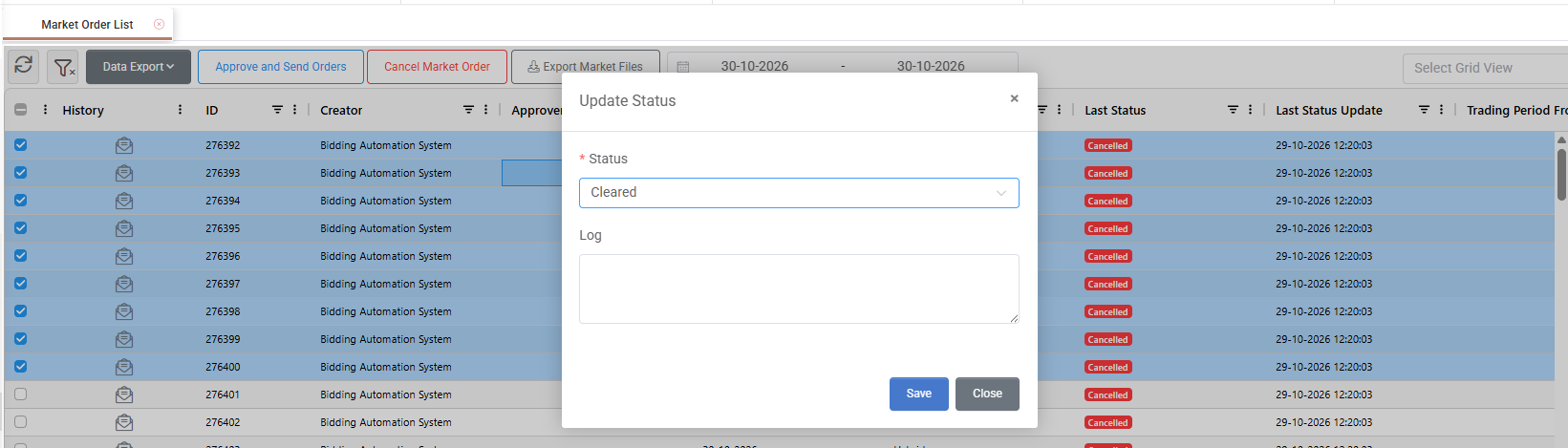
Orders that already have the selected status are skipped. If all the selected orders already have it, no change is made and the user is notified.
Appendix - Field Details
Toolbar
Field / Element | Description |
|---|---|
Refresh | Reloads the orders of the selected date range. |
Clear filters | Removes the active filters of the grid. |
Data Export | Exports the orders of the grid to Excel or CSV. |
Approve and Send Orders | Approves the selected orders and sends them to the market. |
Cancel Market Order | Cancels the selected orders in the market, when the market supports cancellations. |
Export Market Files | Downloads the selected orders as Excel or XML files for manual submission. |
Update Status (context menu) | Sets manually the status of the selected orders, with a log message. Available from the right-click menu. |
Date range | Trading dates for which the orders are displayed. By default, the next trading day is selected. |
Select Grid View | Loads or saves a personal layout of columns and filters. |
Grid fields
Field / Element | Description |
|---|---|
History | Opens the history of the order, with each status, the date and time of the change, the user and the log message. |
ID | System-assigned numeric identifier of the order. |
Creator | User who created the order. Orders created by jobs display the system user, for example Bidding Automation System. |
Approver | User who approved the order. |
Trading Date | Date of the delivery day of the order. |
Order Type | Type of the order, such as Hybrid or Block. |
Last Status | Current status of the order. |
Last Status Update | Date and time of the latest status change. |
Trading Period From / To | First and last trading period covered by the order. |
Timestamp From / To | Start and end of the delivery period covered by the order. |
Exchange Order Id | Identifier assigned to the order by the exchange. |
Quantity, Min. Quantity, Max. Quantity | Quantities of the order, in MW or MWh depending on the market. |
Cleared Quantity | Quantity of the order that was cleared by the market, in MW or MWh depending on the market. Set automatically when the status of an order is updated manually to Cleared. |
Executed Price | Price at which the order was executed. Displayed for XBID orders. |
Linked Order ID, Exclusive Group | Link and grouping information of Block orders. |
Order statuses
Status | Description |
|---|---|
Scheduled | The order is saved, but the market gate is not open yet. |
To be Approved | The gate is open and the order is saved, but it has not been submitted yet. |
Submitted | The order was sent to the market and is awaiting processing. |
Cancelled | The order has been cancelled. |
Revoked | The order was cancelled by the user or replaced by a newer version. |
Rejected | The order was submitted, but the market rejected it due to validation errors. The log of the order displays the reason. |
Cleared | The order was fully cleared by the market. |
Partially Cleared | The order was partially accepted and cleared by the market. |
Not Cleared | The order was accepted by the market, but it was not cleared. |
*Depending on the connected exchange, other intermediate statuses may appear.