11. Customer Portal
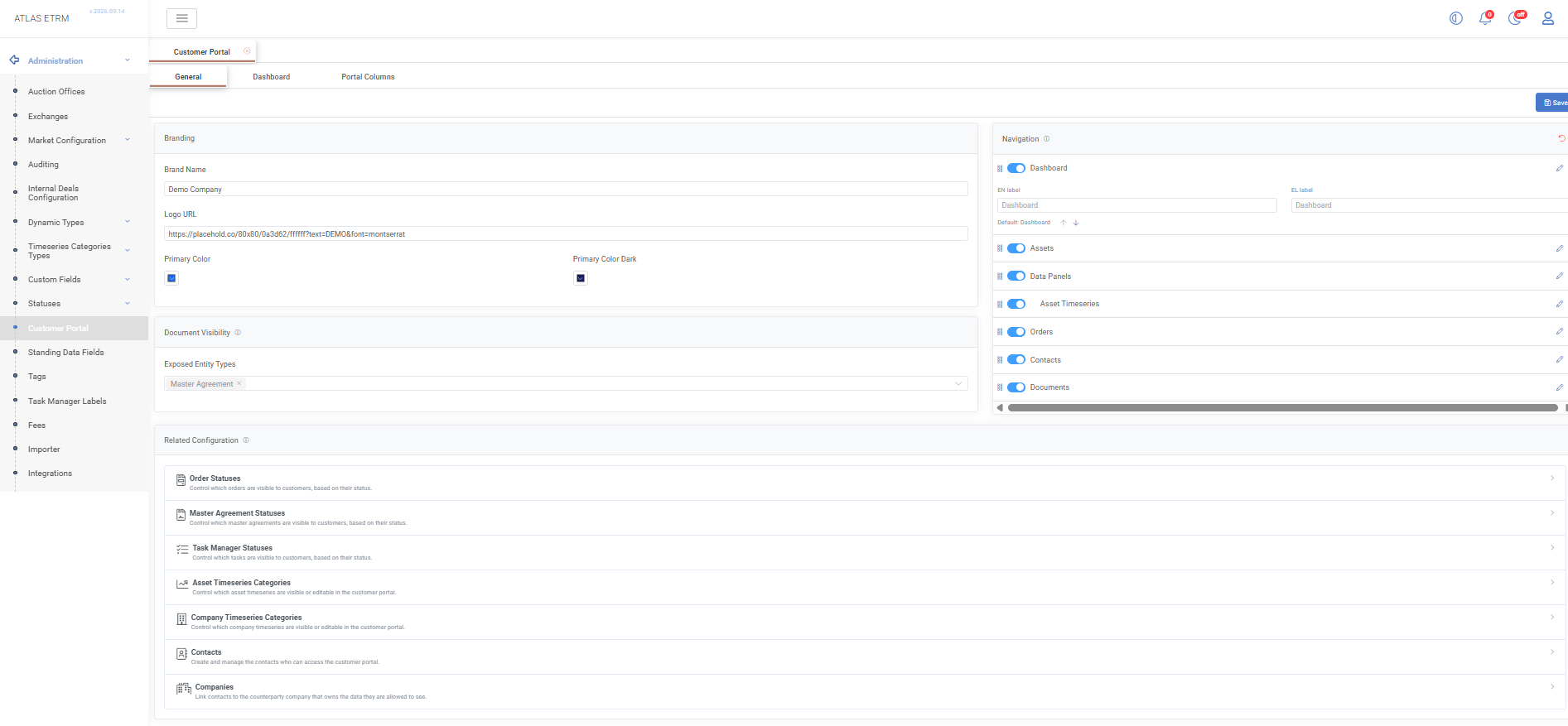
The Customer Portal configuration page controls the branding, navigation, dashboard content and data made available through the Customer Portal.
Settings are organised into three tabs: General, Dashboard and Portal Columns.
Instructions for external users are provided separately through the Customer Portal Help Center.
General
The General tab includes the portal’s branding, document visibility and navigation settings, along with links to related configuration pages for managing portal content and user access.
Branding
The Branding section defines the visual identity of the portal.
Brand Name: Organisation name displayed on the login page and in the portal header.
Logo URL: URL of the logo displayed in the portal.
Primary Color: Main interface colour used in light mode.
Primary Color Dark: Main interface colour used in dark mode.
Document Visibility
The Exposed Entity Types field determines which business entities can expose their associated documents through the Customer Portal. Multiple entity types may be selected. If no entity types are selected, no entity-related documents are displayed.
Navigation
The Navigation panel determines which items appear in the Customer Portal sidebar, their display order and their labels.
Available items are Dashboard, Assets, Data Panels and its Asset Timeseries sub-item, Orders, Contacts and Documents.
Use the toggle beside each item to show or hide it. Drag the handle to change its position, or select the pencil icon to edit its English and Greek labels. Use the reset icon at the top of the panel to restore the default navigation configuration.
At least one navigation item must remain visible. A configuration with all items hidden cannot be saved.
If Dashboard is hidden, users are directed to the first available page after login. Opening a hidden page through its URL displays a “page not available” screen.
Hiding a navigation item does not restrict access to the underlying APIs. Navigation visibility should not be used as an access-control mechanism.
Related Configuration
The Related Configuration section provides shortcuts to the settings that control portal content and user access:
Order Statuses: Determines which orders are visible based on their status.
Master Agreement Statuses: Determines which master agreements are visible based on their status.
Task Manager Statuses: Determines which tasks are visible based on their status.
Asset Timeseries Categories: Controls which asset time series are visible or editable.
Company Timeseries Categories: Controls which company time series are visible or editable.
Contacts: Manages the contacts that can access the Customer Portal.
Companies: Links contacts to their counterparty company and determines which company data they can access.
Select Save to apply the configuration. Any changes are immediately visible to portal users.
Dashboard
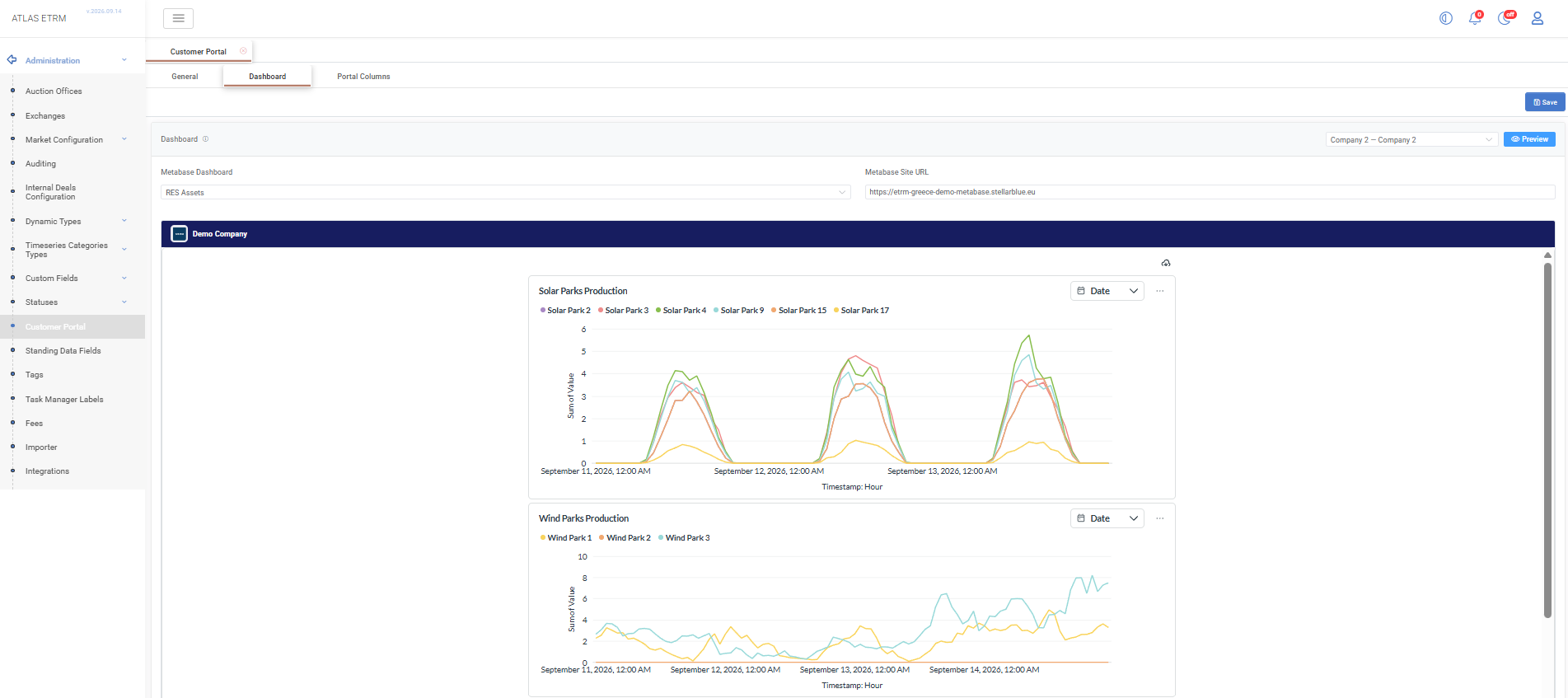
The Dashboard tab determines the Metabase dashboard displayed on the Customer Portal home page.
Metabase Dashboard: Published dashboard configured for embedding in the portal.
Metabase Site URL: URL of the Metabase instance hosting the selected dashboard.
The dashboard preview is displayed directly within the configuration page. Administrators can select a company and use Preview to review the dashboard in the context of that company.
Portal Columns
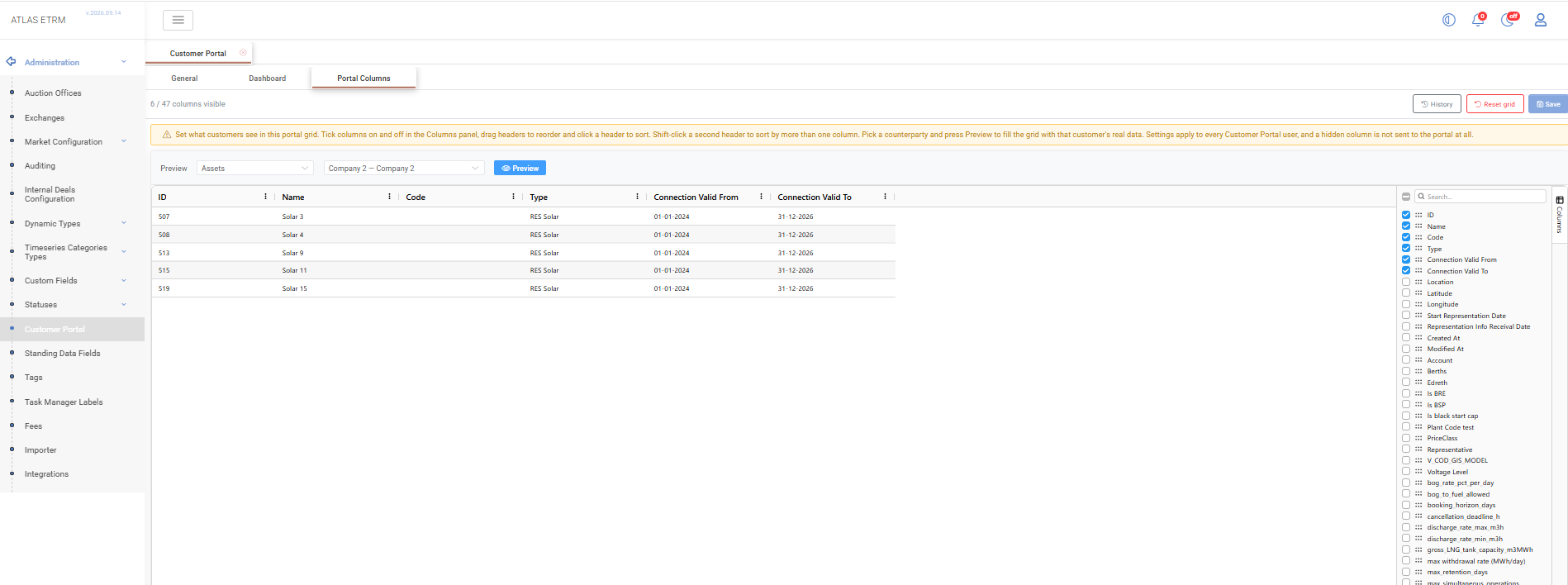
The Portal Columns tab determines which columns are displayed in the Assets, Orders, Order Items, Documents and Contacts grids.
Select a grid from the dropdown to configure its columns. The counter above the grid shows the number of visible columns out of the available total.
Column Visibility and Order
Use the Columns panel on the right to select the columns displayed in the portal. Select a checkbox to show a column or clear it to hide the column. Use the search field to locate a specific column.
Drag column headers to change their display order.
Hidden columns and their values are excluded from the data sent to the customer’s browser.
ATLAS usernames identifying who created or modified a record cannot be exposed as portal columns.
Default Sorting
Click a column header to configure the default sorting. Sorting can also be selected through the column header menu using Sort Ascending or Sort Descending.
To sort by more than one column, hold Shift and click an additional column header.
Column Labels
Open the column header menu and select Rename… to customise the column label.
Enter the required labels in the EN label and EL label fields. Leave a field blank to use the portal’s default translation for that language. Select Save in the dialog to apply the labels to the configuration being edited.
Use Reset name in the column header menu to restore the default label.
Custom Fields
Custom fields can be included as columns in the Assets, Orders and Order Items grids. Select the required custom fields in the Columns panel and configure their visibility, order and labels in the same way as other columns.
Preview
Select a company and click Preview to populate the selected grid with that company’s data.
The preview reflects unsaved column settings, including column visibility, allowing administrators to review the result before saving.
Selecting a company changes the preview context only. Navigation and column settings apply globally to all Customer Portal users and are not configured separately for each counterparty.
Column widths can be resized while reviewing the grid, but these adjustments are cosmetic and are not saved as part of the portal configuration.
History and Reset
Select History to review the column configuration audit trail, including the authenticated administrator responsible for each change.
Select Reset grid to restore the selected grid’s default configuration.