Administration Guide
Overview
The Customer Portal Administration Guide describes how to configure and manage the Customer Portal within ATLAS ETRM.
The Customer Portal is highly configurable, allowing administrators to control branding, navigation, grid columns, user access, data visibility, and editing permissions according to their organization's business requirements.
The Customer Portal configuration combines portal-specific settings with the existing business configuration of ATLAS ETRM. Together, these settings determine the portal's appearance, which counterparties can access the portal, what information is available to them, and which actions they are permitted to perform.
This guide follows the Customer Portal configuration process step by step. Each section describes a specific configuration task and provides links to the corresponding ATLAS ETRM documentation where detailed configuration instructions are available.
Step-by-Step Configuration Process
1. Configure the Portal’s Appearance, Navigation, Dashboard and Document Visibility
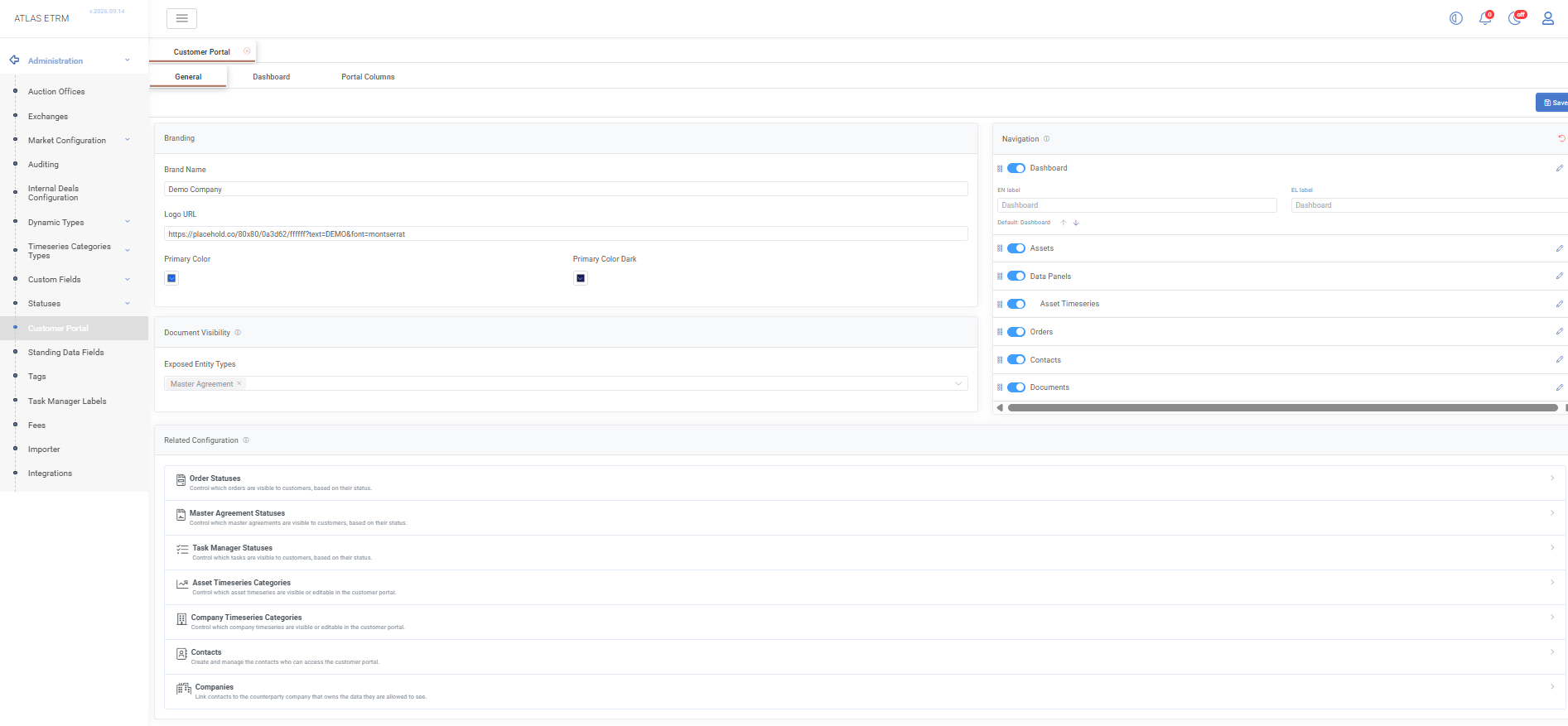
In Administration → Customer Portal → General, configure the organisation name, logo and primary colours displayed throughout the portal. Select which business entity types can expose their associated documents and configure the navigation menu by showing or hiding items, changing their order and customising their English and Greek labels.
At least one navigation item must remain visible. If Dashboard is hidden, users are directed to the first available page after login.
In the Dashboard tab, select the Metabase dashboard displayed on the portal home page and configure the Metabase Site URL. Selecting a dashboard enables its preview.
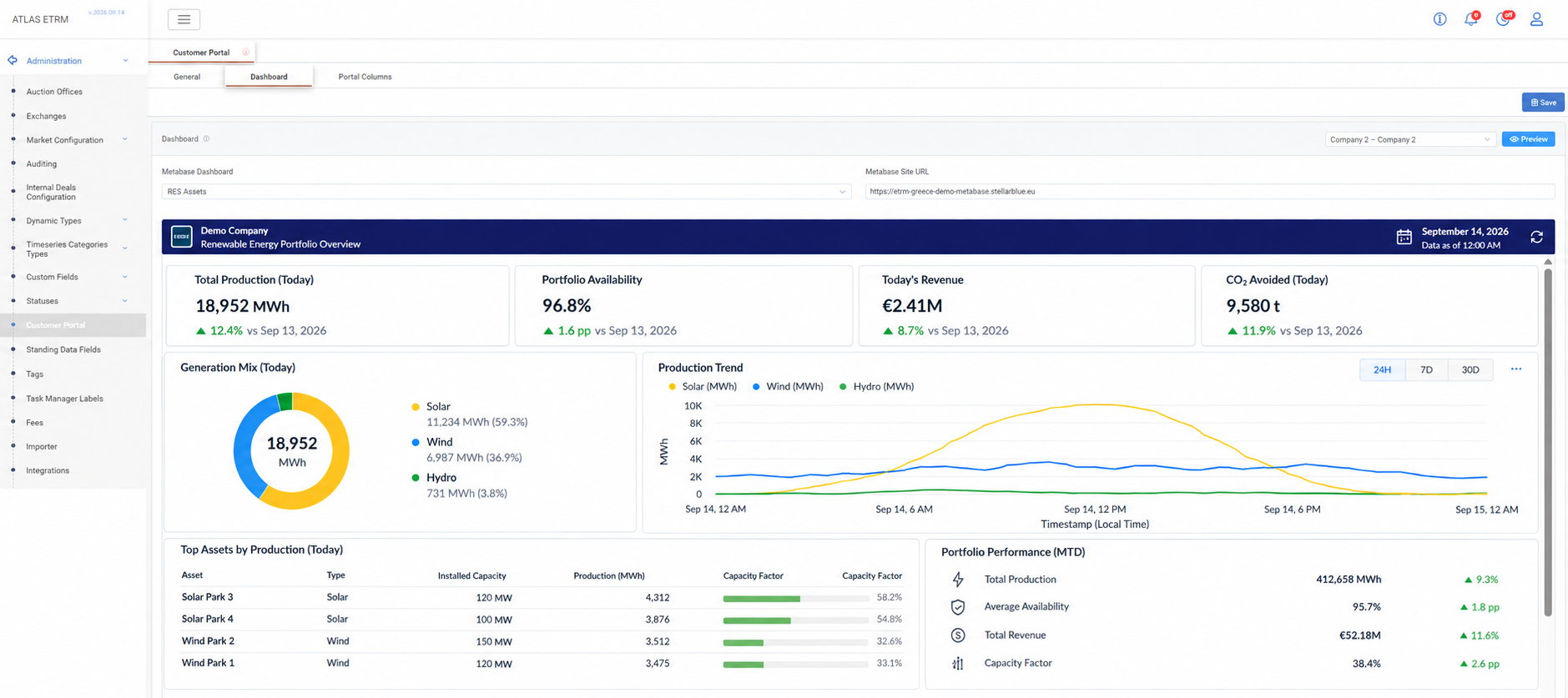
See: Administration → Customer Portal → General and Dashboard
The Related Configuration section provides direct access to the ATLAS ETRM settings that control portal access, entity visibility, and timeseries permissions.
2. Configure Portal Columns
In the Portal Columns tab, configure the columns displayed in the Assets, Orders, Order Items, Documents and Contacts grids.
Select a grid and use the Columns panel to show or hide columns. Drag column headers to change their order, click a header to define default sorting, or hold Shift and click another header to sort by multiple columns. Use Rename… in the column header menu to customise English and Greek labels.
Custom fields can also be included in the Assets, Orders and Order Items grids.
Select a company and click Preview to review the selected grid using that company’s data. The preview reflects unsaved column settings, including hidden columns. Selecting a company changes the preview context only; saved column settings apply to all portal users.
Hidden columns and their values are excluded from the data sent to the customer’s browser.
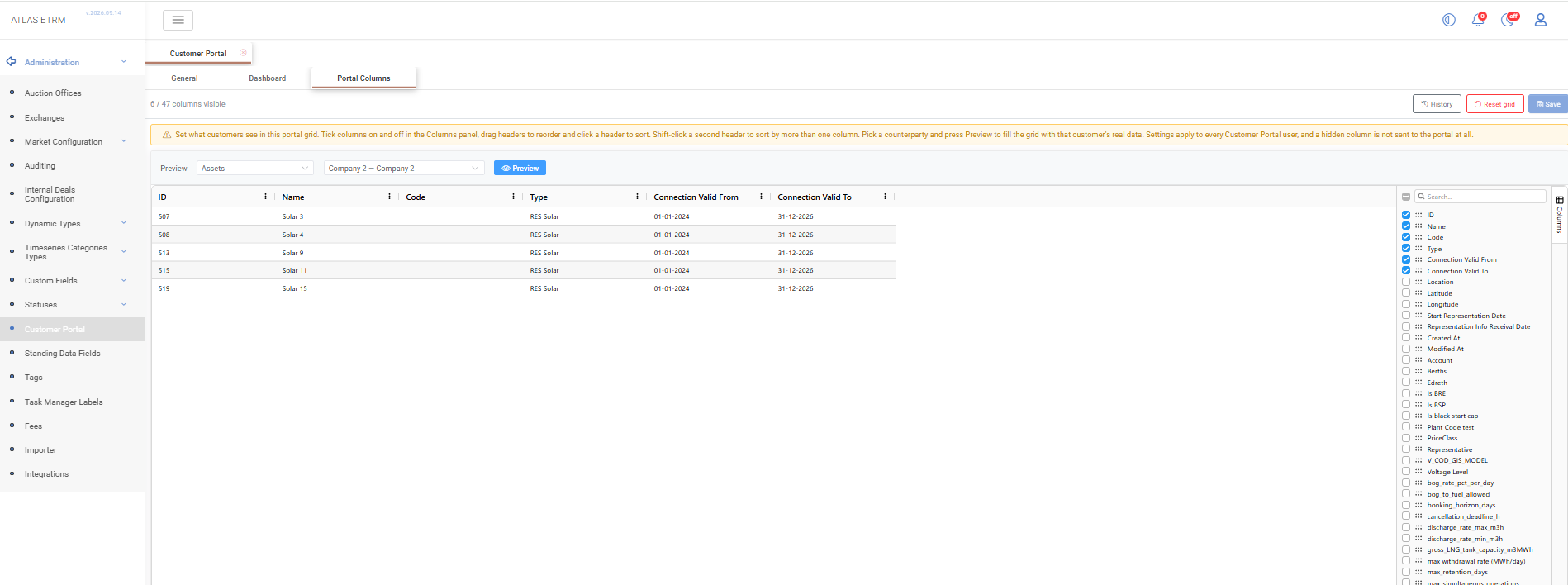
See: Administration → Customer Portal → Portal Columns
3. Configure Portal Users
Configure which external users are allowed to access the Customer Portal. Portal users are managed as Contacts in ATLAS ETRM and can be created individually or imported in bulk using the Contact template.
To grant portal access:
Create a Contact with a valid email address.
Link the Contact to the appropriate counterparty Company.
Only contacts associated with a counterparty company can authenticate and access the information available for that company.
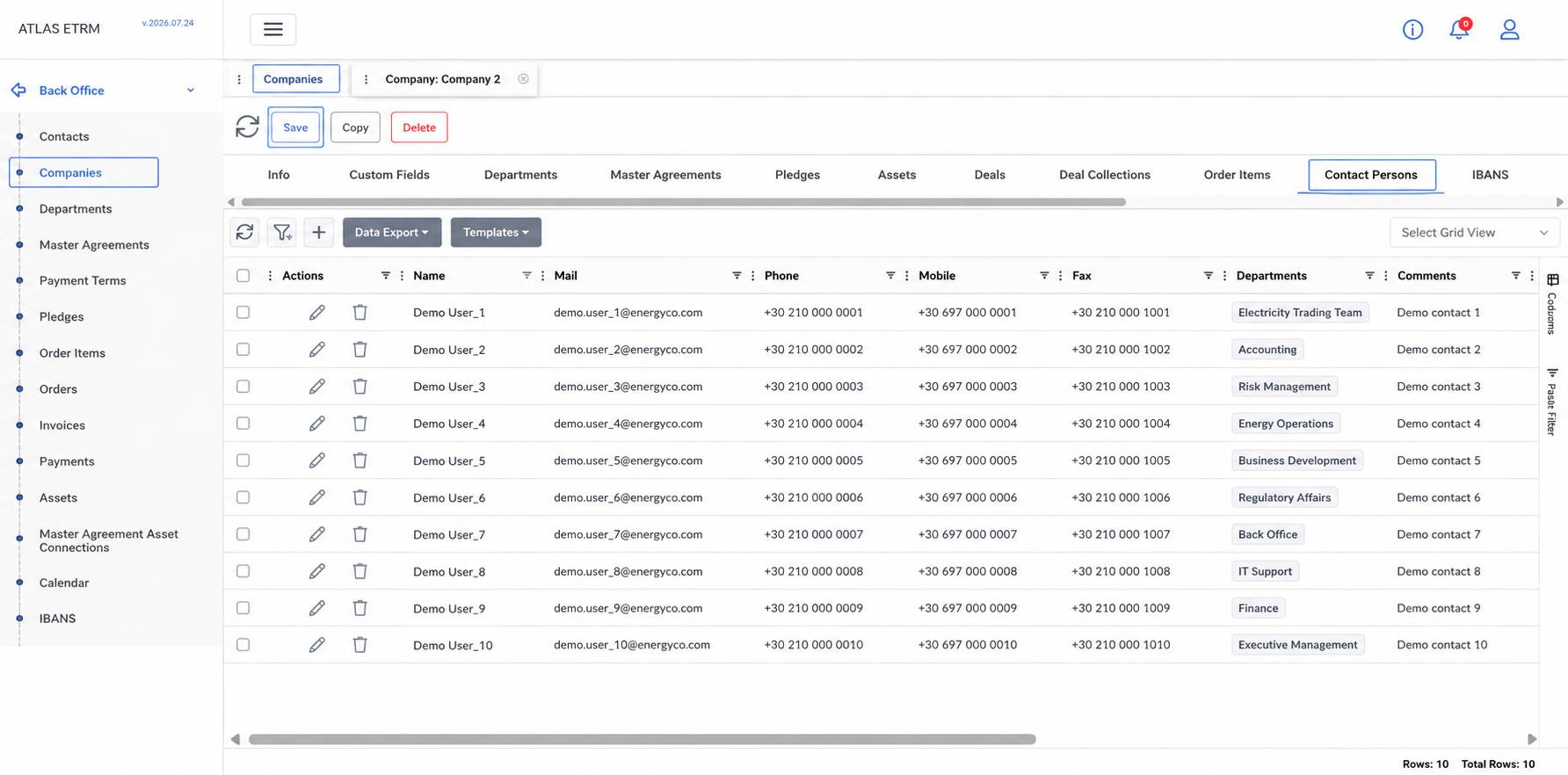
See: Back Office → Contacts and Back Office → Companies
4. Configure Data Visibility
Configure which business information is available to portal users.
Visibility is controlled independently for each supported entity type, allowing organizations to expose only the information appropriate for external counterparties.
Master Agreements
Master Agreement visibility is controlled by the Display in Customer Portal option on each Master Agreement Status.
This allows administrators to determine which stages of the agreement lifecycle are visible to counterparties.
See: Administration → Statuses → Master Agreement Statuses
Orders
Order visibility is controlled by the Display in Customer Portal option on each Order Status.
This allows administrators to determine which stages of the order lifecycle are visible to counterparties.
See: Administration → Statuses → Order Statuses
5. Configure Asset Data
Configure which assets and asset data are available in the Customer Portal.
Portal users can access only assets associated with their company through active Master Agreement Asset Connections.
See: Back Office → Master Agreement Asset Connections
For each available asset, the displayed timeseries are determined by the corresponding Asset Timeseries Category configuration:
Display in Customer Portal controls whether the timeseries is visible.
Editable in Customer Portal determines whether portal users can upload or replace values.
Together, these settings define both the assets available to each counterparty and the data they can view or maintain.
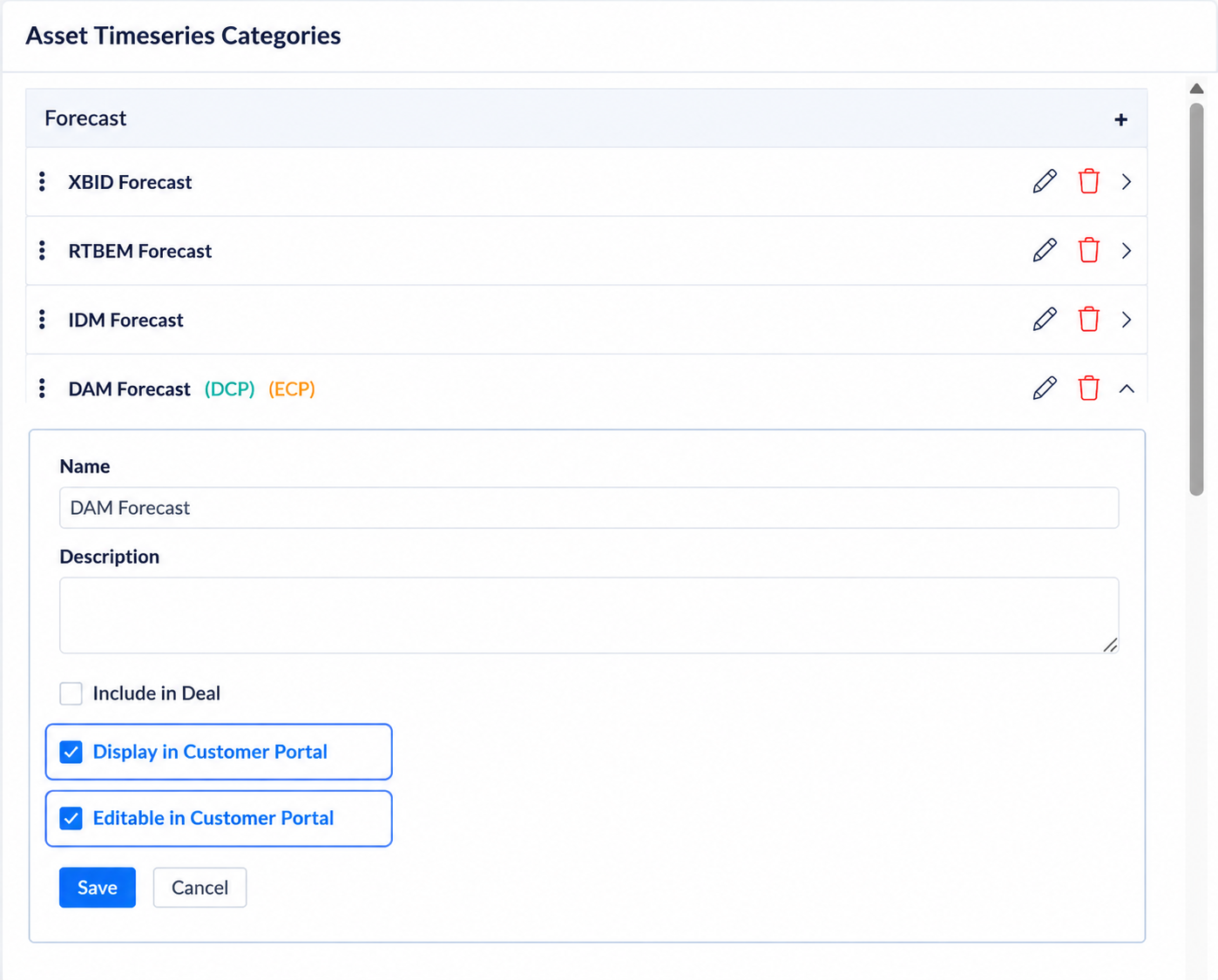
See: Administration → Timeseries Categories Types
6. Validate the Configuration
Before providing portal access to counterparties, verify that the configuration behaves as expected.
Recommended validation includes:
Reviewing the portal branding and dashboard.
Checking navigation visibility, order and labels, with at least one item remaining visible.
Reviewing column visibility, order, default sorting and labels in each configured grid.
Confirming that portal users can authenticate successfully and access the expected landing page.
Reviewing Order visibility, asset associations and asset timeseries visibility and editing permissions for the relevant counterparties.
Select Save to apply configuration changes and review the result in the portal. Saved changes take effect on the customer’s next page load, without a deployment or cache delay.