
Docs / 4. Back Office
4.14 IBANS
Overview of IBANS
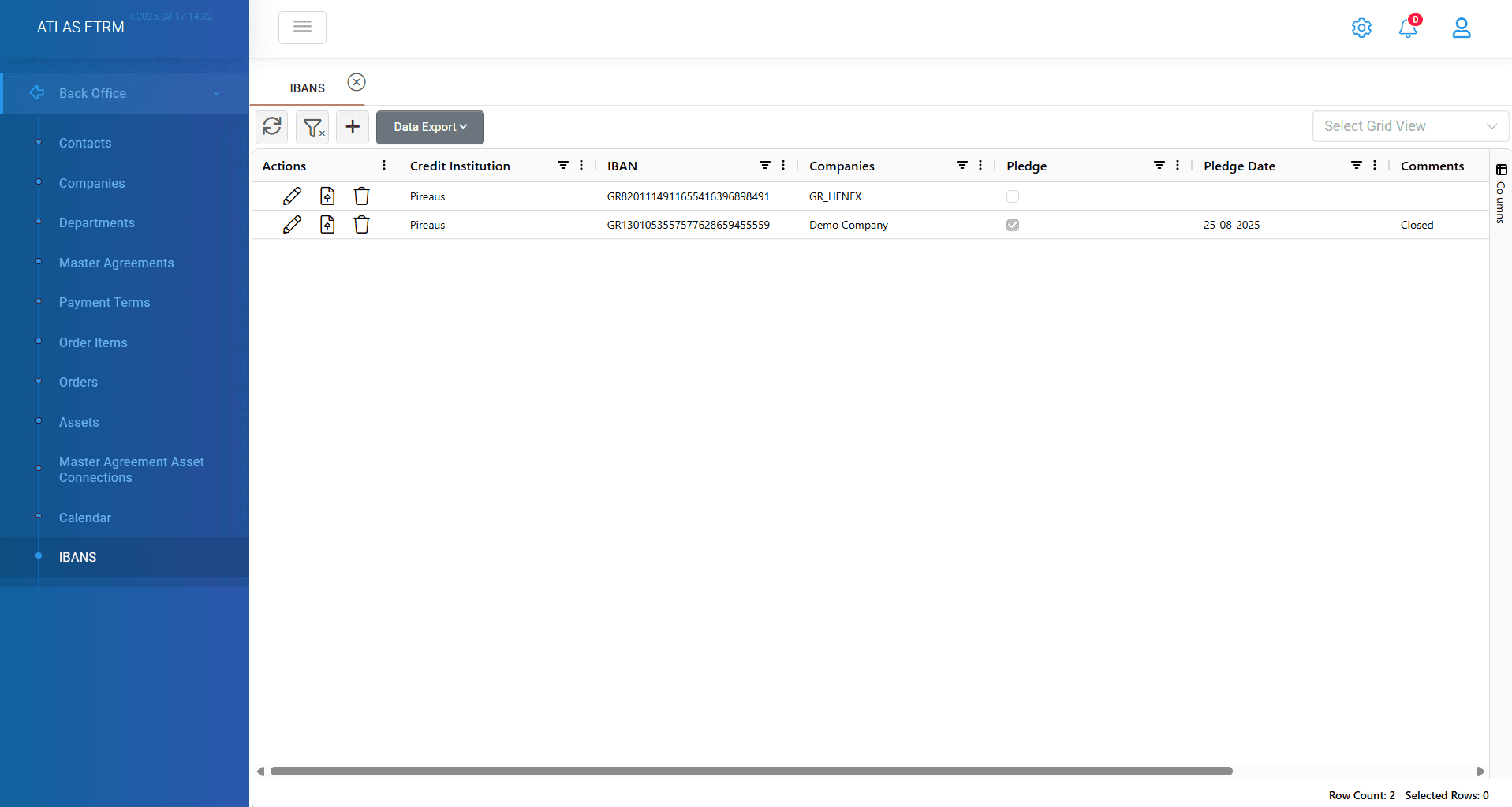
This screen displays the list of IBANS of each counterparty Company. This article provides step-by-step instructions for managing IBANs information within the system. The system allows the users to create, modify, export, and manage IBAN data efficiently.
Create new IBAN
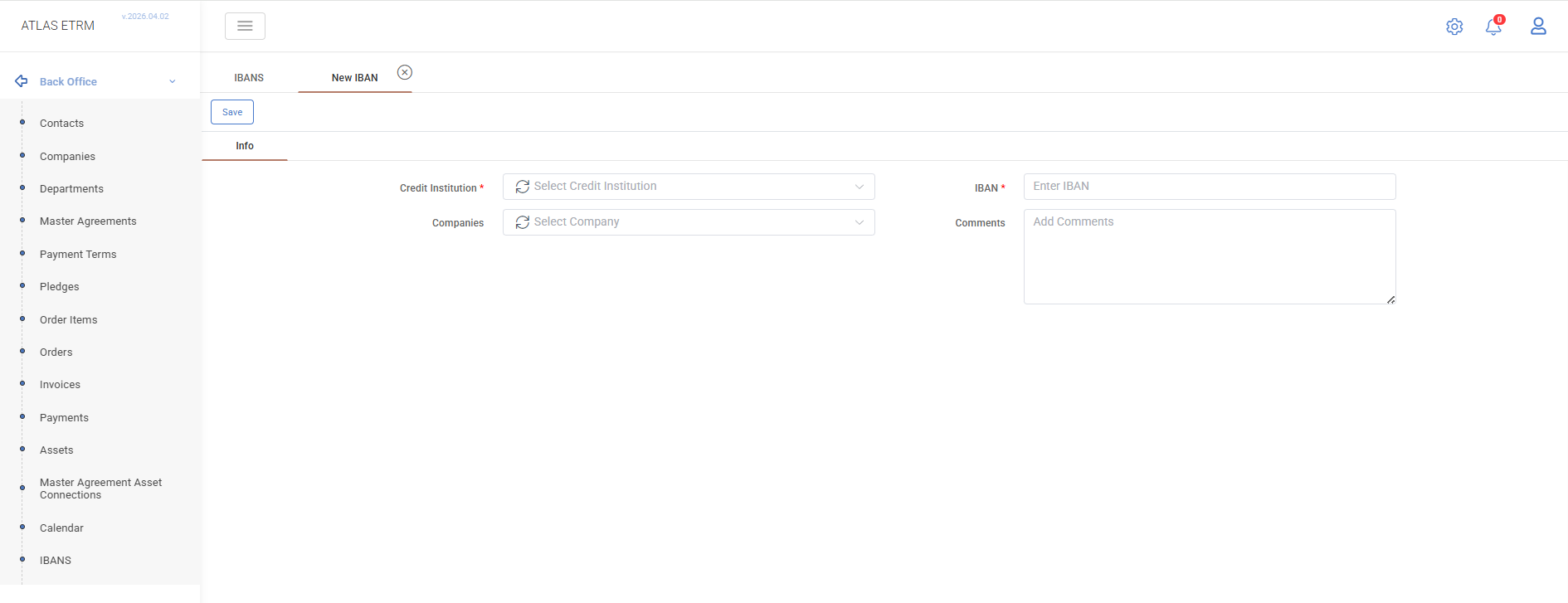
The user can register a new IBAN of a company by pressing the “+” button at the upper-left side of the window. Then, a pop-up window opens, where the user can insert details about the IBAN, (Table on the bottom of article describes the validation rules) and press the “Save” button to complete the registration.
The data that must be filled are the:
Credit Institution: The “Credit Institution” options are not standard. The user can add new registries as “Credit Institution” in the “Counterpart Type” field in the “Companies” menu item as described in the "Companies" article.
IBAN: User should insert the IBAN that is needed.
Additional options are:
Companies: The “Company” options are not standard. The user can add new registries in the respective menu items (Companies) and thus list of options is updated.
Comments: Some additional comment may be added for user's facilitation
View/Edit an existing IBAN
There are two ways to modify IBANs details:
by double-clicking on an IBAN entry
selecting the "pencil" icon in the 'Actions' area.
The user shall make the necessary changes in the IBAN’s details and click the “Save” button to update the information.
Save As New
To create a new IBAN based on an existing one the user shall:
follow the steps above to edit the IBAN,
after editing, click the “Save as New” button.
This feature allows creating multiple similar IBANs without re-entering all the data manually.
Deleting IBANs
To remove a IBAN from the system the user shall:
right click on the specific IBAN and select “Delete IBANs”
or press the "trash can" icon in actions area
Then confirm the deletion when prompted to permanently remove the IBAN from the system
Pledges Tab
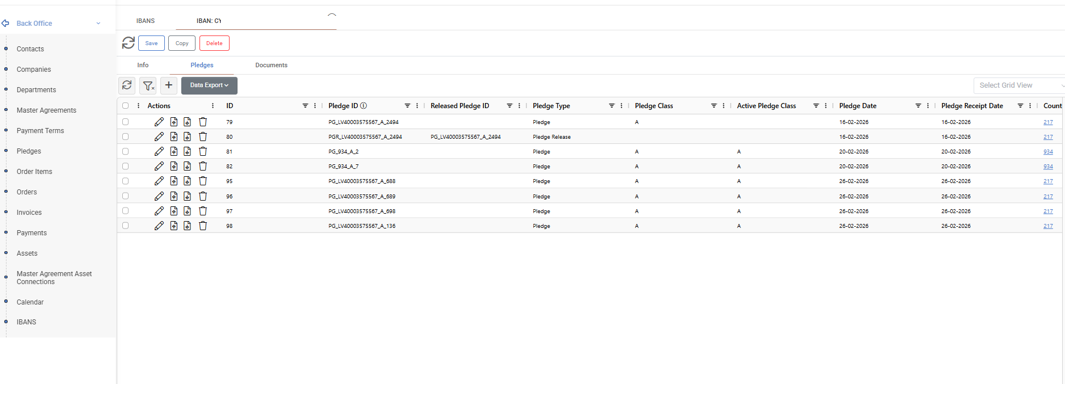
The Pledges tab within a selected IBAN provides a filtered view of all pledge and pledge release records linked to it.
The user can review the related entries and perform standard actions such as viewing, editing, or deleting records through the actions area. Additionally, the user can upload and download documents associated with each record.
Uploading Document
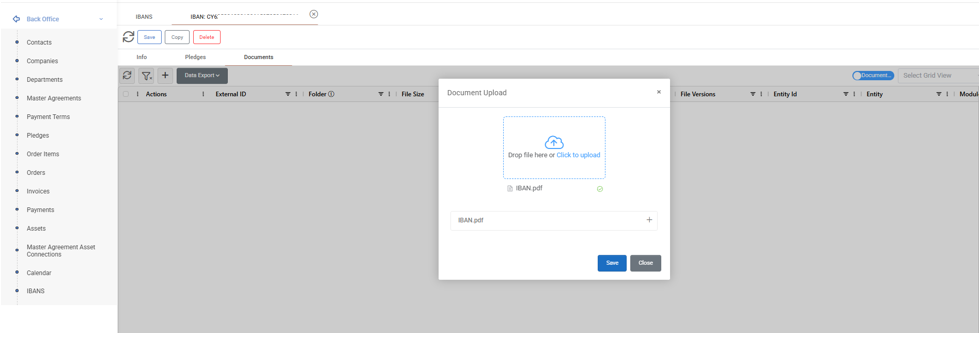
The user can upload a relevant document associated with an IBAN by clicking the Upload Document icon located in the Actions tab (middle icon). To do this the user should:
Click the Upload Document icon from the Actions tab.
A pop-up window appears, prompting the user to upload the relevant document linked to the selected IBAN.
After successful upload, the document is stored and associated with the IBAN for future reference.
Viewing Documents Linked to an IBAN:
The user can double-click on an IBAN to view all documents associated with it in the third subtab. This provides quick access to all uploaded files connected to the specific IBAN.
From there user can also upload a new document by clicking the "+" icon. Edit a current document and upload a new. Have a version history and lastly delete the documents. All these functions are available from buttons in actions area.
Appendix: Input details
Field name | Type | Validation rules | Optional | Multi-selection | Standard Options in List |
Credit Institution | List of options | - | NO | YES | - |
IBAN | String | Alpharithmetic (34) | NO | - | - |
Companies | List of options | - | YES | YES | - |
Comments | String | Alpharithmetic | YES | - | - |
Was this helpful?