4.4 Master Agreements
Overview
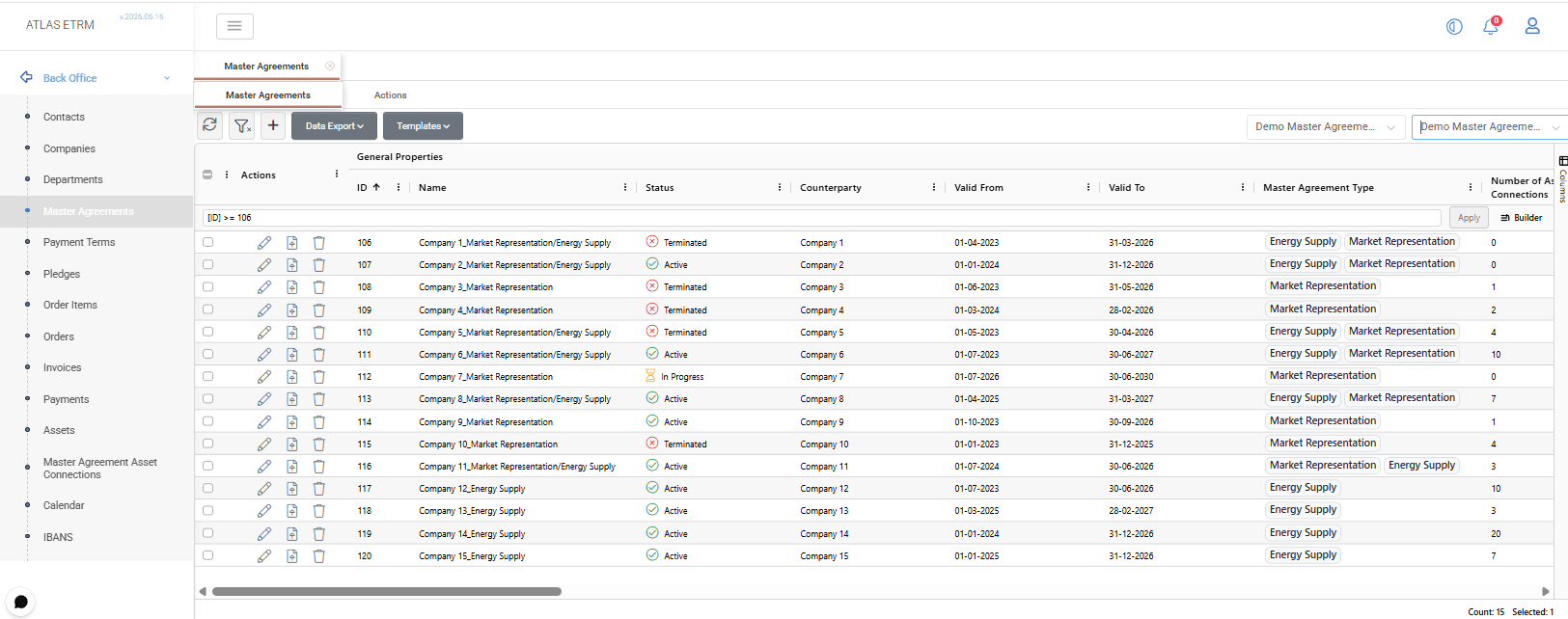
The Master Agreements screen is used to manage the contractual relationships between the user's company and external counterparties. Master Agreements serve as the primary contractual framework under which commercial activities, assets, settlements, deals, and other operational records may be associated.
Each Master Agreement stores key information such as the counterparty, agreement validity period, agreement status, settlement configuration, custom fields, and supporting documentation. Depending on business requirements, Master Agreements may also be linked to assets, deals, deal collections, order items, pledges, and other related records.
The main grid provides a centralized view of all Master Agreements in the system. Users can search and filter records, review agreement information, open existing agreements, create new ones, export data, perform mass actions, and access available record actions directly from the grid.
Additionally, the Actions tab provides a complete audit trail of events associated with a Master Agreement, including actions such as creation, merger, transfer, termination, and other configured business actions (see relevant Administration section). Users may review action details, delete existing actions by right clicking, and upload or download documents associated with a specific action, ensuring full visibility into the agreement lifecycle and history.
Creating a Master Agreement
To create a new Master Agreement, click the + button at the top of the Master Agreements grid. A new Master Agreement form opens where the agreement information can be entered.
The Counterparty and Valid From fields are mandatory. The Counterparty field contains all companies available in the system and represents the external company with which the agreement is established.
Additional information, such as the agreement name, status, validity period, self-billing settings, agreement type, broker or agent information, and comments, may also be maintained.
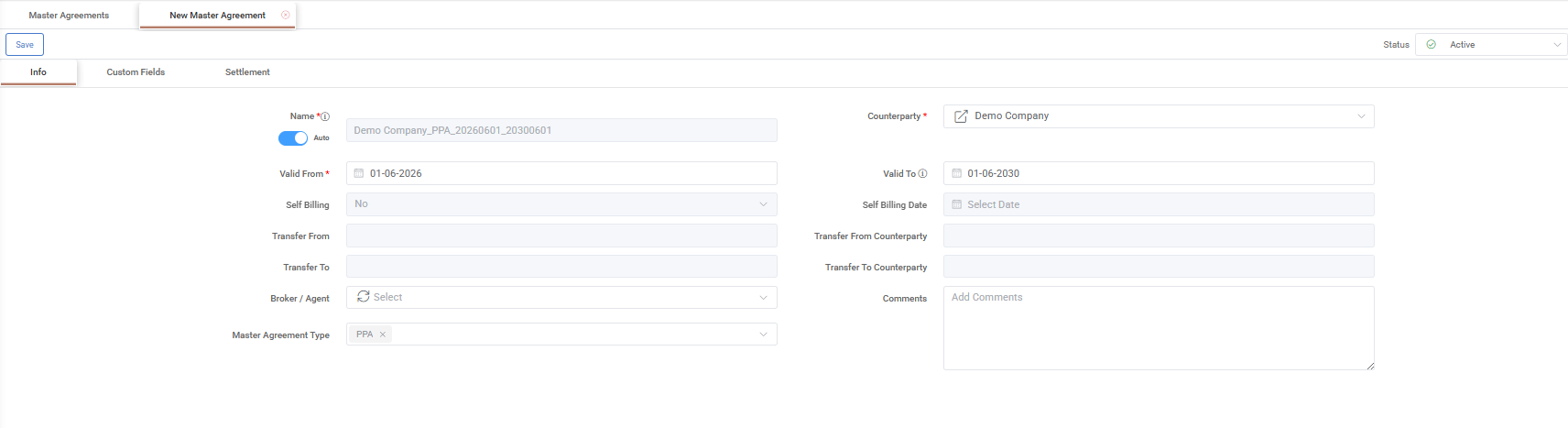
Master Agreement information is organized into the following tabs:
Info – Displays the general information of the Master Agreement, including counterparty details, agreement validity dates, status, agreement type, transfer information, and other agreement-related attributes.
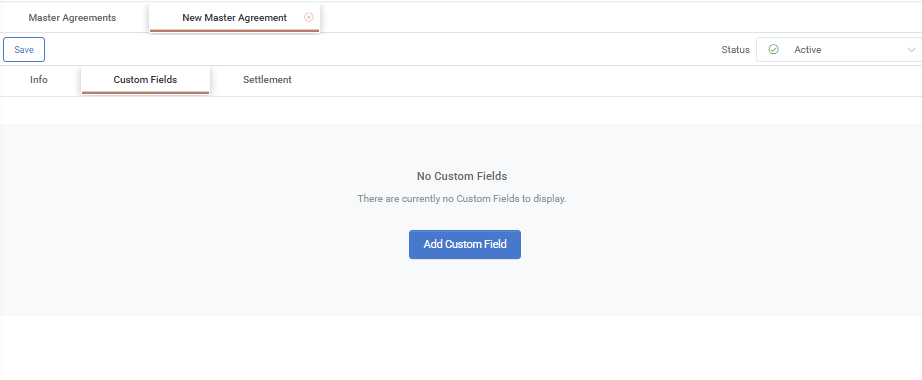
Custom Fields – Displays additional Master Agreement-specific fields configured in the system. Custom Fields allow organizations to capture information beyond the standard agreement attributes according to their business requirements.
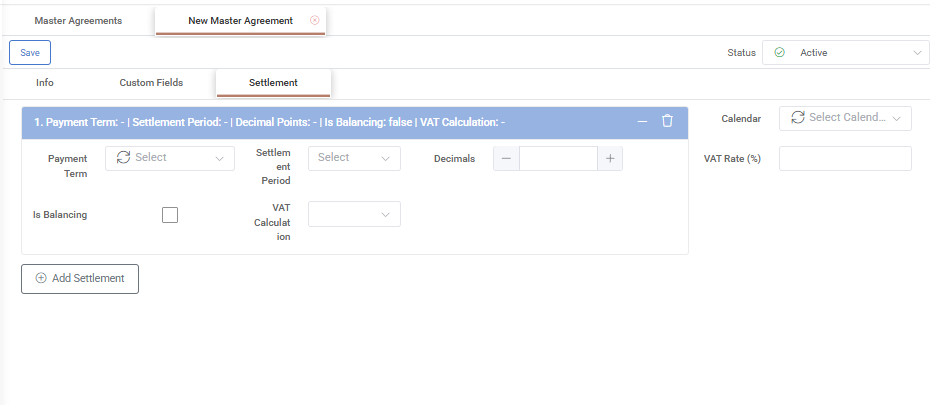
Settlement – Allows the configuration of payment and settlement settings associated with the Master Agreement, including payment terms, VAT settings, decimal precision, balancing options, and calculation calendars.
Once all required information has been entered, click Save.
Editing and Deleting Master Agreements
Editing a Master Agreement
To edit a Master Agreement, double-click the desired record in the grid or click the Pencil icon displayed in the Actions area. Update the required information and click Save.
The Copy button creates a new Master Agreement by duplicating the currently displayed record. The copied information can then be modified as required before saving it as a new Master Agreement.
Master Agreement information is organized into the following tabs:
Info – Displays the general information of the Master Agreement.
Custom Fields – Displays additional agreement-specific fields configured in the system. If no Custom Fields are available, selecting Add Custom Field redirects the user to the Administration section, where new Custom Fields can be created and configured. Custom Field rules may be associated with specific Master Agreement Types.
Settlement – Displays the settlement and payment configuration associated with the agreement. For a detailed description of the available fields, refer to the Appendix - Field Details.
Pledges – Displays all pledge and pledge release records linked to the Master Agreement. The functionality mirrors the main Pledges screen, allowing users to edit records, delete entries, and manage associated documents.
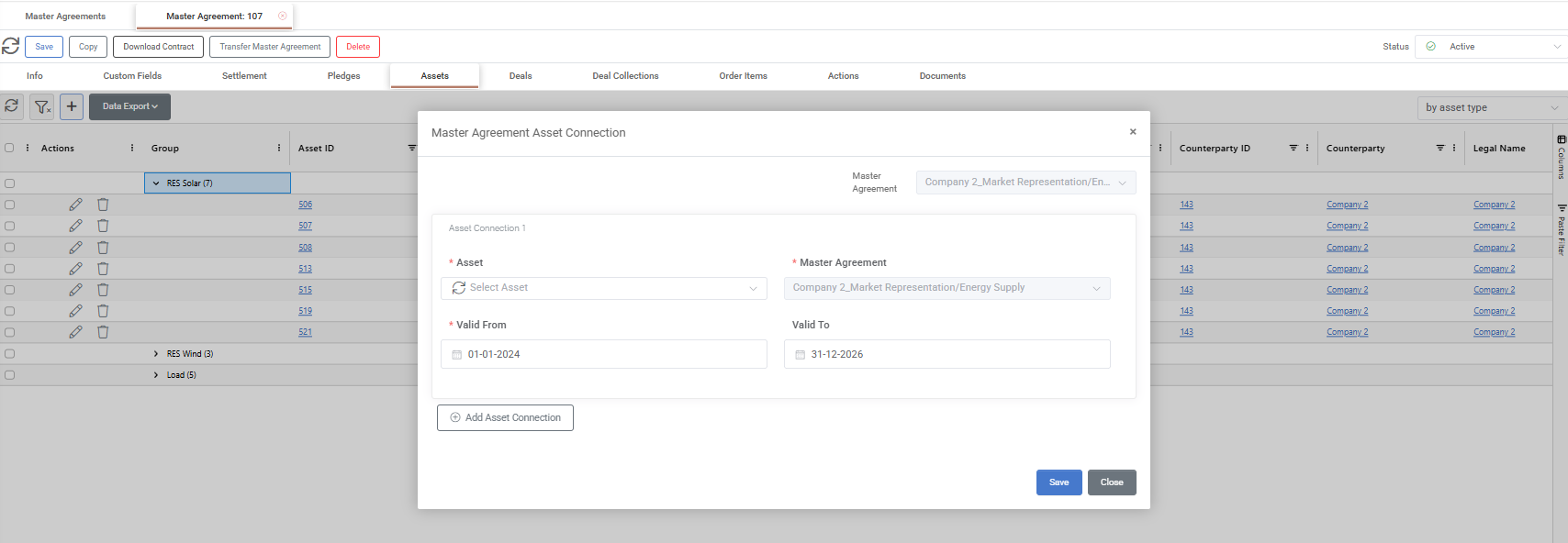
Assets – Allows users to add, modify, or remove assets associated with the Master Agreement and define the validity period of each asset association, which may differ from the validity period of the Master Agreement itself.
To create a new asset association, click the + button at the top of the grid. A pop-up window opens where one or more assets can be added through the Add Asset Connection option. For each asset association, users must specify at least a Valid From date and may optionally provide a Valid To date before saving the changes.
Deals – Displays all deals associated with the Master Agreement. The association is established from the Deal record.
Deal Collections – Displays all deal collections associated with the Master Agreement. The association is established from the Deal Collection record.
Order Items – Displays order items generated from deals associated with the agreement.
Actions – Displays the complete action history of the Master Agreement in chronological order and allows users to manage agreement-related actions and documents.
Documents – Displays and manages documents associated with the Master Agreement. Users may upload, view, delete, and export documents, as well as manage document versions.
To upload a document, click the + icon and select the file to associate with the Master Agreement. Additional functionality includes version management capabilities. While editing a document, users may upload a new version of the file. The system maintains a complete version history, allowing users to track changes over time and ensuring full traceability. Users may also select and download a specific version of a document when reviewing historical records or retrieving previous revisions.
Transfer Master Agreement
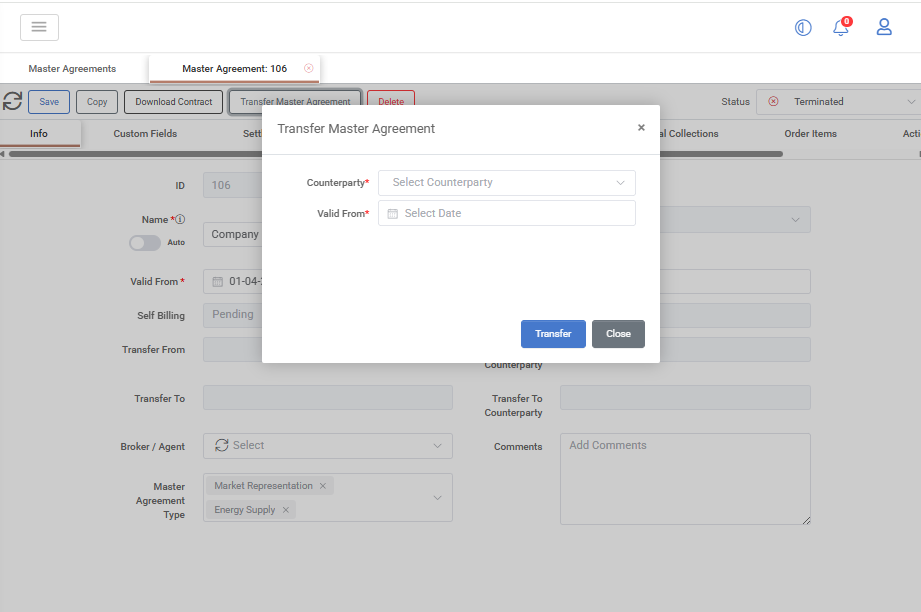
Users can transfer the commercial setup of an existing Master Agreement to a different counterparty by selecting Transfer Master Agreement.
The user specifies the new counterparty and the Valid From date. The system then creates a new Master Agreement for the selected counterparty by copying the commercial configuration of the original agreement, including the Master Agreement Type, Valid To date, Custom Field values, linked assets and other relevant configuration settings.
To maintain traceability between the two agreements, the system automatically populates the transfer-related fields (Transfer From, Transfer To, Transfer From Counterparty and Transfer To Counterparty). The original Master Agreement remains unchanged for historical and audit purposes, while the new agreement becomes effective from the specified Valid From date.
Example use case
This functionality can be used when a customer or asset portfolio is transferred to another legal entity (e.g. following a company restructuring, merger, spin-off or asset acquisition) and the commercial terms of the existing Master Agreement need to be preserved for the new counterparty. Instead of recreating the agreement from scratch, the system creates a successor Master Agreement by copying the commercial configuration of the original agreement while maintaining a clear transfer history between the two agreements.
Deleting a Master Agreement
A Master Agreement may be deleted directly from the Master Agreements grid by right-clicking the desired record and selecting Delete, or by clicking the Trash Can icon displayed in the Actions area.
Alternatively, open the Master Agreement record and click the Delete button.
Mass Actions
Creating and Updating Master Agreements via Template
This process may be used to create new Master Agreements or update existing ones in a single upload.
Click Templates → Download Template.
Open the template in Excel and populate or modify the Master Agreement information as required.
Save the completed file.
Return to the Master Agreements screen and click Templates → Import Template.
Select the completed file and confirm the upload.
When the template contains existing Master Agreement IDs, the corresponding records are updated. Rows without a Master Agreement ID are imported as new Master Agreements.
Updating Custom Fields
From the Master Agreements grid, one or more records may be selected and updated simultaneously through the Update Custom Fields action.
For time-sliced Custom Fields, a Valid From date must also be specified. The defined value is then assigned to all selected Master Agreements for the specified validity period.
The available Custom Fields are configured in the Administration section and may vary depending on the system configuration.
Select the required Master Agreement records.
Right-click and select Update Custom Fields.
Select the desired Custom Field from the list of available fields.
Enter the value to be assigned.
Click Apply to update all selected records.
Appendix - Field Details
Field / Element | Required | Description |
|---|---|---|
ID | No | System-assigned numeric identifier of the Master Agreement. |
Name | Conditional | Name of the Master Agreement. When Auto Name is enabled, the system generates the name automatically using the format: Counterparty Name_Master Agreement Type_Valid From Date. If Auto Name is disabled, a name must be provided manually. |
Counterparty | Yes | Company with which the Master Agreement is established. The list contains all companies available in the system. |
Status | No | Current status of the Master Agreement. Standard values include Draft, Pending, In Progress, Active, and Terminated. The default value during creation is Draft. |
Valid From | Yes | Date from which the Master Agreement becomes effective. |
Valid To | No | Date on which the Master Agreement expires. |
Self Billing | No | Indicates whether the agreement operates under a self-billing arrangement. Standard values include Pending, Yes, and No. The value is automatically derived from the selected Counterparty when applicable. |
Self Billing Date | No | Date from which self-billing becomes effective. The value is derived from the selected Counterparty when applicable. |
Transfer From | No | Source Master Agreement involved in a transfer process. |
Transfer To | No | Target Master Agreement involved in a transfer process. |
Transfer From Counterparty | No | Original counterparty involved in a transfer process. |
Transfer To Counterparty | No | New counterparty involved in a transfer process. |
Broker / Agent | No | Company acting as broker or agent for the agreement. Only companies configured with the relevant counterparty type are available for selection. |
Master Agreement Type | No | Classification of the agreement. Standard values may include Dealer, Electric Loss Allocation, GOs, IPPM, Market Representation, and PPA. Additional types may be configured through the Administration section. |
Comments | No | Free-text field for additional notes or comments related to the agreement. |
Payment Term | No | Payment term assigned to the agreement and used for settlement calculations. The value is selected from a dropdown list containing the Payment Terms configured in Back Office → Payment Terms. |
Settlement Period | No | Automatically populated based on the selected payment term. Available values are Day, Week, Month, Quarter, and Year. |
Decimal Precision | No | Number of decimal places used in price calculations. |
VAT Calculation | No | Defines how VAT is applied during settlement calculations. Available values are Pre-VAT, After-VAT, and VAT. |
VAT Rate | No | VAT percentage used in settlement calculations. If VAT or After-VAT is selected, the VAT Rate (%) field must be completed. |
Is Balancing | No | Specifies whether the settlement refers to a balancing arrangement. If the box is checked the flag is true. |
Calendar | No | Country-specific calendar used for settlement and order item calculations, including business day and holiday handling. |
Created At | No | Date and time the Master Agreement was first created. |
Created By | No | Username of the user who created the Master Agreement. |
Modified At | No | Date and time of the most recent modification. |
Modified By | No | Username of the user who last modified the Master Agreement. |