Searching, Filtering and Exporting Information
Tables across the portal use a consistent set of controls for refreshing, filtering, organising and exporting information.
Searching Information
The Search field above the table searches across all columns and filters the results in real time as text is entered.
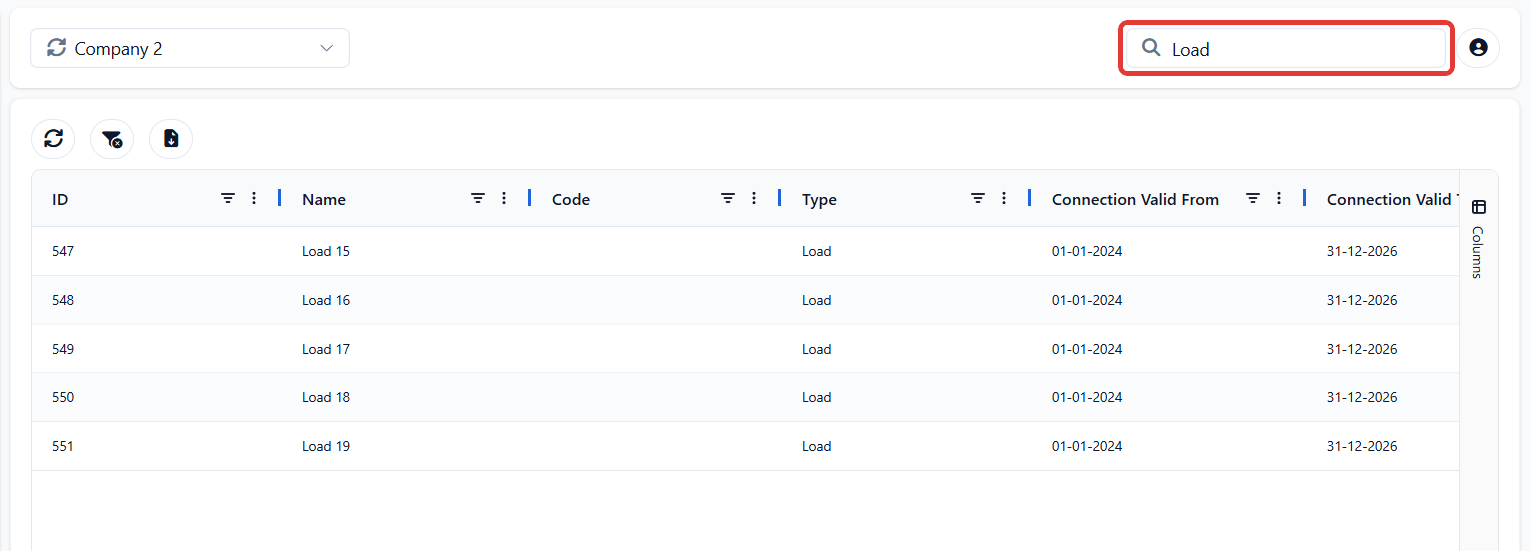
The row counter at the bottom of the table is updated accordingly, showing the number of matching records.
Table Controls
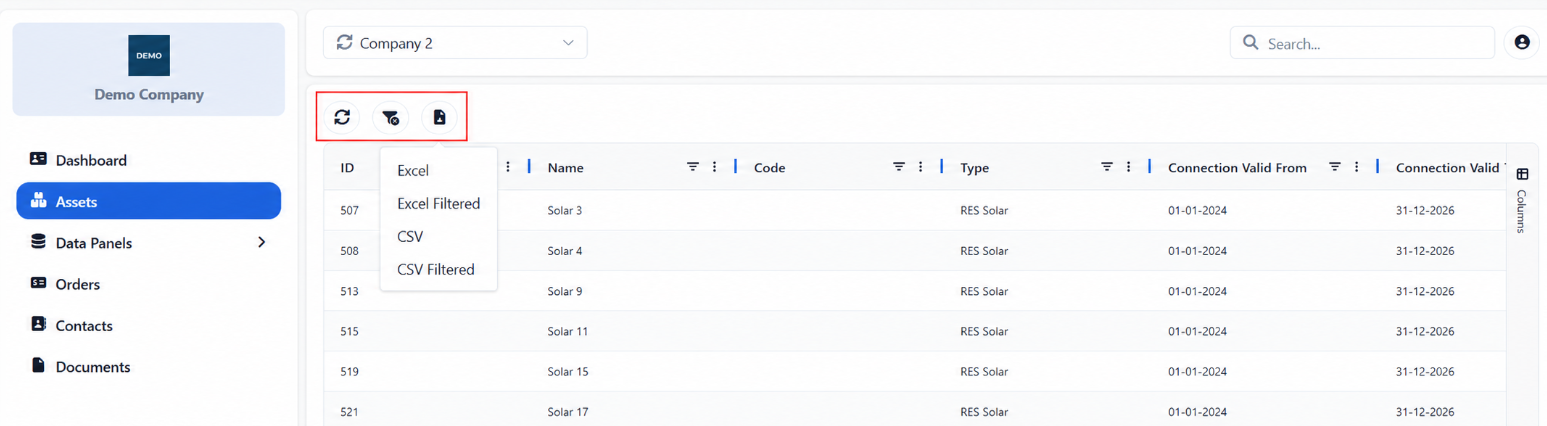
The toolbar above the table provides three main actions:
Reload refreshes the table with the latest available data.
Clear Filters removes all applied filters.
Export downloads either the complete dataset or only the filtered results in Excel or CSV format.
Filtering Information
Each column header includes a filter icon. Selecting it opens the column filter, where users can:
Apply conditions such as Contains, Equals, Begins with, Blank or Not blank.
Enter a value in the Filter field.
Search and select specific values from the list.
Apply, reset or cancel the filter.
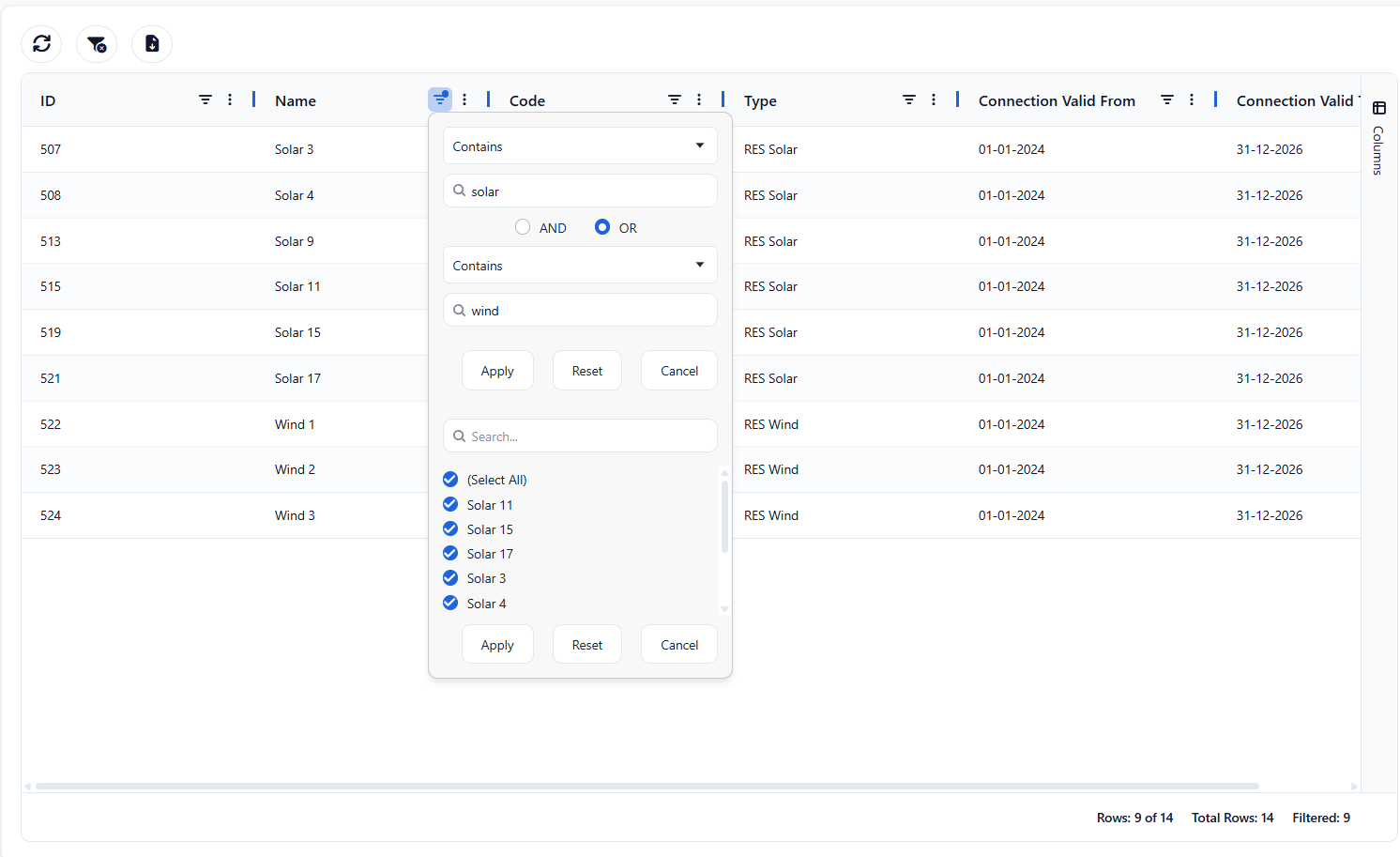
Filters can be applied to multiple columns at the same time to narrow the displayed results.
Sorting and Column Options
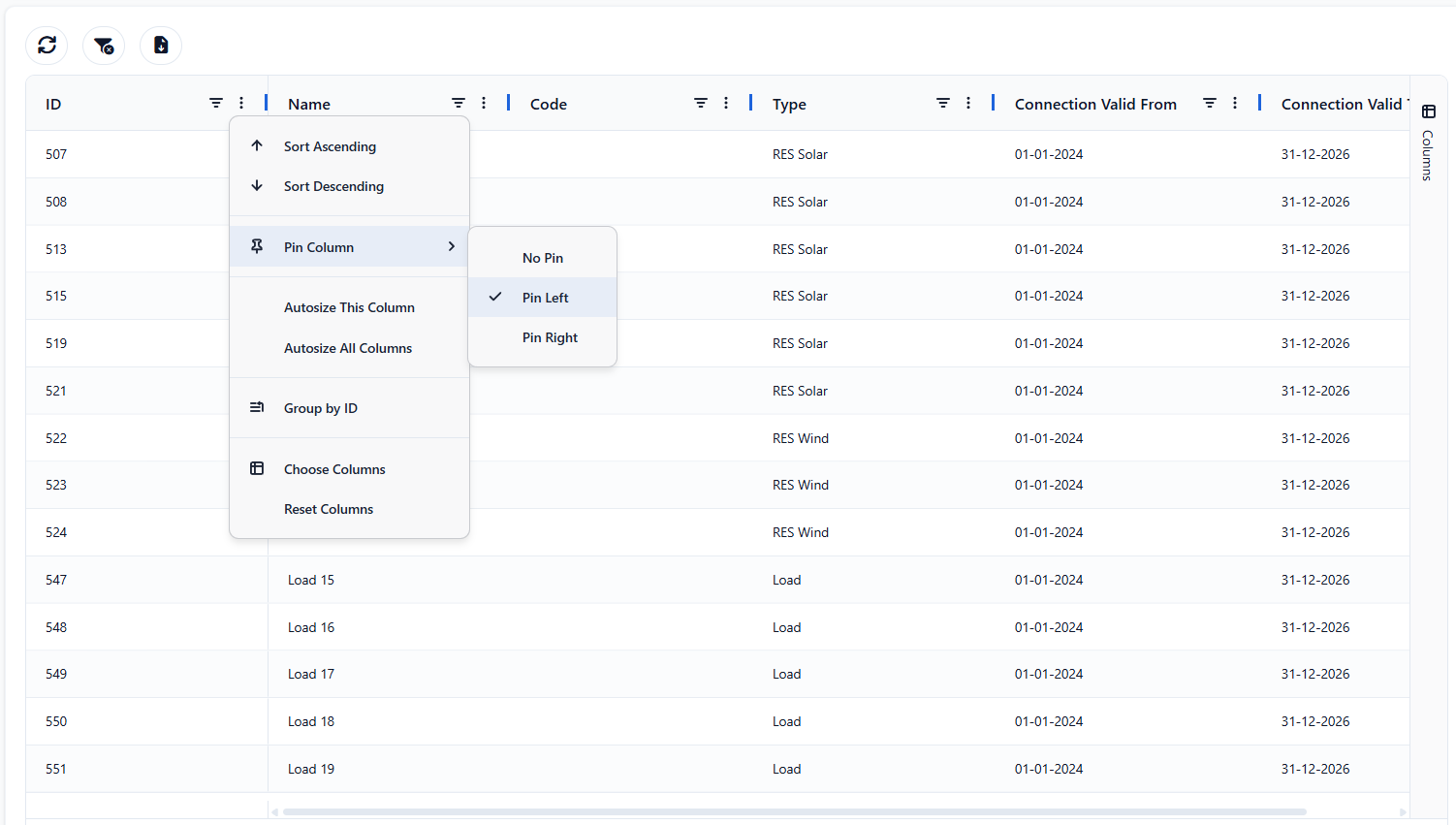
Selecting the three-dot menu next to a column opens additional options. From here, users can sort the table in ascending or descending order, pin the column, automatically resize columns, group rows or reset the column layout.
Customising the Table View
The Columns panel allows users to show, hide and reorder the fields displayed in the table. Fields can also be dragged into Row Groups to group related records or into Values to calculate aggregates for numeric information.
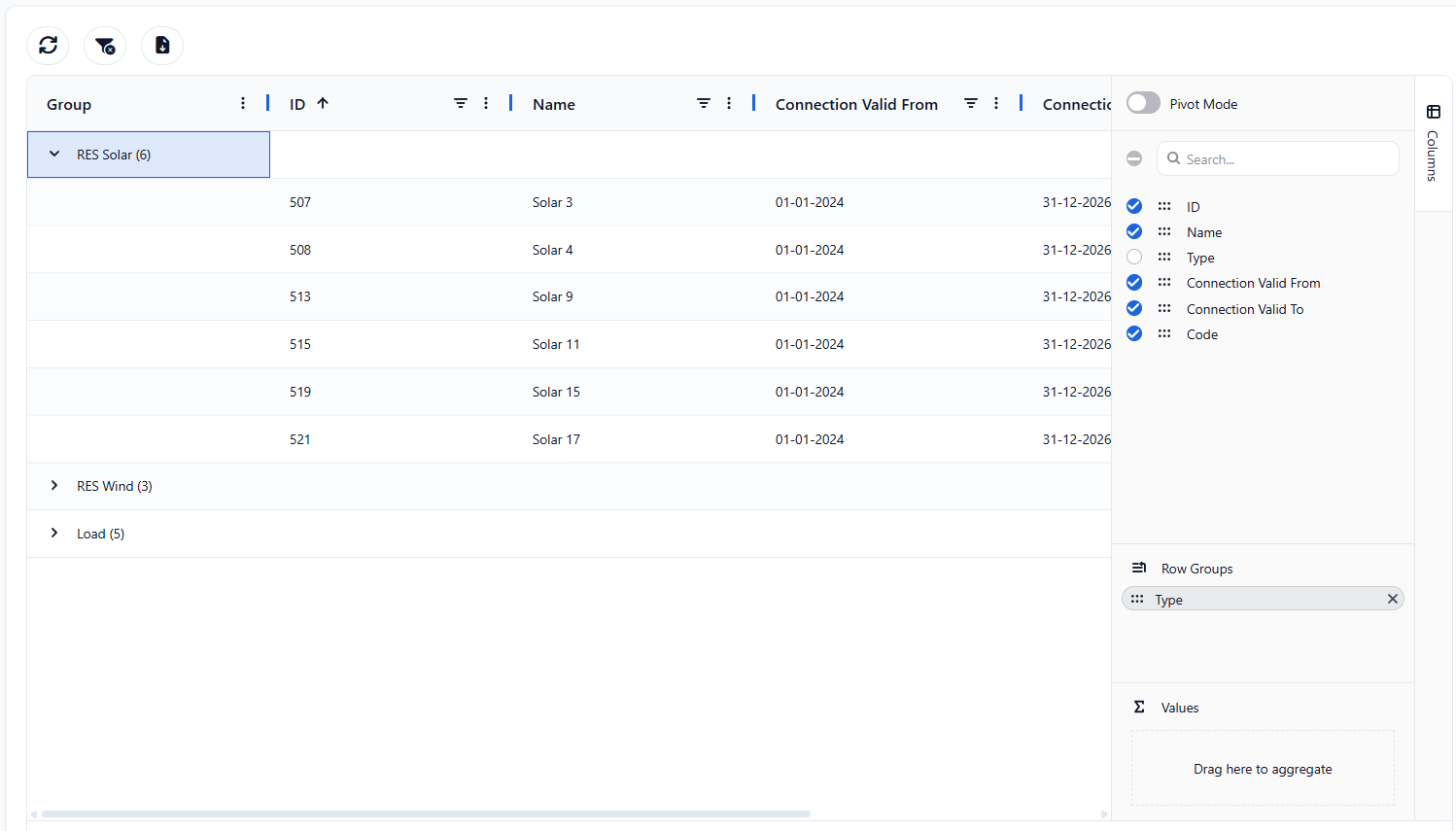
Enabling Pivot Mode presents the grouped information as a pivot table.
Was this helpful?