Viewing and Downloading Documents
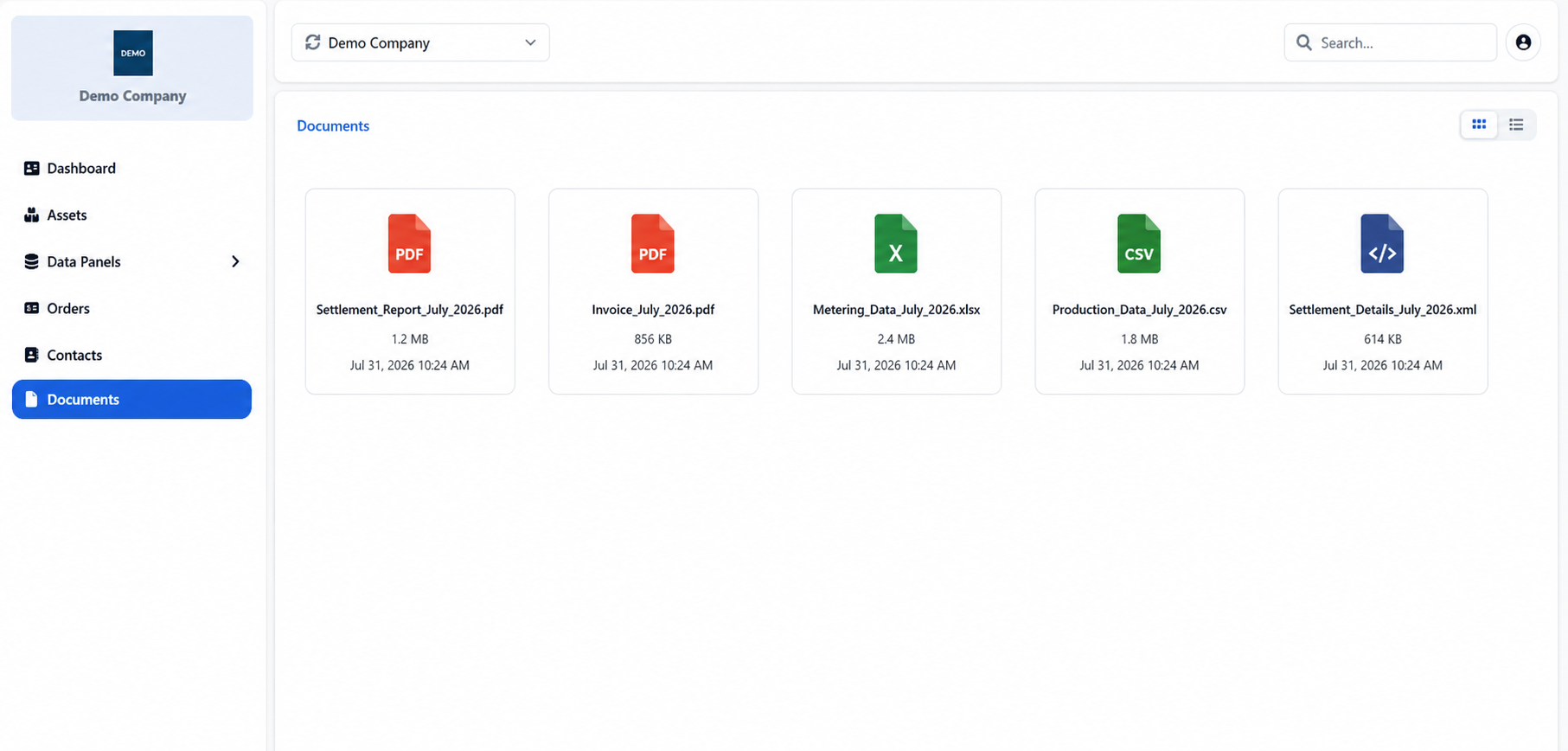
The Documents page provides access to files shared with the selected company. Documents are organised in folders, allowing users to locate files by settlement period or other relevant category.
Navigating Folders
Documents are displayed in Icon view by default. Each folder appears as a tile showing its name and the number of files it contains. Select a folder to open it. The current folder path remains visible at the top, helping users navigate through the repository.
The Search field can be used to locate a specific document by name.
Switching Views
Users can switch between Icon view and List view. List view provides additional file information, including the filename, size, extension and creation date.
The common filtering, sorting and column-management options described in Searching, Filtering and Exporting Information are also available in List view.
Downloading Documents
In Icon view, double-click a file to download it directly.
In List view, select the download icon in the Actions column. Where multiple selection is available, several documents can be selected and downloaded together.
Appendix - Field Details
Field / Element | Description |
|---|---|
Folder | Groups documents within the repository. Selecting a folder opens its contents. |
Current Path | Shows the user’s current location within the folder structure. |
Search | Searches the available documents by filename. |
Icon / List View | Switches between file cards and a detailed table view. |
Actions | Contains the download action for each document in List view. |
ID | System-assigned numeric identifier of the document. |
Name | Full filename, including its extension. |
File Size | Size of the document in kilobytes or megabytes. |
File Extension | Format of the document, such as PDF, XLSX, CSV or XML. |
Created At | Date and time when the document was added. |
Download | Downloads the selected document to the user’s device. |
Was this helpful?