4.7 Order Items
Overview
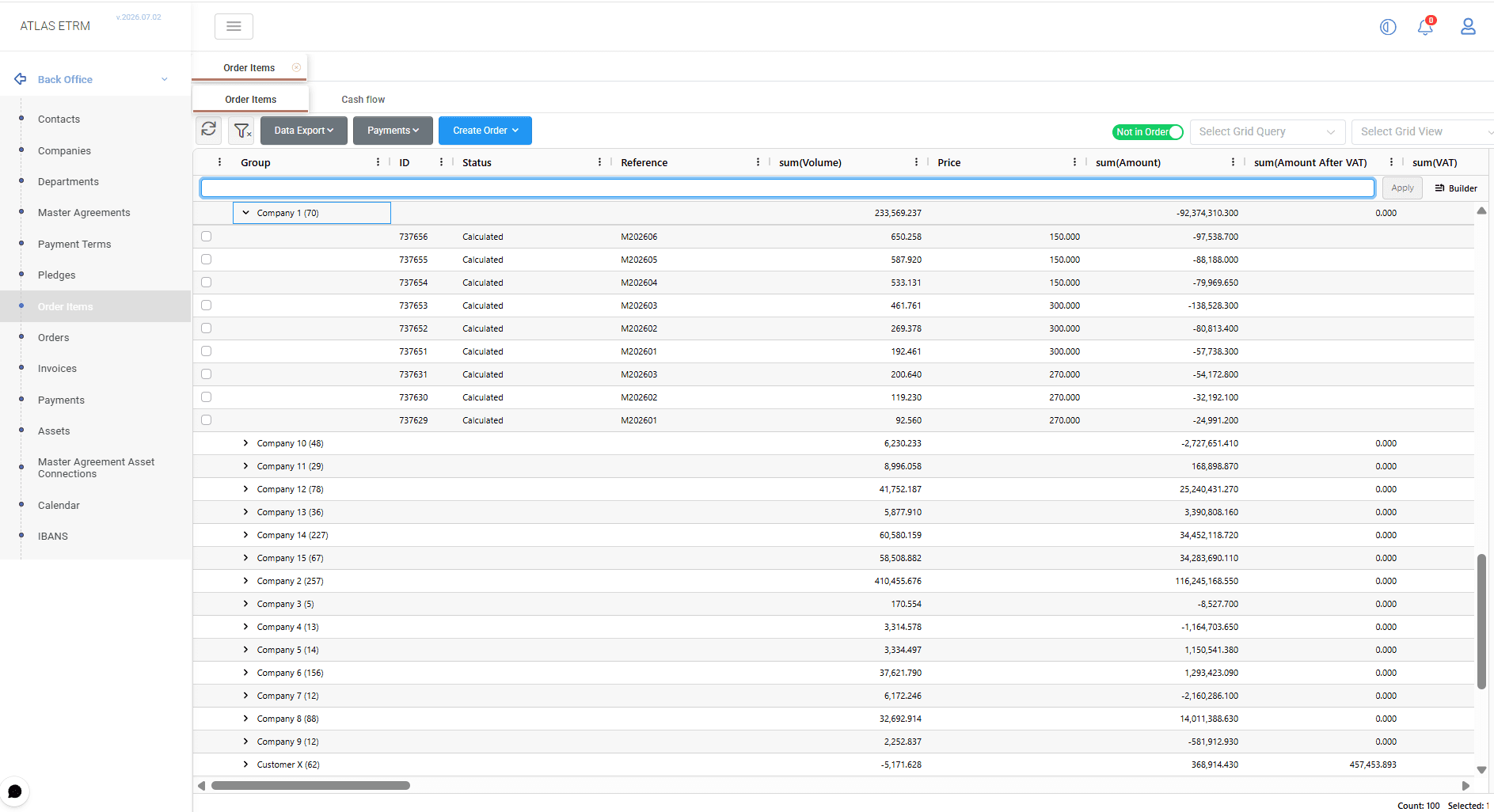
Order Items
The Order Items screen displays settlement records generated from Deals registered in the Deal Capturing module. Each Order Item represents the financial obligation or receivable resulting from a Deal for a specific settlement period and contains the information required for settlement and payment processing.
In addition to the settlement amount, an Order Item stores information such as the settlement period, due date, counterparty, cash flow direction, and other business data associated with the originating Deal. An Order Item may be considered a single settlement line that can subsequently be grouped into an Order for invoicing and payment purposes.
Order Items are not created directly from this screen. They are generated either manually through the Deal Capturing process or automatically by the system through configured background jobs. Once generated, they may be reviewed, updated, grouped into Orders, and used throughout the settlement workflow.
Order Item information may be exported to Excel or CSV format using the Data Export option.
Cash Flow
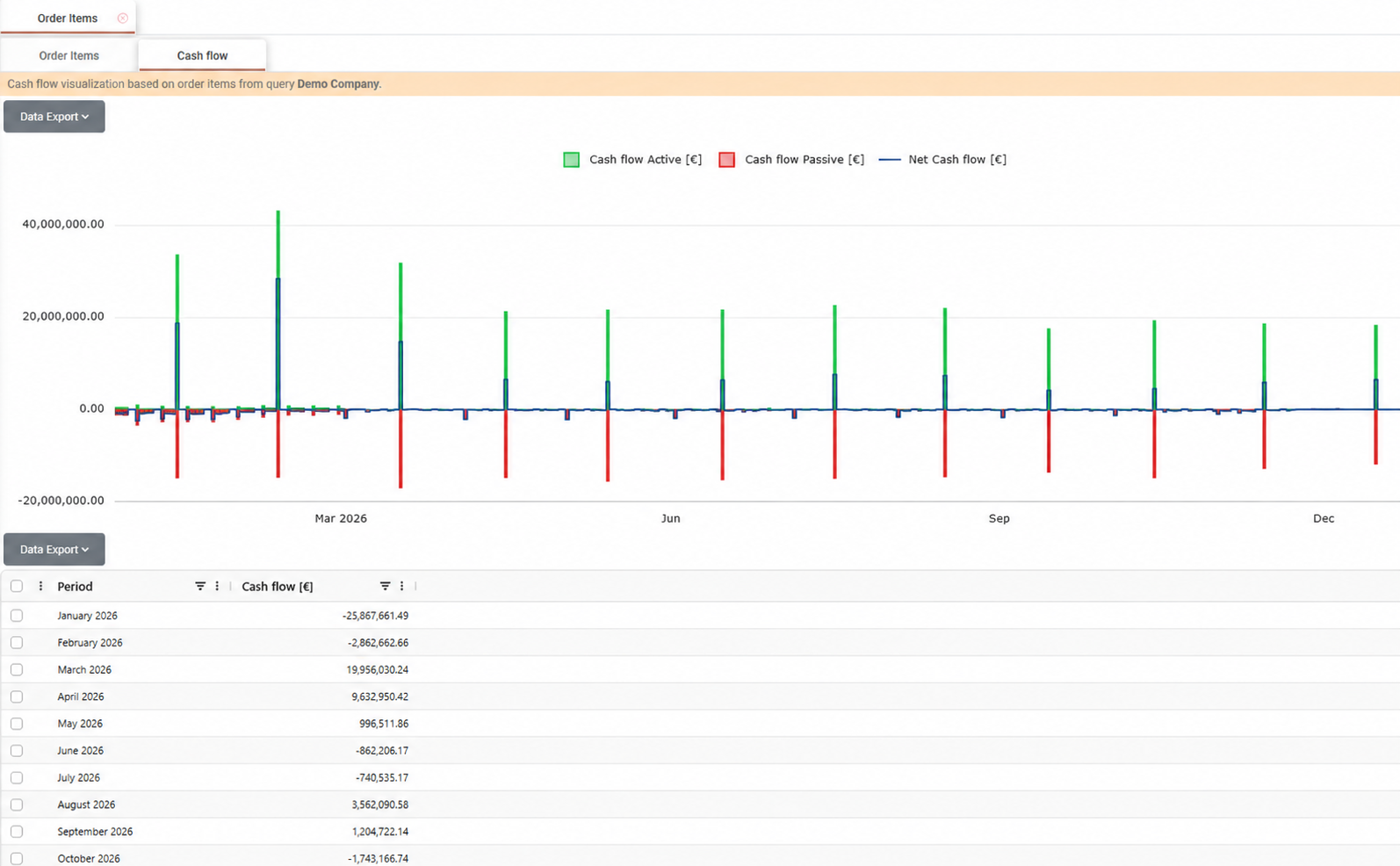
The Cash Flow tab displays the projected cash flow for the Order Items returned by the query applied in the Order Items tab. The chart groups the cash flow by settlement month and visualizes incoming cash flow (cash flow active), outgoing cash flow (cash flow passive), and the resulting net cash flow for each month.
This view provides a consolidated overview of expected cash movements, supporting liquidity monitoring, cash flow forecasting, and settlement planning.
A summary table below the chart displays the projected cash flow for each settlement month.
Users may zoom in and out of the chart to examine specific periods in greater detail. Both the chart and the underlying data can be exported using the Data Export menu.
Editing and Deleting Order Items
To edit an Order Item, double-click the desired record in the grid or click the Pencil icon displayed in the Actions column.
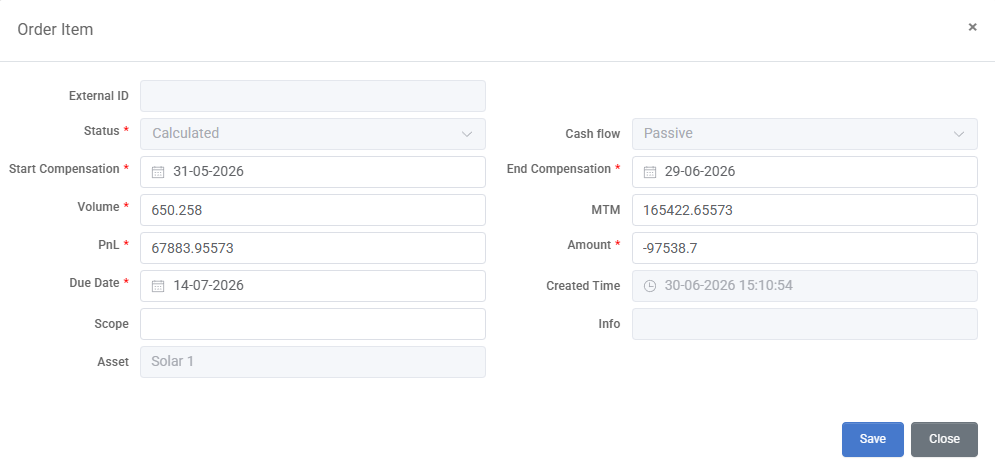
The Order Item window displays all settlement information associated with the selected record. Certain values are calculated automatically by the system and cannot be modified, while editable fields may be updated when business adjustments are required. After completing the changes, click Save to apply them.
A detailed description of the available Order Item fields is provided in the Appendix - Field Details section.
To delete one or more Order Items, select the desired records, right-click and choose Delete Order Items. A confirmation message is displayed before the selected records are permanently removed from the system.
Creating Orders
Orders are created by grouping one or more eligible Order Items belonging to the same counterparty.
By default, the grid displays all Order Items. To display only the records that are eligible for Order creation, enable the Not in Order toggle. The grid is filtered to show only Order Items that have not yet been assigned to an Order and automatically groups them by counterparty, since each Order may only contain Order Items associated with a single counterparty.
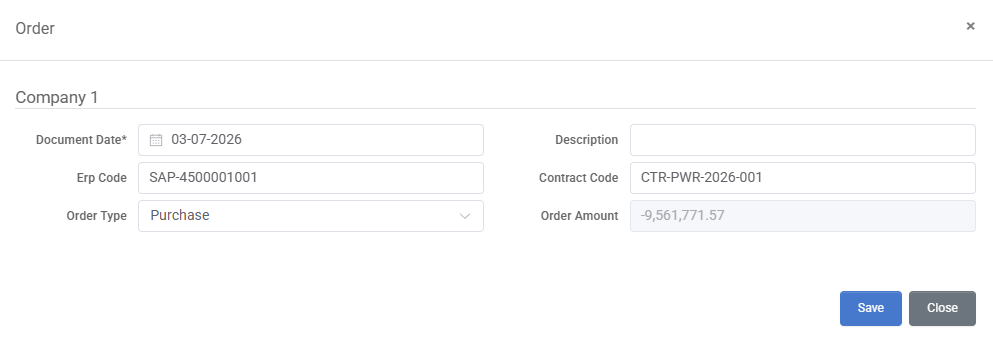
To create a new Order, select one or more Order Items and choose Create Order from the toolbar, or right-click the selected records and select Create Order by Selected Order Items. The Order window opens, allowing the user to complete the required Order information before saving the new Order.
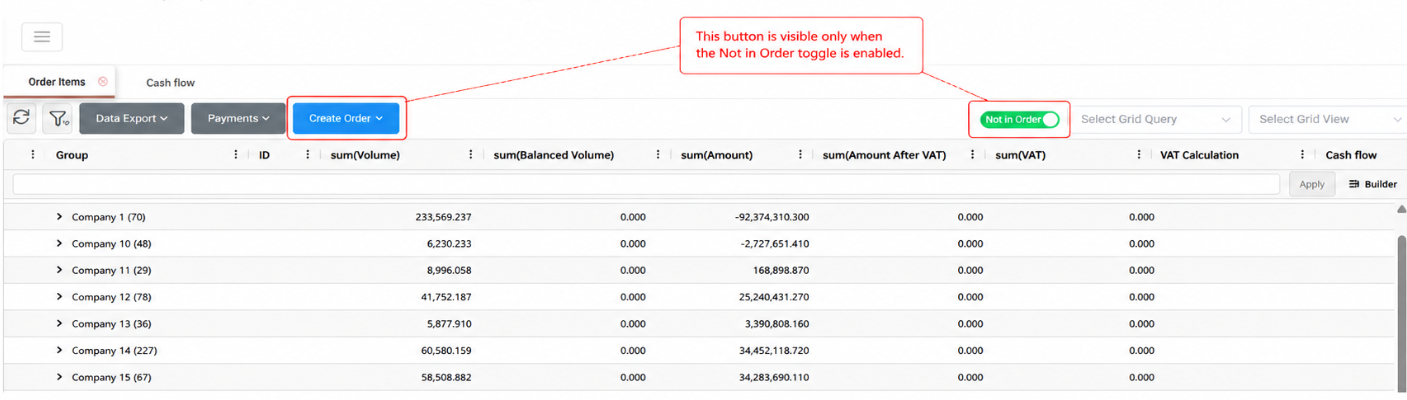
Alternatively, the selected Order Items may be associated with an existing Order by right-clicking the selected records and choosing Add to Existing Order.
Although the Not in Order filter provides a quick way to identify Order Items that are eligible for Order creation, users may also use Queries to locate and group Order Items according to predefined business criteria before creating an Order. For more information, refer to the Queries section.
Orders may also be created automatically through scheduled processes configured in the Job Manager.
Detailed information about the fields displayed in the Create Order window is provided in the Appendix - Field Details section.
Additional information about Order management is available in the Orders section.
Mass Actions
Additional actions are available by right-clicking one or more selected Order Items. Regardless of the current view, the Actions submenu provides options for changing the associated IBAN and exporting Prices, Quantities, Prices and Quantities, or the PnL Report.
Additional options depend on the selected view.
When the Not in Order toggle is enabled, users may create a new Order from the selected Order Items or add them to an existing Order.
When All Orders are displayed, users may remove the selected Order Items from their associated Order. The selected Order Items may also be deleted in either view.
A detailed description of the available context menu actions and report options is provided in the Appendix - Field Details section.
Appendix - Field Details
Order Item Fields
Field / Element | Editable | Description |
|---|---|---|
Status | No | Indicates the current processing status of the Order Item (Calculated, Edited, In Order). |
Cash Flow | No | Indicates the cash flow direction of the Order Item. Passive represents an amount payable by the company, while Active represents an amount receivable by the company. |
Start Compensation | Yes | Start date of the settlement period derived from the associated Deal. |
End Compensation | Yes | End date of the settlement period derived from the associated Deal. |
Volume | Yes | Total quantity represented by the Order Item (e.g., MWh for electricity and gas, tonnes for oil). |
MTM | Yes | Total Mark-to-Market value associated with the Order Item. The value is calculated using the market price series configured as the benchmark price for the associated Deal. |
PnL | Yes | Profit and Loss value calculated for the Order Item. |
Amount | Yes | Total settlement amount of the Order Item. |
Due Date | Yes | Settlement due date of the Order Item. |
Created Time | No | Date and time when the Order Item was created. |
Scope | Yes | Scope assigned to the Order Item, when applicable. |
Asset | No | Asset associated with the originating Deal. |
Info | No | Supporting information that order items inherit from deals |
Create Order Fields
Field / Element | Editable | Description |
|---|---|---|
Document Date | Yes | Date assigned to the Order document. |
Description | Yes | Optional free-text description of the Order. |
ERP Code | Yes | Optional reference code from the integrated ERP system. |
Contract Code | Yes | Optional contract reference associated with the Order. |
Order Type | Yes | Defines whether the Order is a Purchase or Sale. The available value is determined based on the selected Order Items. |
Order Amount | No | Total Order amount calculated automatically from the selected Order Items. |
Context Menu Actions
Action | Description |
|---|---|
Actions → Change IBAN | Updates the IBAN associated with the selected Order Items. The IBAN must already exist in the system. |
Actions → Export Prices | Exports pricing information together with the related Deal information for the selected Order Items. |
Actions → Export Prices and Quantities | Exports both pricing and quantity information together with the related Deal information for the selected Order Items. |
Actions → Export Quantities | Exports quantity information together with the related Deal information for the selected Order Items. |
Actions → Export PnL Report | Generates a Profit and Loss report containing notional values, MTM, volume, and PnL information for the selected Order Items. |
Create Order by Selected Order Items | Creates a new Order containing the selected Order Items. Available only when the Not in Order toggle is enabled. |
Add to Existing Order | Associates the selected Order Items with an existing Order. By clicking this, user should fill the relevant order id to make the linkage. Available only when the Not in Order toggle is enabled. |
Remove From Order | Removes the selected Order Items from their associated Order without deleting the Order Items. Available only when the Not in Order toggle is disabled. |
Delete Order Item(s) | Deletes the selected Order Item(s) after user confirmation. |