4.8 Orders
Overview
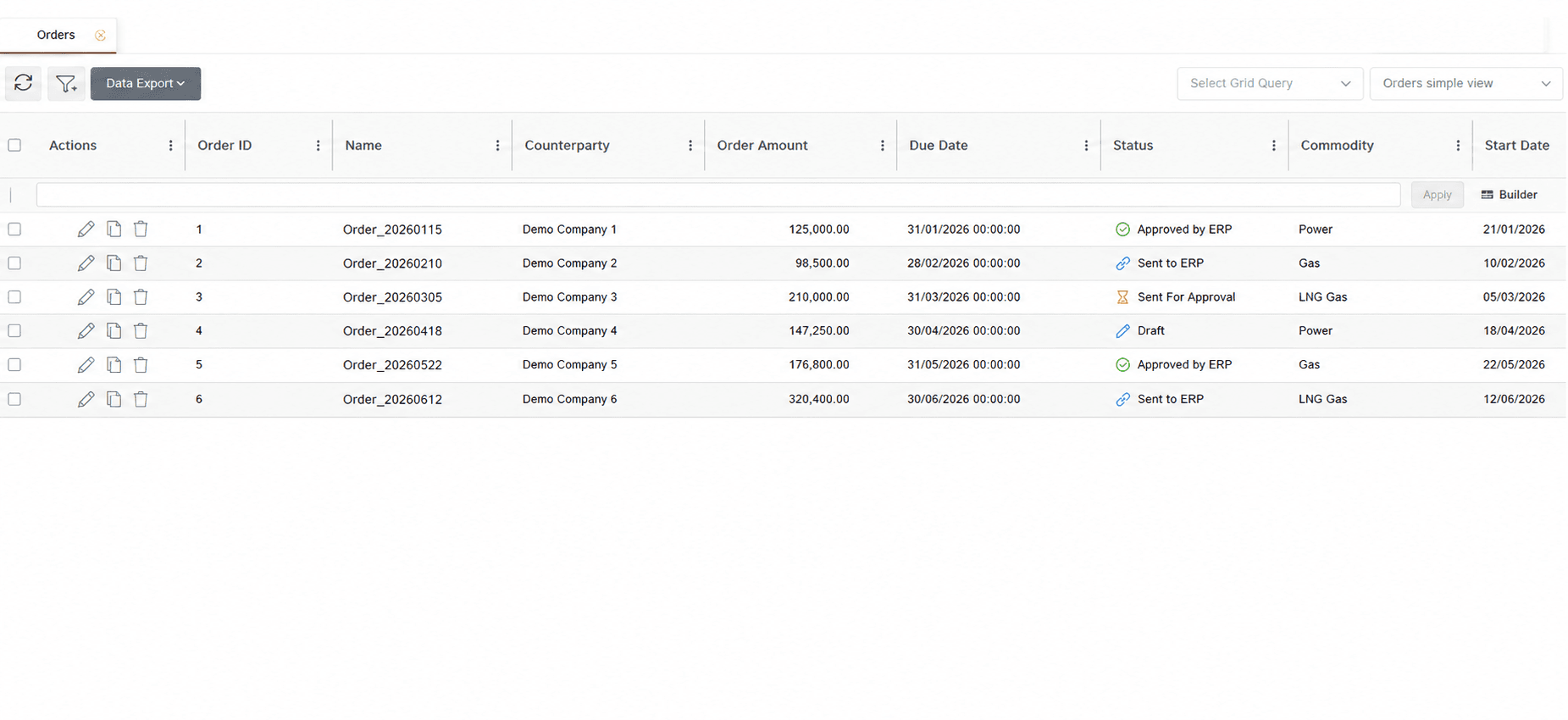
The Orders screen displays all Orders created as part of the settlement process. An Order groups one or more Order Items belonging to the same counterparty and represents the total amount that needs to be invoiced and settled.
The settlement workflow starts from Deals registered in the Deal Capturing module. Based on the configured settlement process, Deals generate Order Items for specific settlement periods (for example, monthly settlements). Each Order Item represents an individual settlement line containing the financial obligation or receivable resulting from the Deal.
These Order Items are subsequently grouped into an Order, similar to how invoice lines are grouped under an invoice. The Order acts as the link between ETRM and the accounting process or external ERP system, allowing the settlement information to be reviewed, approved, exchanged, and tracked until completion.
Throughout this lifecycle, the Order status indicates the current processing stage. Statuses are configurable according to each company’s workflow and may include stages such as Draft, Approved by ETRM, Forwarded to ERP, Approved by ERP, Rejected by ERP, or other intermediate steps required by the settlement process. These statuses can be configured and maintained by users through the Administration module (statuses).
All created Orders can be viewed and managed from the Orders screen. Order information may also be exported to Excel or CSV format using the Data Export option.
Creating Orders
Orders are created by grouping one or more eligible Order Items belonging to the same counterparty.
Users may manually create Orders from selected Order Items through the Order Items screen, or Orders may be generated automatically through configured background jobs.
Once an Order is created, it becomes available in the Orders screen where users can review its details and continue the settlement workflow.
Additional information about Order creation is available in the Order Items section.
Editing and Deleting Orders
Editing Orders
To edit an Order, double-click the desired record in the grid or click the Pencil icon displayed in the Actions column.
The Order window displays all information associated with the selected Order, organized into different tabs.
The Info tab contains the main Order details, such as the Order name, type, amount, company, counterparty, registration date, due date, description, and current status. Some values are automatically calculated from the associated Order Items and cannot be modified, while editable fields may be updated when required.
The Order Items tab displays the settlement lines included in the Order and used to calculate the final Order amount.
The Invoices and Payments tabs provide information about invoices and payments associated with the Order, when available.
The Documents tab allows users to upload, edit, download, and manage documents associated with the Order.
The Custom Fields tab displays additional configurable fields based on company-specific requirements.
A detailed description of the available Order fields and actions is provided in the Appendix — Field Details section.
Deleting Orders
To delete an Order, select the desired record and choose the delete option from the Actions column or from the right-click context menu. A confirmation message is displayed before the selected Order is permanently removed from the system.
Example Workflow for Accounting Integration
The Order workflow depends on the company configuration and any integrations with external accounting systems.
In a typical ERP integration scenario, a newly created Order starts in Draft status. After the required validation, the user may approve the Order and trigger the Send to ERP action, allowing the Order information to be transferred to the external accounting system.
Once received, the ERP system processes and validates the Order. The status may then be updated to Approved by ERP if the validation is successful, or Rejected by ERP if corrections are required.
After approval, invoice-related steps may follow. Depending on the configured workflow, users may retrieve invoice information, upload invoice documents, or approve payments through the available Order actions.
The Order continues through the required invoicing and payment steps until the settlement process is completed.
For more information about the accounting integration workflow and configuration, refer to the Accounting Integration Guide.
Mass Actions
Users may perform mass actions by right-clicking one or more selected Orders from the grid.
The context menu allows users to update the status of the selected Orders according to the configured workflow or delete multiple Orders at once.
The available status transitions depend on the current status of the selected Orders, user permissions, and the company-specific configuration.
Appendix - Field Details
Field / Element | Editable | Description |
|---|---|---|
ID | No | System-assigned numeric identifier of the Order. |
Name | Yes | Name assigned to the Order. It can be used to identify the Order throughout the settlement process. |
Order Type | Yes | Classification of the Order according to the configured settlement process (Purchase or Sale). |
Commodity | No | Commodity associated with the Order, such as Power, Gas, or LNG Gas. The value is inherited from the underlying Order Items. |
Company | No | Internal company associated with the Order. The value is inherited from the underlying Order Items. |
Counterparty | No | Counterparty with which the Order amount will be settled. The value is inherited from the underlying Order Items. |
Order Amount | No | Total amount to be settled with the counterparty, calculated as the sum of the underlying Order Items included in the Order. |
Registration Date | Yes | Date on which the Order was registered in the system. |
Due Date | Yes | Settlement due date of the Order, calculated based on the associated Order Items. |
Description | Yes | Free-text field where users may enter additional notes or information related to the Order. |
Status | Yes | Indicates the current stage of the Order within the settlement workflow. Statuses are configurable and may include values such as Draft, Approved by ETRM, Forwarded to ERP, Approved by ERP, Rejected by ERP, and settlement-related statuses. Status changes are performed through the available workflow actions. |
Order Items | No | Displays the Order Items included in the Order and used for the calculation of the Order amount. |
Invoices | No | Displays invoice information associated with the Order, when available. |
Payments | No | Displays payment information associated with the Order, when available. |
Documents | Yes | Allows users to upload, view, modify, and manage documents associated with the Order. |
Custom Fields | Yes | Displays additional Order-specific fields configured in the system. Custom Fields allow organizations to capture information beyond the standard Order attributes according to their business requirements. |
Created At | No | Date and time the Order was first created. |
Created By | No | Username of the user who created the Order. |
Modified At | No | Date and time of the most recent modification. |
Modified By | No | Username of the user who modified the Order. |