Overview
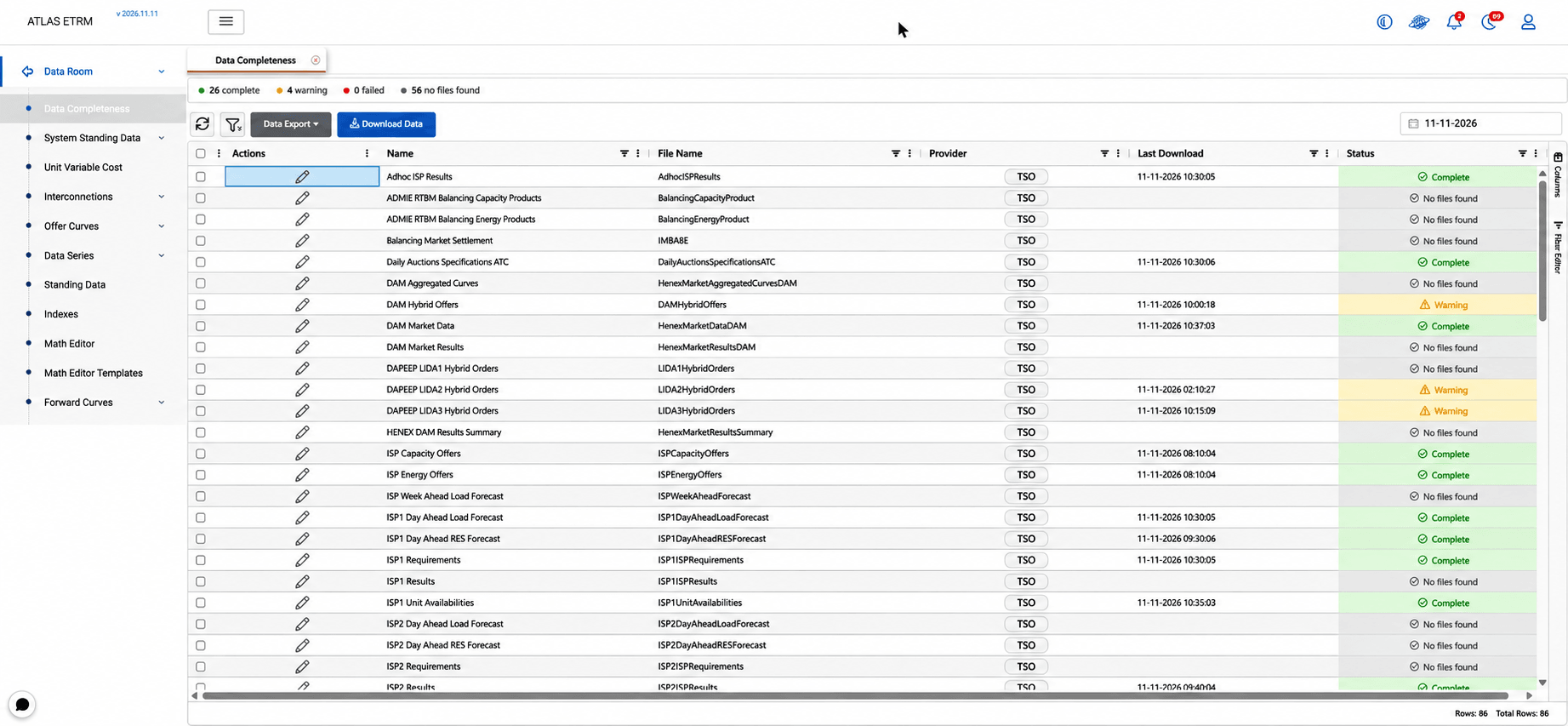
Data Completeness gives users a single view of the automated data feeds that bring market and operational data into ATLAS from external providers, such as TSOs and exchanges. Because calculations, dashboards and other modules depend on this data, the section helps users confirm that each feed has been downloaded and processed as expected and quickly spot missing or failed loads.
For each data feed, users can review its latest status, trace past download and processing attempts, and retrieve data manually for a selected period when a gap needs to be filled.
Monitoring Data Feeds
The main grid lists all configured data feeds together with their provider, last download time and current status. A summary bar above the grid shows how many feeds are complete, have warnings, have failed or have no files, giving an immediate picture of overall data availability.
The date selector sets the day for which statuses are shown, while the grid filters can be used to focus on specific feeds, providers or statuses. The displayed records can be exported to Excel or CSV for further analysis or reporting.
Reviewing Execution History
Selecting Edit on a data feed opens its execution history. A summary at the top shows the feed's current status, file name, provider and last download time, followed by the Download Log, which lists every download attempt, whether it ran automatically or was requested manually, and whether it succeeded.
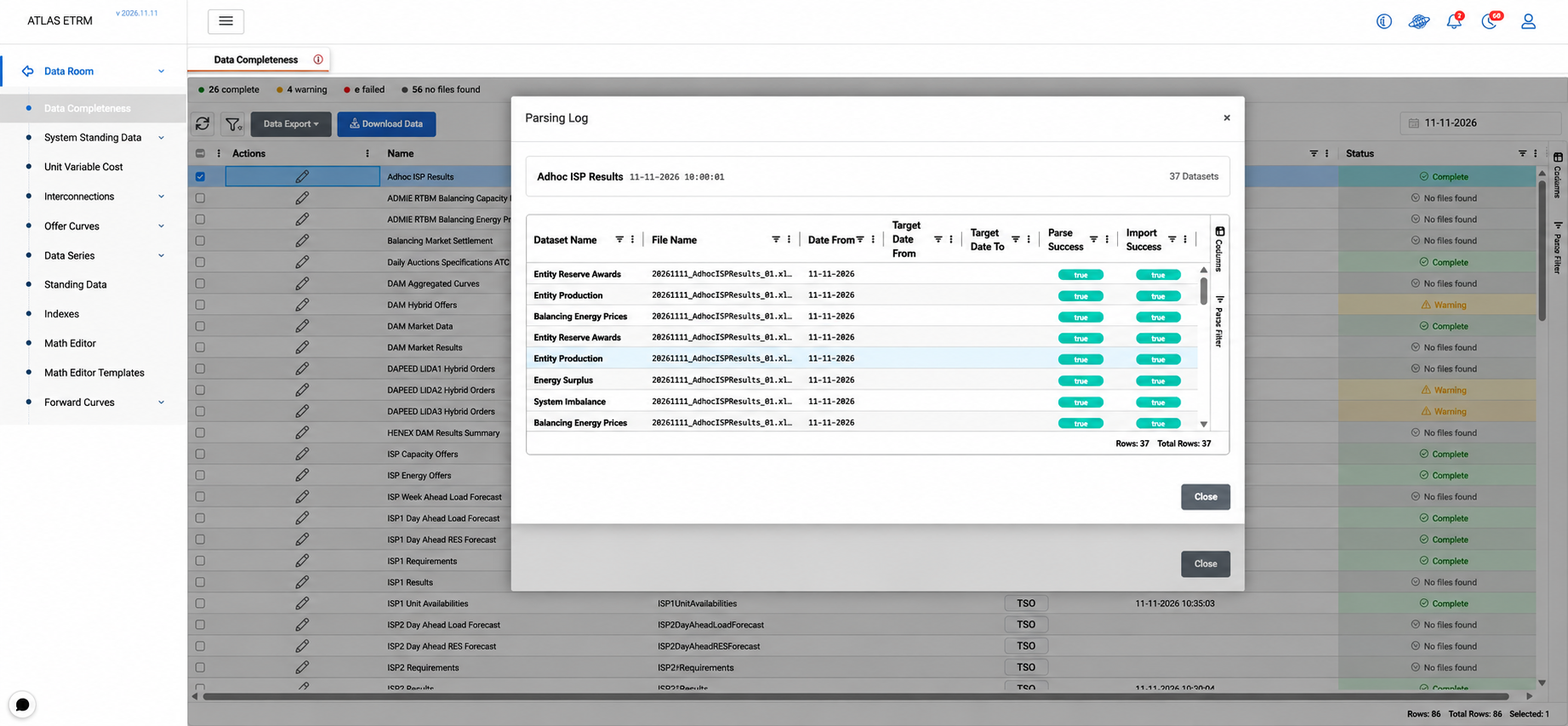
Selecting the log icon on a download attempt opens its Parsing Log, which shows how each dataset in the retrieved files was parsed and imported into ATLAS. Together, the two logs allow users to trace a feed from download to final import and identify where a failure occurred. If no files were retrieved for an attempt, a message indicates that no files were found.
Downloading Data Manually
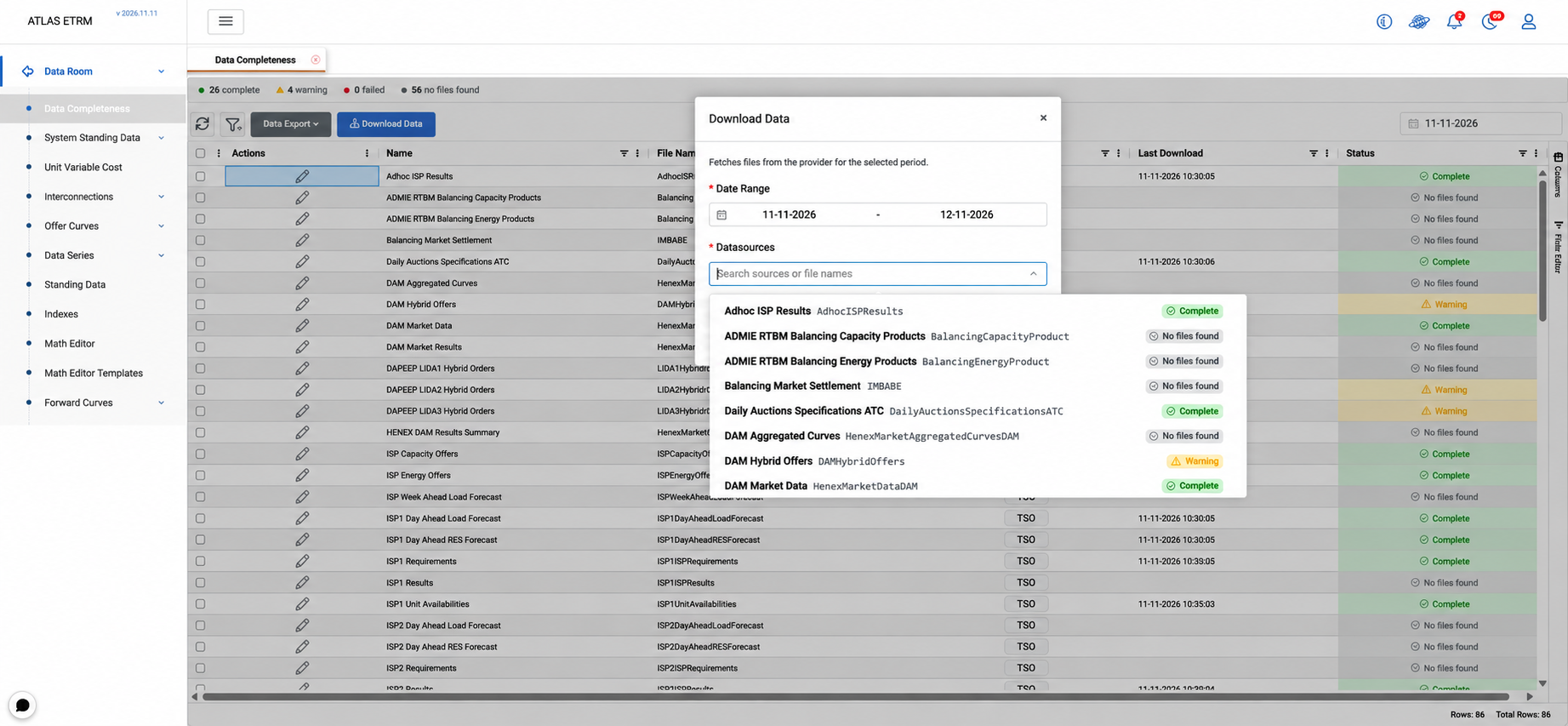
When data is missing or needs to be retrieved again, users can select Download Data, define the date range and choose one or more data sources. Data sources can be searched by name or file name, and each option shows the feed's current status.
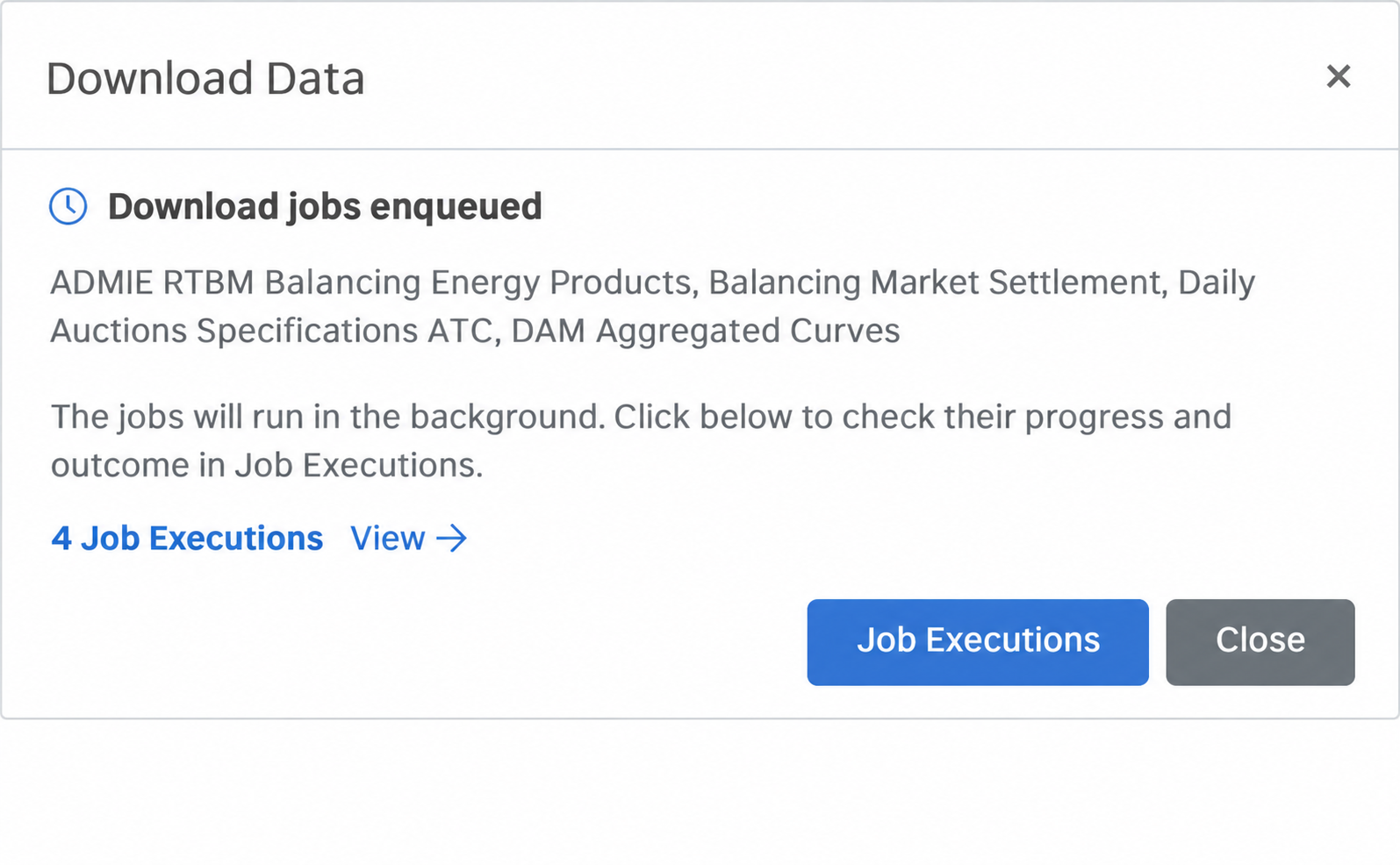
Selecting Start Download creates a separate ad-hoc job for each selected data source. The jobs run in the background, so users do not need to wait in the dialog. A confirmation provides a link to Job Manager → Job Executions, which opens in a new tab filtered to the newly created executions, where their progress and outcome can be monitored.
Appendix - Field Details
Data Feeds
Field / Element | Description |
|---|---|
Name | Descriptive name of the data feed. |
File Name | Technical identifier of the file or dataset retrieved from the provider. |
Provider | External source of the data, such as a TSO or exchange. |
Last Download | Date and time of the most recent download attempt. |
Status | Current state of the data feed. See Status Values. |
Status Values
Field / Element | Description |
|---|---|
Complete | Data was retrieved and processed successfully. |
Warning | The download or processing completed with partial issues. |
Failed | The download or processing failed. |
No files found | No files were available from the provider for the selected date. |
Download Log
Field / Element | Description |
|---|---|
Name | Name of the data feed. |
Request Date | Date and time the download was requested. |
Target Date From / Target Date To | Period for which data was requested. |
Automatic | Indicates whether the download ran automatically (true) or was requested manually (false). |
Success | Indicates whether the download completed successfully. |
Parsing Log
Field / Element | Description |
|---|---|
Dataset Name | Dataset extracted from the retrieved file. |
File Name | Name of the file that was processed. |
Date From | Start date of the data contained in the processed file. |
Target Date From / Target Date To | Period requested in the download, where applicable. |
Parse Success | Indicates whether the file was parsed successfully. |
Import Success | Indicates whether the parsed data was imported into ATLAS. |
Download Data
Field | Required | Description |
|---|---|---|
Date Range | Yes | Period for which data is downloaded. |
Datasources | Yes | Data feeds to download. Multiple data sources can be selected and searched by name or file name. |