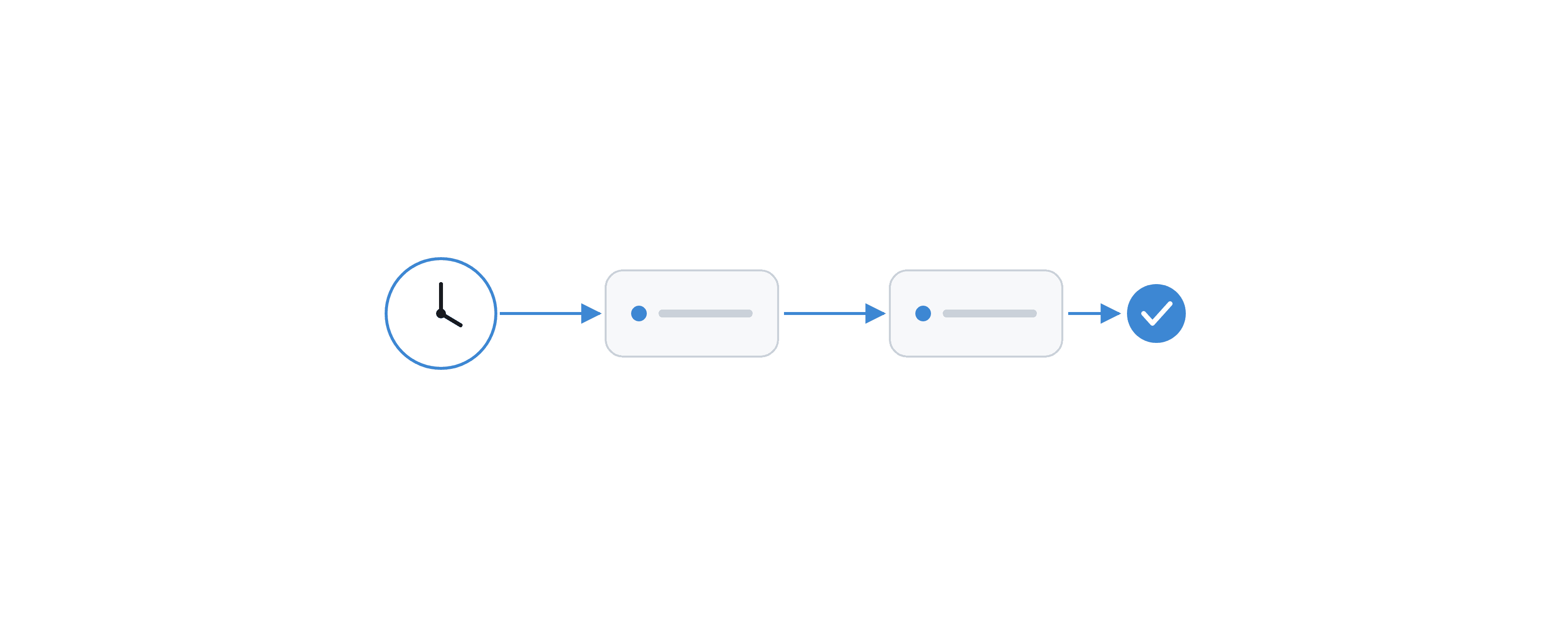
The following examples show how jobs are combined in typical business processes.
In the Greek market, the day-ahead market gate closes at 12:00 CET, which is 13:00 Greek time (EET/EEST); the examples use Greek time.
Daily Day-Ahead Automatic Bidding
Scenario
A trader manages a portfolio of solar parks and submits day-ahead orders for it every day. The orders depend on the latest production forecast, which is loaded into ATLAS by an existing forecast job each morning. The trader wants the orders to be generated and submitted automatically once the forecast is available, with a confirmation email to the trading desk.
Create the Job
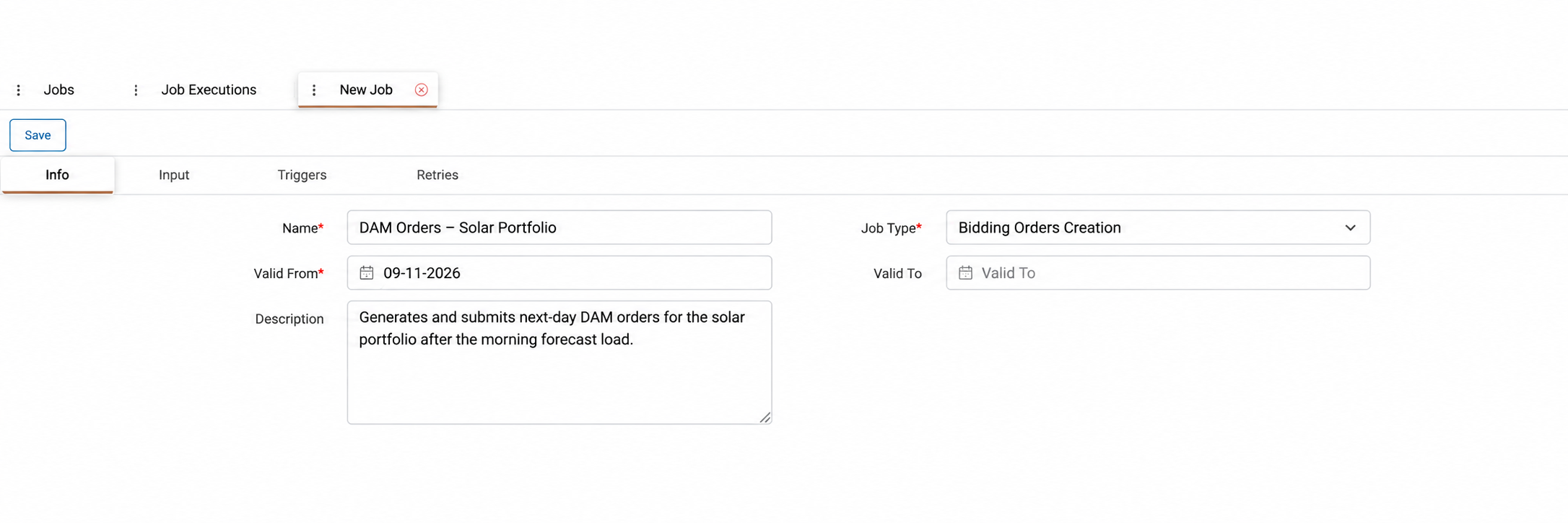
On the Jobs page, the trader selects + and, in the Info tab, enters a name such as "DAM Orders – Solar Portfolio", selects Bidding Orders Creation as the job type and sets the Valid From date.
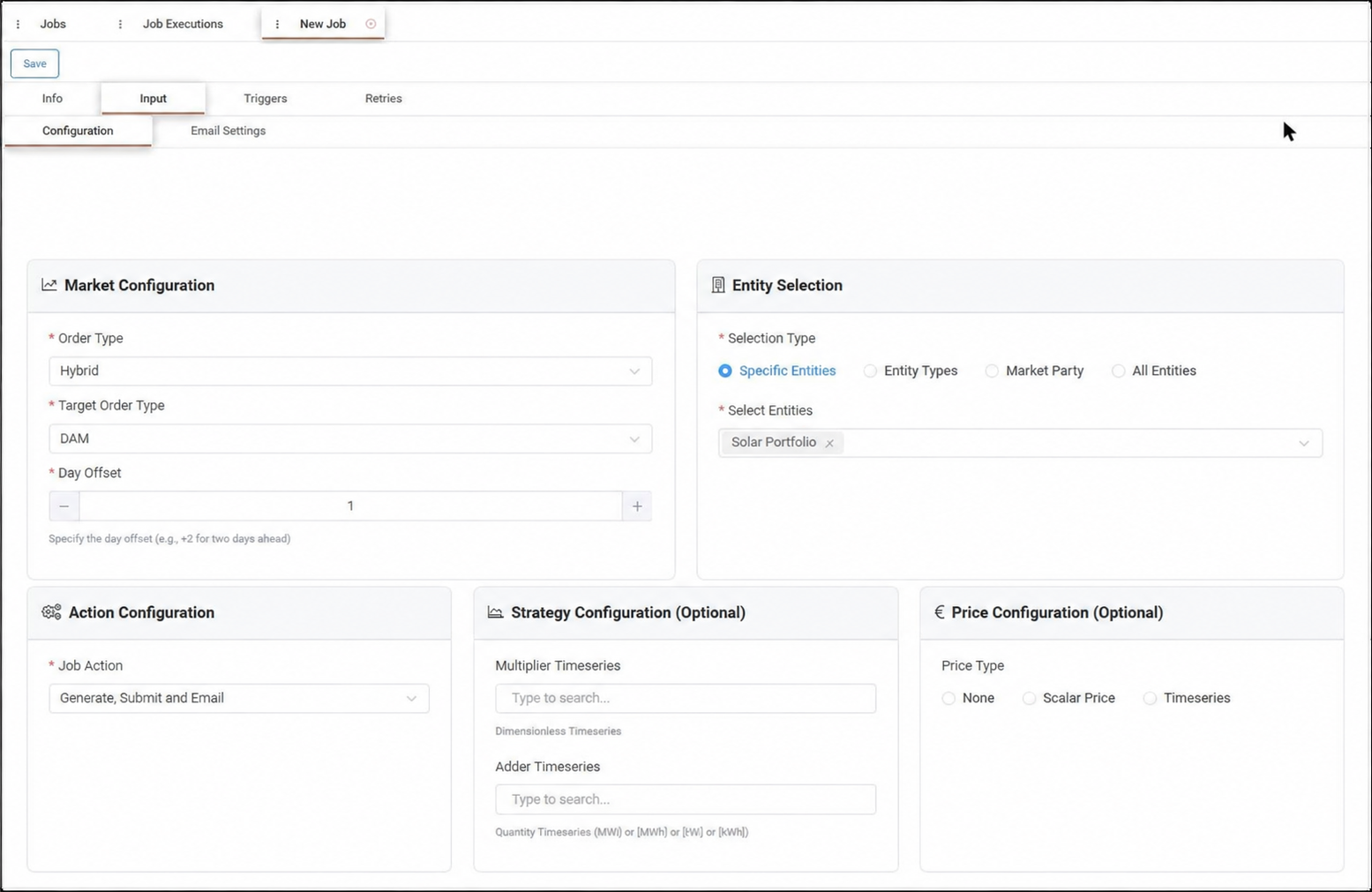
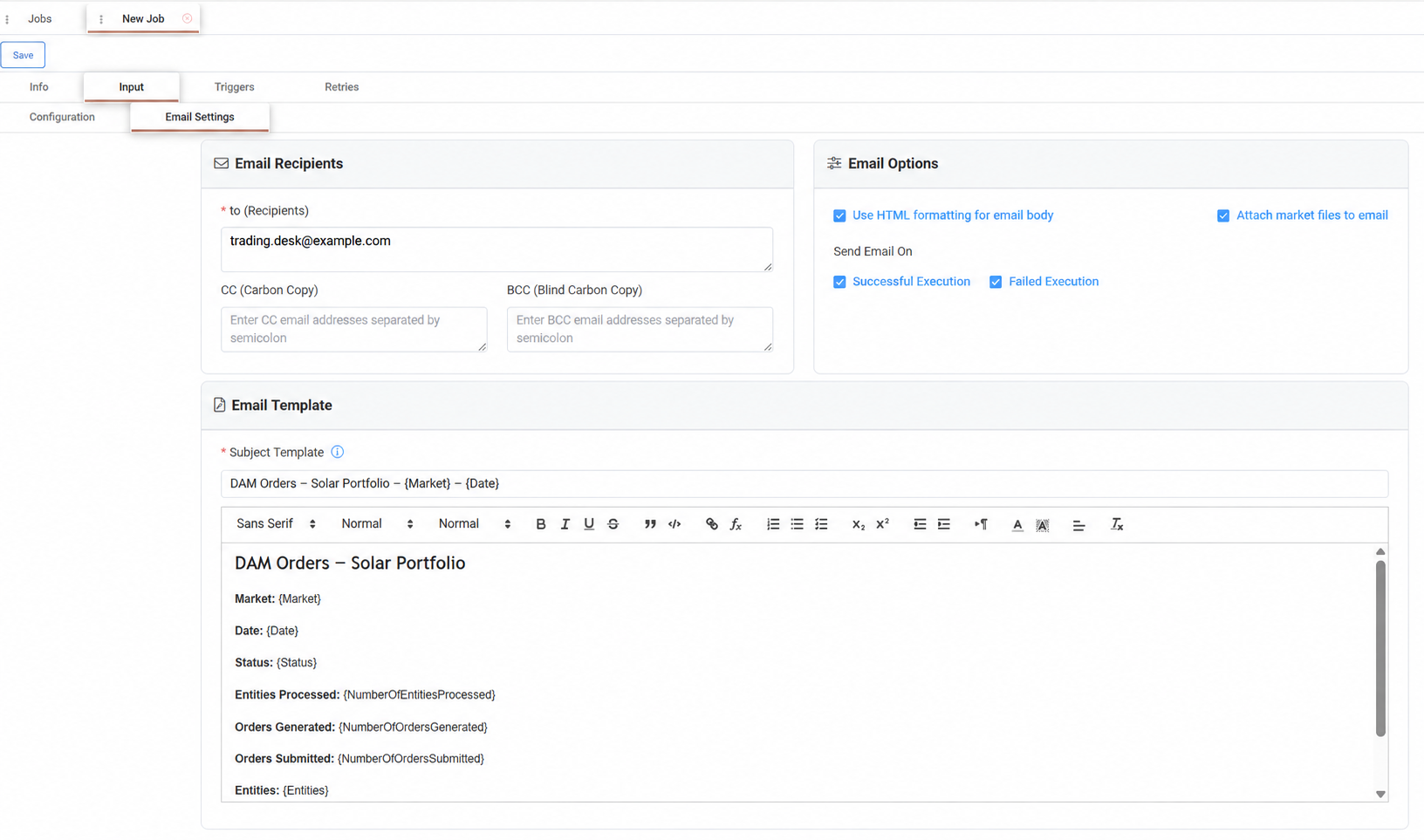
In the Input tab, the trader selects DAM as the target order type, sets the day offset to 1 for next-day delivery, selects the solar portfolio under Specific Entities and chooses Generate, Submit and Email as the job action. In Email Settings, the trading desk is added as recipient and the email is set to be sent on both successful and failed executions.
Configure the Triggers
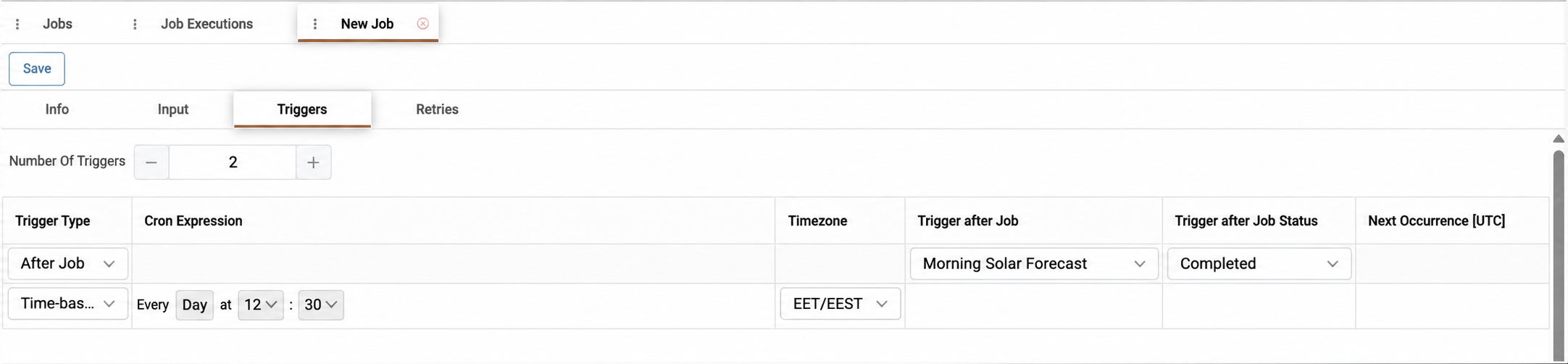
In the Triggers tab, the trader adds an After Job trigger, selects the forecast job and sets the status to Completed, so orders are only created from a successfully loaded forecast.
As a safeguard, a second Time-based trigger is added for every day at 12:30 in the EET/EEST timezone, half an hour before the 13:00 gate closure, so that orders are still generated if the forecast job is delayed.
Configure Retries
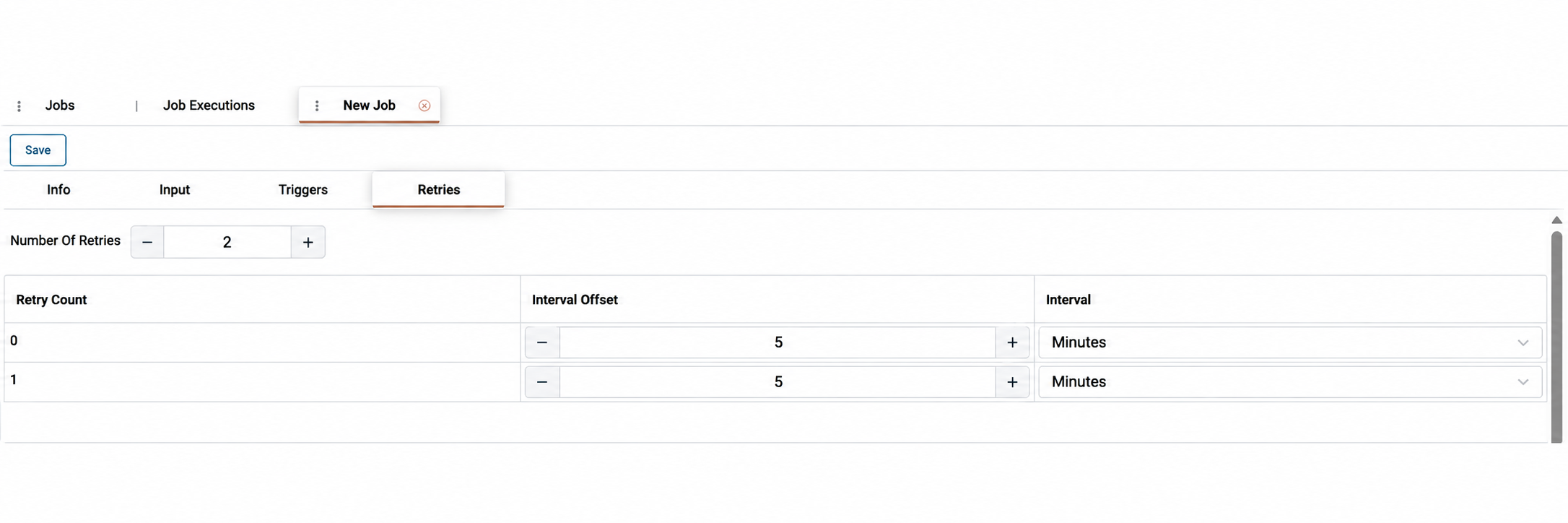
In the Retries tab, the trader sets two retries, five minutes apart. A temporary issue during submission is then retried automatically, while leaving enough time before gate closure for manual action if both retries fail. The job is saved with Save.
Run and Monitor
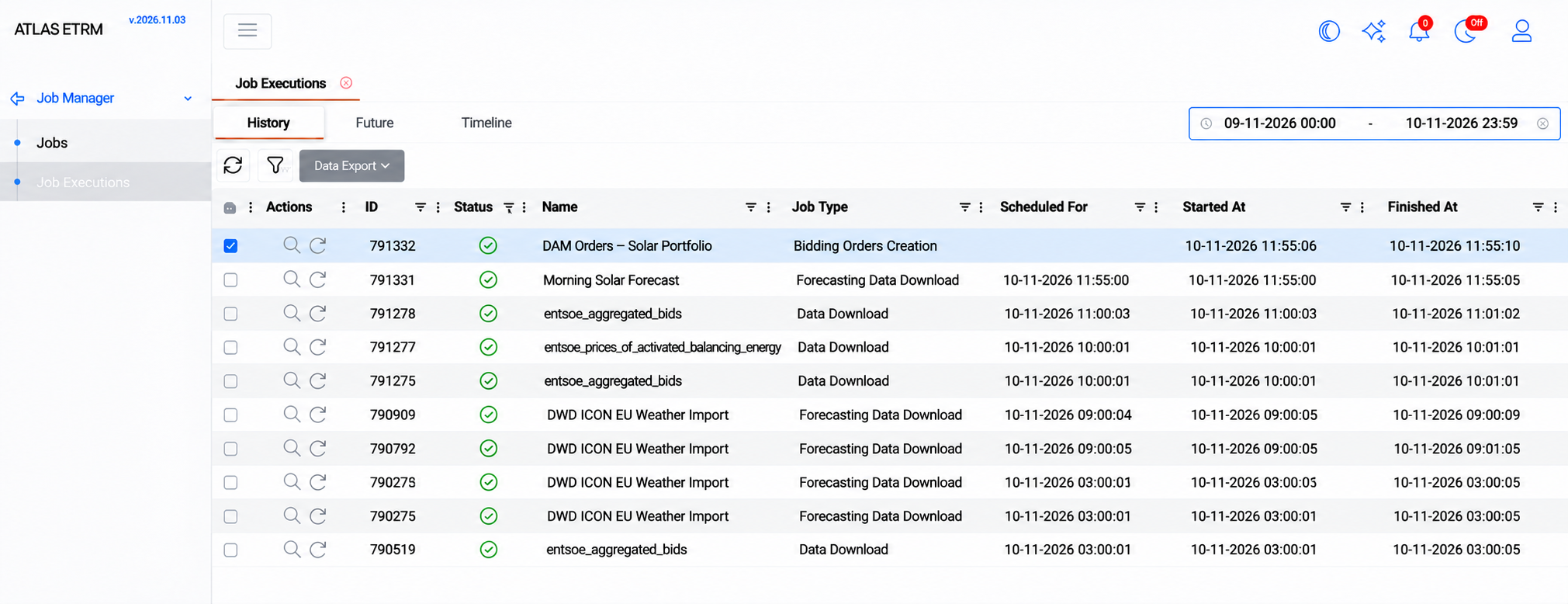
To test the configuration, the trader opens the job and selects Execute Job. On the Job Executions page, the new execution appears in History and on the Timeline. Once it finishes, the trader opens the execution to confirm in Input the parameters used and review the messages in Logs. From the following day, the job runs automatically after each forecast load.
Settlement for a RES and BESS Aggregator
Scenario
An aggregator represents a portfolio of solar parks, wind farms and battery storage systems under aggregation agreements. Each day, the delivered energy and the related amounts must be calculated for every contract, and at the start of each month the results must be grouped into one settlement order per producer, ready for invoicing. The aggregator wants both steps to run automatically, so that the back office only reviews and approves the results.
Create the Order Items Calculation Job
On the Jobs page, the back office user creates a job named "Order Items – Daily Calculation" with Order Items Calculation as the job type. In the Input tab, a deal query selects the active aggregation agreements of the portfolio, for example by deal status and portfolio, or a saved query is chosen from Select Grid Query. Order items are calculated only for the deals that match the query, so new agreements are included automatically once they meet its criteria.
In the Triggers tab, a Time-based trigger runs the job every day in the EET/EEST timezone, at a time when the previous day's metering and market data are available in ATLAS. Two retries at fifteen-minute intervals cover short delays in data availability.
Create the Orders Creation Job
The user then creates a job named "Monthly Orders Creation" with Orders Creation as the job type. In the Input tab, the order type is set to Purchase, since the aggregator pays the producers for their energy, and the groupings are set to Counterparty Legal Name and Master Agreement Name, so that each producer receives one order per agreement. With Include in Name selected, the counterparty and agreement appear in the order name, which makes the orders easy to identify.
In the Triggers tab, a Time-based trigger runs the job monthly, on a day of the month after the previous month's order items have been finalized.
Review the Results
After each run, the user reviews the calculated order items under Back Office → Order Items and the generated orders under Back Office → Orders, where they can be approved and sent to the ERP. On the Job Executions page, the History view confirms that every daily calculation has completed, and the Logs of a failed execution show which deals could not be processed.
REMIT Reporting of Bilateral Contracts
Scenario
A market participant holds a bilateral physical contract with another market participant and must report the daily executions of this contract under REMIT. The compliance officer wants the reports to be produced and submitted to the HEnEx RRM automatically every day, with every file archived for audit.
Prepare the Data
The ACER codes of the two parties are filled in on the counterparty records, since they are required in the report. The contract is captured as a deal with its delivery and pricing details.
Create the Settlement Jobs
An Order Items Calculation job calculates the daily order items of the contract, and an Orders Creation job groups them into daily orders per counterparty. The Orders Creation job is chained to the calculation with an After Job trigger set to Completed. Because the report is built from these orders, the reported quantities and values remain fixed once the orders are created.
Create the Compliance Reporting Job
The compliance officer creates a job named "REMIT – Daily Table 1" with Compliance Reporting as the job type. In the Input tab, the officer selects the order query that returns the orders of the reported contracts, sets the time window to Daily with an offset of -1 to report the previous day, selects REMIT Table 1 under Reports and under HEnEx Submission, and keeps REMIT as the folder path.
In the Triggers tab, an After Job trigger starts the job when the Orders Creation job has Completed, so the report always uses the latest orders. Two retries at thirty-minute intervals cover a temporary unavailability of the HEnEx service.
Monitor and Correct
After each run, the officer checks on the Job Executions page that the execution has completed and reviews its Logs. The accepted files are stored in the Document Manager under REMIT, organized by year and month of delivery. If a report must be corrected, the underlying data is fixed and the job is run again with Execute Job: the new file is stored as a new version marked as Modified, while the original remains available for audit.
Keeping the Day-Ahead Forecast with Timeseries Copy
Scenario
A trader uses a production forecast timeseries for a solar portfolio that is updated several times a day by the forecast provider. Each update overwrites the previous values, so after delivery it is no longer possible to see which forecast was used when the day-ahead orders were submitted. The trader wants to keep a copy of the forecast as it stood shortly before the day-ahead gate closure, to evaluate forecast accuracy and bidding decisions against actual production.
Create the Job
On the Jobs page, the trader creates a job named "PV Forecast – DAM Snapshot" with Timeseries Copy as the job type.
In the Input tab, the trader selects the forecast timeseries as the source and types a new name, such as "PV Forecast – DAM Snapshot", as the target. ATLAS creates the target timeseries with the same settings as its source. The timezone is set to EET/EEST, and the copy period is defined in Offset mode so that it always covers the next delivery day, for example with a start offset of 1 and an end offset of 2 in Days.
Configure the Trigger
In the Triggers tab, the trader adds a Time-based trigger for every day at 12:30 in the EET/EEST timezone. The copy then captures the forecast half an hour before the day-ahead gate closure at 13:00 Greek time (12:00 CET), which is the forecast on which the day-ahead orders are based.
Configure Retries
In the Retries tab, the trader sets three retries, five minutes apart, so that a failed copy is repeated well before gate closure. The job is saved with Save.
Run and Monitor
Each day at 12:30, the job copies the next day's forecast into the snapshot timeseries, while the original timeseries continues to receive updated forecasts. On the Job Executions page, a progress bar shows the copy while it runs, and the Logs report the number of rows read and saved. The snapshot can then be compared with the latest forecast and with actual production in the Data Room or on a dashboard.