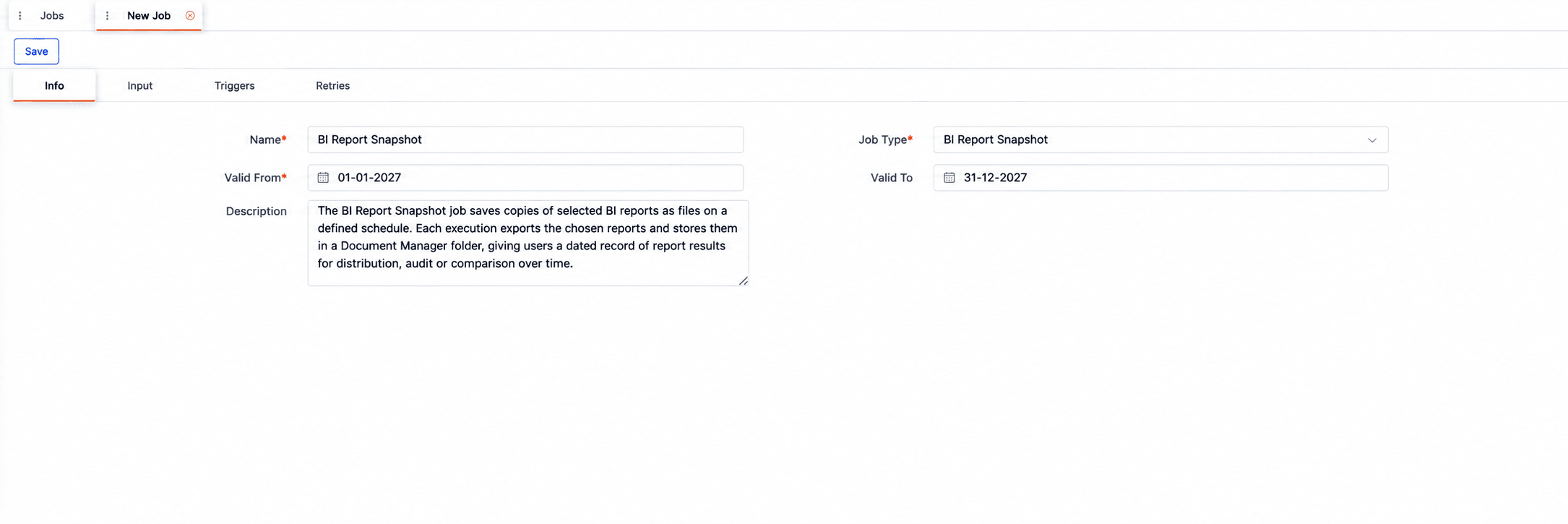
Overview
The BI Report Snapshot job saves copies of selected BI (Metabase) reports as files on a defined schedule. Each execution exports the chosen reports and stores them in a Document Manager folder, giving users a dated record of report results for distribution, audit or comparison over time.
Because BI reports usually show the current state of the data, a snapshot preserves what a report showed at a given moment, for example the end-of-day position or the month-end P&L, so it can be retrieved later even after the underlying data has changed.
Input Configuration
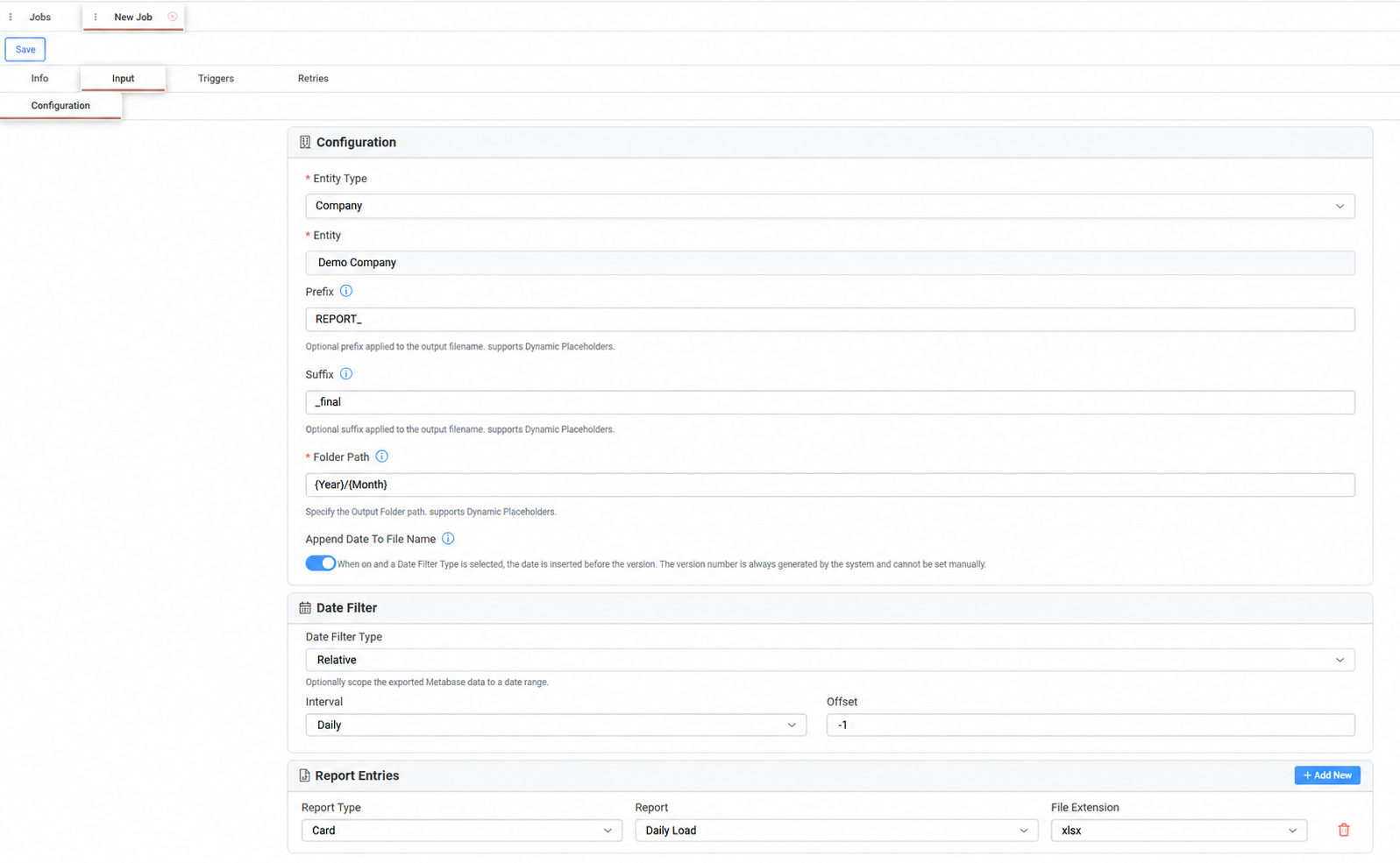
The Input tab contains a single Configuration sub-tab, arranged in three panels.
The Configuration panel defines where and how the files are stored. Users select the entity type and the entity to which the files belong, and the folder path in which they are saved, which by default organizes files by year and month. An optional prefix and suffix can be added to the file names. The folder path, prefix and suffix support dynamic placeholders, inserted by typing {, which can also be shifted with an offset, for example {Month-1} for the previous month. Each file is therefore named and filed automatically for the period it covers.
File names follow the pattern {Prefix}{ReportName}{Suffix}_{Date}_{Version}. The date is added only when Append Date To File Name is on and a date filter is selected, while the version number is always generated by the system and added last, so a repeated export never overwrites an earlier file.
The Date Filter panel optionally limits the exported report data to a date range. A relative filter selects a daily, weekly or monthly period and an offset from the execution date, for example -1 for the previous period, so each run exports the latest completed period. An absolute filter uses fixed start and end dates. Without a date filter, the reports are exported in full.
The Report Entries panel lists the reports exported by the job. Users add one entry for each report with Add New, selecting whether it is a single card or a full dashboard, the report itself and the file format of the export.
Appendix – Field Details
Field / Element | Required | Description |
|---|---|---|
Entity Type | Yes | Type of entity to which the exported files belong: Master Agreement, Asset, Order, Deal or Company. |
Entity | Yes | Entity to which the exported files belong. Searchable after an entity type is selected. |
Prefix | No | Text added at the start of the output file name, for example |
Suffix | No | Text added at the end of the output file name, for example |
Folder Path | Yes | Output folder in which the files are stored. Defaults to |
Dynamic Placeholders | – | Values inserted by typing |
Append Date To File Name | No | When on and a Date Filter Type is selected, the date is inserted in the file name before the version, in the format yyyyMMdd (yyyyMM for monthly XML reports). |
File Naming Convention | – |
|
Date Filter Type | No | None (no date filter), Relative or Absolute. Optionally limits the exported Metabase data to a date range. |
Interval | Conditional | Period of the relative date filter: Daily, Weekly or Monthly. Shown when Date Filter Type is Relative. |
Offset | Conditional | Period to export relative to the execution date: 0 is the current period, -1 the previous and +1 the next. Shown when Date Filter Type is Relative. |
Start Date | Conditional | First date of the exported data. Shown when Date Filter Type is Absolute. |
End Date | Conditional | Last date of the exported data. Shown when Date Filter Type is Absolute. |
Report Entries | Yes | Reports exported by the job, one row per report, added with Add New and removed with the delete icon. |
Report Type | Yes | Card or Dashboard. |
Report | Yes | Metabase card or dashboard to export. Available after a report type is selected. |
File Extension | Yes | File format of the export: xlsx, csv, json or xml. |